
MacBook overheating in Almaty is usually caused by dust-clogged vents, dried thermal paste or a failing fan, and only sometimes by a board fault. At iServices we run a free 15-minute diagnostic in front of you, then fix it while you wait, with a warranty up to 1 year.
Why a MacBook Gets Hot and Noisy with MacBook overheating
Heat and noise are two ends of one chain: the fan spins up because warmth cannot escape the chassis. Below we separate an ordinary warm case from a real fault, then trace where the extra degrees come from.
Service details: “MacBook Dust Cleaning”.
The Heat and Noise Chain From Dust to Throttling
A laptop gets hot and loud because trapped warmth forces the fan to spin faster, and once the chip hits its thermal limit it throttles to protect itself. Dust mats the fins of the radiator, so the blades push air against a clogged grille instead of through it; heat pipes carry thermal load from the processor to that radiator, and when airflow drops, the whole path backs up. The chip then drops its clock speed to stay inside a safe window, which is why export renders and long video calls start to stutter. MacBook overheating in Almaty often follows this same path, since fine dust builds up faster than owners expect. Throttling is silent — the machine does not warn you, it simply slows down. If the blades are audible during light work, treat the cooling path as suspect before blaming the app.
Why the Fan Runs Loud Even at Idle
A fan that roars at idle almost always points to a physical cause — packed dust on the radiator or dried thermal paste — rather than a heavy background app. Thermal paste dries out over the years, loses contact with the chip die and stops moving warmth into the heatsink, so the blades run at full tilt with nothing to cool. In our practice we open the case, show the customer the dust mat and the cracked paste, and explain what each one does before touching anything. Before opening the case, check Activity Monitor for a runaway process; if CPU load is low and the noise is still there, the cause sits inside the cooling path, not in software. Photograph the screen with the load graph visible — that snapshot saves guesswork at the bench.
What Constant Heat Does to the Battery and Board
- Battery wear: lithium cells lose capacity quicker above their comfort range, so runtime drops long before any warning appears.
- Solder fatigue: repeated hot-cold cycles stress joints on the logic board, and intermittent faults follow months later.
- Swollen cells: an ageing battery can expand and press on the trackpad or bottom case, which then needs replacement.
- Throttled performance: the chip keeps clocking down to stay safe, so everyday tasks feel slower than the hardware suggests.
Normal Warmth or Real MacBook Overheating Signs
Every MacBook warms under load, and a spinning fan is part of the design. The real question is where ordinary warmth ends and a fault begins — here is how to tell the two apart.
What Counts as a Normal Operating Temperature
A MacBook is designed to run warm under load, and the fan engaging during heavy work is normal behaviour, not a fault on its own. Video export, large Xcode builds and long calls push the chip into its upper range, the blades ramp up to move warmth out, and the machine keeps working. Throttling is the next layer of that protection: when the chip approaches its ceiling, it lowers clock speed to stay safe, so a short slowdown during a render is expected. The behaviour that matters is recovery — once the workload drops, airflow should quieten and responsiveness should return within a minute or two. Judge by behaviour, not by touch: if the machine stays responsive and the cooling settles after the task ends, the temperature is within design limits.
Warning Signs That Point to a Fault
- Shutdowns from heat: a laptop that powers off mid-task is hitting its thermal limit, not simply running warm.
- A fan that never stops: audible airflow at idle or during browsing means warmth is not leaving the chassis.
- Slowdowns under light tasks: lag in Mail, Safari or Notes points to throttling without real workload.
- Sudden frame drops: stutter in video or scrolling that clears only after the machine cools.
- Overheating in minutes: the shell becoming uncomfortable shortly after light use, well before any heavy job.
When a Hot MacBook Shuts Itself Down
A MacBook that powers off from heat is at its thermal limit, and at iServices we treat repeated shutdowns as a priority case for the free diagnostic. An engineer checks the device in front of you and shows what is broken — the whole inspection takes 15 minutes, even if you decide not to repair. These cases usually trace back to a blocked fan, dried paste or a battery swelling against the board. Shutdown is the last safety net, not the first symptom — by the time it happens, dust or paste has usually been degrading cooling for a long while. Bring the machine in before the next power-off: a swollen battery pressing on components is cheaper to catch early than after it warps the chassis.
Cleaning, Thermal Paste and the Fan in MacBook Overheating
Three different jobs solve three different symptoms here. Which one fits your machine depends on how the warmth and the noise started.
What Dust Cleaning Actually Fixes
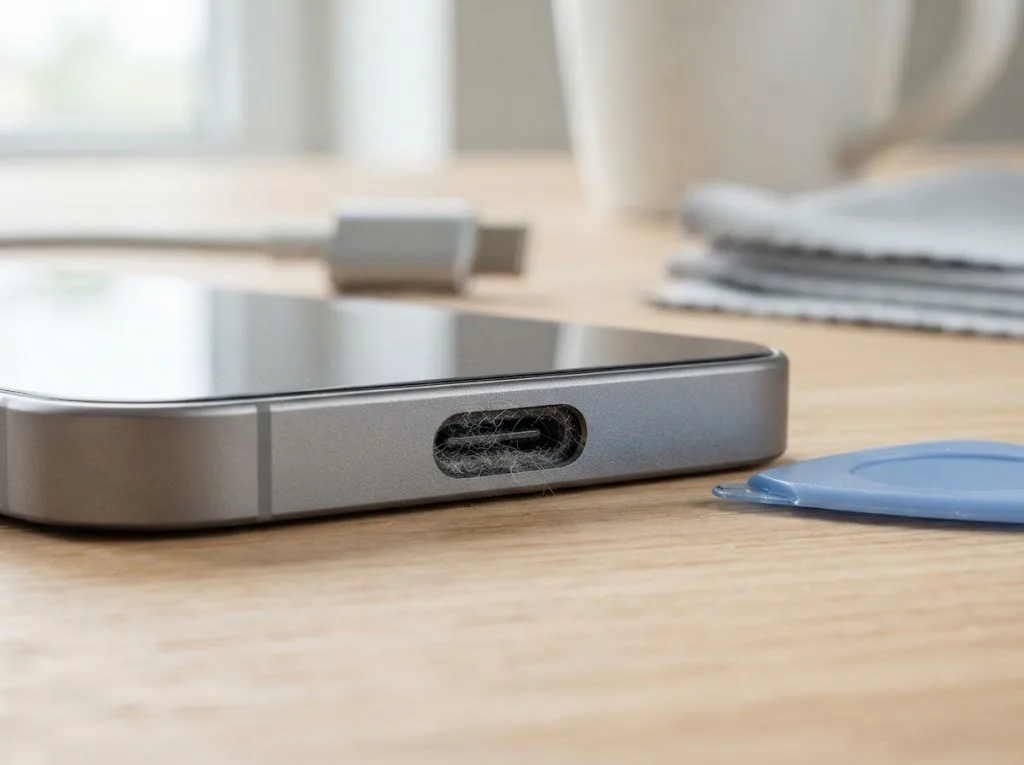
Dust cleaning restores airflow through the radiator and vents, and it is the first thing we check when a MacBook runs hot and loud. A thin mat of lint builds up between the aluminium fins over months, and each clogged gap pushes the fan to spin faster for the same cooling. We open the bottom cover, blow out the passages, clear the blades and confirm that air moves freely again. On most machines this alone drops idle fan speed and brings temperatures back toward normal. It helps most when the machine was fine before and got louder over months — a gradual decline points to a blockage, while a sudden change points elsewhere.
How to Tell You Need New Thermal Paste
The compound between chip and heatsink dries out over years and stops transferring warmth, so a unit that stays warm after a clean usually needs a fresh layer. Once it hardens into a chalky crust it traps energy instead of moving it into the copper heat pipes. A telltale sign is a machine that idles warm and reaches high temperatures fast under light load even though the passages are clear. Replacing it means lifting the heatsink, removing the old residue with a solvent, and applying a thin, even layer before reseating the screws. Clearing the radiator and renewing the compound are separate jobs — a clear stack of plates with hardened residue still overheats, which is why the two are often done together.
Comparing the Three Cooling Jobs
| Job | What it targets | Typical symptom | When it is the fix |
|---|---|---|---|
| Dust cleaning | Radiator and vents | Gradual heat and noise | Airflow blocked by dust |
| Thermal paste replacement | Chip-to-heatsink contact | Warm after a clean | Layer dried out |
| Blower replacement | Worn bearing or blades | Grinding or constant roar | Mechanical wear |
When Cleaning Stops Being Enough for Your Laptop
Sometimes a clean fan and fresh thermal paste are not enough. This section shows how to recognise a deeper fault, what a service checks to tell the two apart, and how component-level repair works.
Signs the Problem Is on the Board
If the laptop still overheats and shuts down after a proper clean and paste change, the culprit is likely the logic board rather than the cooling path. A damaged power delivery chip, a failing sensor or a cracked solder joint can generate heat that no amount of dusting will remove. The pattern matters more than the temperature itself: warmth that returns within days, shutdowns under the same load, or a fan that ramps to full speed seconds after login all point away from dust. Such faults often show as heat concentrated in one spot or as instability under load, not as a uniformly hot chassis — where the warmth sits is the clue. Note which part of the base gets hottest after twenty minutes of use and tell the engineer; a single hot region near the charging circuit reads very differently from warmth spread across the whole underside.
What a Service Checks to Decide
At iServices the engineer runs a free 15-minute diagnostic in front of you and shows what is broken before any work starts. The check separates three possibilities: clogged cooling that needs a proper clean, dried paste that needs replacing, or a defect that needs soldering. The engineer watches fan behaviour under load, reads the temperature sensors, inspects the logic board for corrosion or heat marks and tests the charging circuit. Seeing the problem on the spot matters — it separates a genuine board issue from a cooling job that just needs doing properly. If you decide not to go ahead, the diagnostic still costs nothing, and you leave knowing which of the three problems you actually have instead of guessing.
Board Repair Under the Microscope
When the fault is on the logic board, we repair it under a microscope, and this kind of job usually takes 1 to 3 days. A microscope lets the technician find micro-cracks, lifted pads and shorted chips that a visual check misses, then reflow or replace them without disturbing neighbouring parts. Because of that precision the job is planned rather than done on the spot: the price, the part, the turnaround and the warranty are fixed on the receipt before work begins, and you see the replacement in its factory packaging first. Microscope work is slower by nature, so a repair like this is scheduled ahead — if you need the device back the same day, say so at drop-off and the engineer will tell you honestly whether the timeline allows it.
Intel and Apple Silicon Behave Differently
Intel and M-series MacBooks warm up in different ways, and knowing which one you own changes what to expect from the same symptoms.
How Intel MacBooks Heat Up
Intel MacBooks run hotter and lean on active cooling more, so dust and dried thermal compound surface as warmth and noise sooner on these machines. The 13-inch and 16-inch MacBook Pro bodies from the Intel era push a dedicated blower hard because the chip itself draws more power and dumps more waste heat into a thin chassis. Over months, the radiator fins clog with dust and the thermal paste between the chip and heatsink dries into a chalky layer. That combination chokes airflow and forces the impeller to spin faster to compensate, which is the roar you hear during a video call or a browser with twenty tabs. A laptop that was quiet for years and suddenly ramps up under light load is a classic dust-and-paste case, because its cooling margin is thinner and any blockage shows immediately.
Why Apple Silicon Runs Cooler but Still Warms
Apple Silicon chips are more efficient and often fanless, but they still warm under sustained load and can throttle when cooling is blocked. An M1, M2 or M3 processor does the same job at a fraction of the power, so the Air runs without a blower at all and the Pro models spin theirs only under real pressure. Warmth during video export, long compile runs or a stack of browser windows is normal behaviour, not a fault. Throttling is the part to watch: when the chip cannot shed its temperature, it drops clock speed and the whole machine feels sluggish. A fanless Air that gets hot during video work is expected; one that slows to a crawl points to a cooling or board issue worth checking.
Matching the Symptom to the Model
| Model family | Fan behaviour | Common heat cause | What to expect |
|---|---|---|---|
| Intel Pro/Air | Fan spins early and loud | Dust and dried paste | Cleaning and paste help most |
| Apple Silicon Pro | Fan ramps under load | Blocked airflow | Cleaning restores headroom |
| Apple Silicon Air | Often fanless | Sustained load | Warmth is normal, slowdown is not |
Getting It Fixed in Almaty
This part walks through what actually happens between your first message and the moment you collect the laptop, and how the local logistics work for anyone in the city.
From WhatsApp Photo to Fixed MacBook
You send a photo of the damage on WhatsApp, an engineer replies within 5 minutes with a price, and the price, part, turnaround and warranty are locked onto the receipt ahead of any labour. From that first contact, one of our technicians reads the image, asks two or three questions about the symptom — fan noise at idle, shutdowns under load, a hot palm rest — and names a free time slot the same day. On arrival the free diagnostics take 15 minutes in front of you, and the engineer points at the clogged heatsink or the dried paste rather than describing it in the abstract. Terms written on paper ahead of any labour are what make the estimate binding — nothing changes mid-repair without your agreement.
How Long It Takes and What You Get Back
Most cooling jobs finish while you wait, laptop repairs run from 1 hour to 1 day, and 72% of repairs are done while the customer waits. Board-level work under the microscope stretches to 1–3 days, and after water damage diagnostics can sometimes take up to two days before we commit to a plan. While you sit in the waiting area with coffee and Wi-Fi, the new fan or thermal module is shown to you in its factory packaging ahead of installation. After the job we run a 32-function check for about 10 minutes — speakers, microphones, charging, network, True Tone — and you go through the results together with the engineer. Staying on site means you see the replacement part in its factory packaging and verify the functions yourself afterwards.
Courier, Hours and Choosing a Service
- Courier pickup: a courier across the city takes 90 minutes and is free with a repair, so a busy week does not delay the fix.
- Opening hours: we accept devices 7 days a week — Mon–Fri 10:00–19:00, weekends and holidays 11:00–18:00.
- Direct contractor: our own technicians and workshop handle the job, not an aggregator or a middleman reselling it.
- Waiting share: 72% of repairs are completed while the customer stays on site, with the old part returned alongside the receipt and warranty card.
- Diagnostic proof: we show you the fault and fix the terms on paper before any work starts, so you see exactly what is being repaired.
Summary: MacBook overheating
A hot, loud MacBook is rarely a mystery once you separate the symptom from the cause — and the remedy is usually simpler than the fear suggests. Here is what matters most.
- Start with the obvious: heat and noise usually trace back to dust, dried paste or a worn fan, and only sometimes to the board.
- Read the warning signs early: a cooling unit that never quiets, throttling in light tasks and sudden shutdowns all point to a fault worth checking.
- Match the remedy to the symptom: a dust clean helps airflow, fresh thermal paste helps heat transfer, and a failing spinner needs replacement.
- Treat Intel and Apple Silicon differently: the older chips run hotter by design, so the same noise means different things on each.
- Act on the first warning signs: cooling problems are far easier and cheaper to resolve early than after repeated shutdowns stress the battery and board.