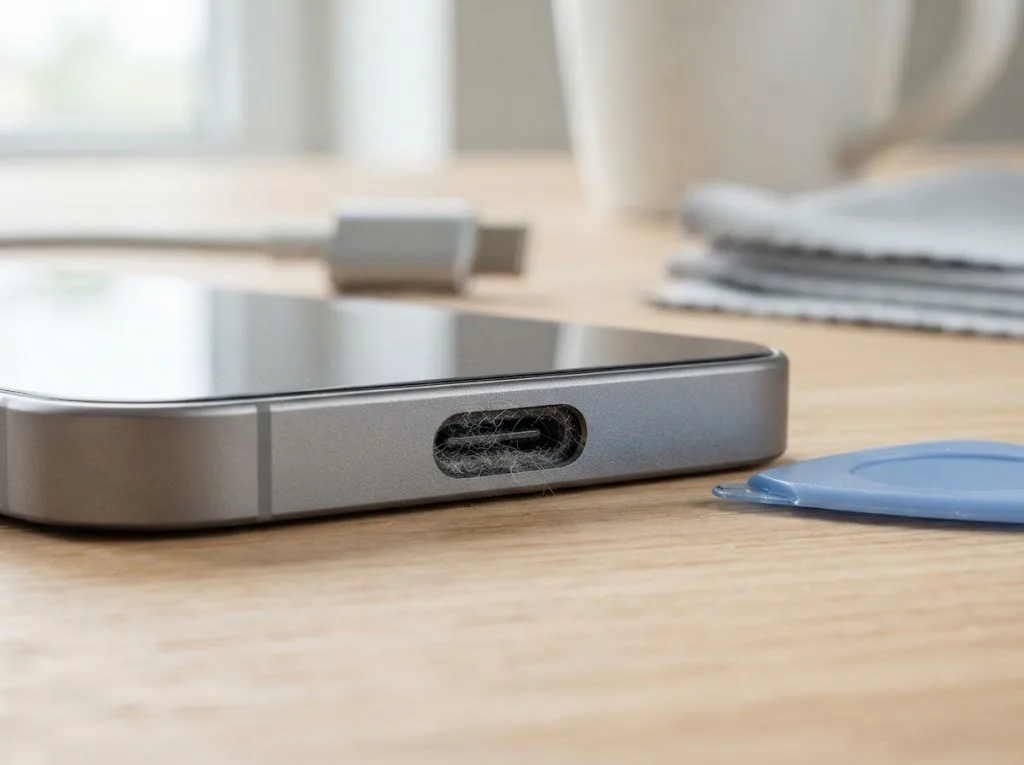

If macOS shows Service Recommended, your MacBook battery has likely dropped below roughly 80% of its original capacity or passed its rated cycle count, and it is time to plan a replacement. In Almaty, iServices diagnoses the battery free in front of you in 15 minutes and swaps it in about 25 minutes with a warranty up to 1 year.
What Service Recommended Tells You About Replace MacBook Battery
The message in your settings is not a verdict and not an order to rush anywhere — it is macOS telling you the battery has drifted outside its factory parameters.
Service details: “MacBook Battery Replacement”.
What the macOS warning means in plain words
Service Recommended appears when macOS detects the battery no longer meets its original performance specification, usually through reduced capacity or a high cycle count. The system tracks two figures: how much charge the pack still holds against its design capacity, and how many full cycles it has been through. Once either crosses the threshold, the battery menu swaps its "Normal" status for the service note. It is a measurement, not a failure — the cells still charge and discharge, they simply hold less than at the moment the machine left the factory. On most MacBooks this happens gradually, over hundreds of cycles, so the label usually arrives long after the first small drop in runtime. The warning is a threshold, not a countdown — many machines keep working for months after it appears, but the fall in runtime tends to accelerate once capacity passes that line.
When the message is normal and when it is a call to act
A warning on a three-year-old MacBook used daily is expected wear, while the same message on a newer machine after heavy use points to a battery that has aged faster than its calendar age. Heat is the usual accelerant: rendering, video calls and gaming keep the pack warm for hours, and a battery that spends its life above comfortable temperatures loses capacity ahead of schedule. Charging habits matter too — a machine that sits plugged in at full charge most of the day wears differently from one that cycles between twenty and eighty percent. Judge by behavior, not the label — if you still get a full working day and no shutdowns, you can plan the swap on your schedule instead of reacting to the message.
Three signs the warning has become a real problem
- Runtime collapse: a machine that lasted a full working day now dies after two or three hours of light browsing.
- Shutdowns before empty: the MacBook cuts off at thirty or forty percent, or refuses to wake until plugged in.
- A bulging case: the bottom panel or trackpad sits uneven, or the lid no longer closes flush — stop using it.
Reading Battery Health Before You Replace MacBook Battery
Two numbers in macOS give an objective picture of the cell: maximum capacity and cycle count. Here is where the line between still fine and time to replace actually runs.
Where to find health percentage and cycle count
Open System Settings, go to Battery, and read the Battery Health section, where macOS shows maximum capacity as a percentage and the cycle count for the pack. On older builds the same data sits under About This Mac, then System Report, then Power. Maximum capacity compares current full-charge capacity to the figure the cell held when new, so 100% means factory condition and lower values track chemical wear. Cycle count adds up full discharge-and-recharge rounds, not plug-in events — two half discharges make one round. Both readings update as the unit ages, and macOS recalculates them after each calibration. Check the pair twice a few weeks apart rather than once: a single reading tells you where you are, but the rate of decline tells you how fast you are heading toward replacement.
The capacity and cycle numbers that mean replace
| Reading | What it suggests | Next step |
|---|---|---|
| Above 85% capacity, low cycles | Healthy cell, normal wear | Keep using, recheck later |
| 80–85% capacity | Early wear, watch the trend | Track drain and shutdowns |
| Below 80% capacity | Worn out by the standard threshold | Plan a replacement |
| Past the rated cycle count | Cycle life used up | Plan a replacement |
Why the numbers alone do not decide it
We see MacBooks at the threshold that shut down daily and others just under it that still run a full day, so the reading is a guide, not a verdict. A unit that drops ten points in a few months is aging faster than one sitting at the same figure for a year, and the speed of decline matters more than the snapshot. Our free diagnostics take 15 minutes in front of you: the engineer reads the cell, checks how it holds charge under load and inspects the charging path for a worn cable or adapter. Bring the actual behavior to the diagnosis — how long it lasts, when it shuts down, whether it charges fully — because those symptoms point to whether the pack or the charging path is the real issue.
Fast Drain When You Should Replace MacBook Battery
Fast drain does not always mean a worn battery. We walk through how to tell a tired cell from a charger, port, or power-management fault before you pay for a replacement.
Symptoms that point to the battery itself
A battery that drains evenly but quickly, loses charge while asleep, and shows low capacity in settings is usually the worn cell itself rather than the electronics around it. The tell is the shape of the decline: a steady fall across the whole range, from 100 percent down through the middle, tracks with chemical wear inside the cells. Sleep drain is the second clue — a healthy MacBook loses only a few points overnight, while a tired one can shed a large chunk with the lid closed and nothing running. Cross-check the capacity figure in System Settings against how the machine behaves on a normal workday. Watch how the percentage falls — a smooth, fast decline across the whole range suggests wear, while a sudden drop from a specific number points elsewhere.
Symptoms that point to the charger or power controller
If the MacBook will not charge at all, charges only at certain angles, or shuts down at a fixed percentage regardless of load, the charger, port, or power-management chip is the more likely cause. A cable that needs wiggling, a MagSafe or USB-C connector that clicks in only one position, or a brick that runs warm without delivering charge all point to the supply side. Shutdowns at the same number every time — always 40 percent, always 12 percent — are a signature of a controller misreading the cells rather than cells that are actually empty. Swapping the battery in this case fixes nothing — the fault returns, which is why a proper diagnosis checks the charging path before recommending a new part.
How a proper diagnosis separates the two
We run a free 15-minute diagnosis in front of you, checking the battery, the charging path, and the chip so the recommendation matches the real fault. The engineer reads cycle count and capacity, then loads the machine and watches how voltage behaves under draw while you stand at the counter. A charger and port get tested with a known-good supply; a fault in the power-management chip shows up as irregular readings that no healthy cell would produce. If that chip is involved, board-level work under a microscope is the honest fix, and we tell you that before touching the battery rather than after. You see the readings yourself, so the choice between a new cell and board repair rests on evidence, not guesswork.
Swollen Battery Why You Must Act Now
Swelling is the one battery symptom that will not wait for a convenient moment. Here is how to spot it, why it is a safety matter rather than a performance one, and what to do first.
How to recognize a swollen battery
A swollen battery shows as a trackpad that no longer clicks flat, a lid that does not close evenly, a bulging bottom plate, or a wobble when the MacBook sits on a desk. The cell expands inside a closed aluminium shell, so the pressure has nowhere to go but outward — into the trackpad, the palm rest and the underside. On models with a glued cell, the first sign is often a trackpad that feels stiff or sits slightly raised on one side, while the lid may refuse to shut flush against the chassis. The bulge can appear gradually and stay hidden under the housing, so a sudden stiff trackpad is often the first visible clue rather than an obvious lump. Run a finger along the seam between the top and bottom halves: an uneven gap on one side deserves a closer look before anything becomes visible from above.
Why it is dangerous and what not to do
- Do not press the bulge back: pushing on a swollen lithium cell can puncture it and turn a slow deformation into a fire risk.
- Do not keep charging it: current feeds the gas buildup and adds heat, which pushes a failing cell toward a short.
- Do not use it on a soft surface: a blanket traps warmth under the housing and cuts the airflow the unit needs to stay stable.
- Do not open the housing yourself: a swollen pack sits under tension, and unclipping the bottom plate can release it against your hands.
What to do first in Almaty
Stop charging the MacBook, power it down, and bring it in or send a photo on WhatsApp, where an engineer replies within 5 minutes and books a free slot. Keep the laptop flat and unplugged on the way, and skip the bag if the chassis has already started to bow. A swollen pack is replaced the same way as a worn one, but we check the frame and nearby parts for pressure damage first, since a bulge can bend the metal before the battery is even removed. If travelling across the city is awkward, a courier can be called and collects the device at your address. In our practice, the engineer opens the MacBook in front of you during free diagnostics and shows exactly where the cell has expanded, so you see the damage before any work is agreed.
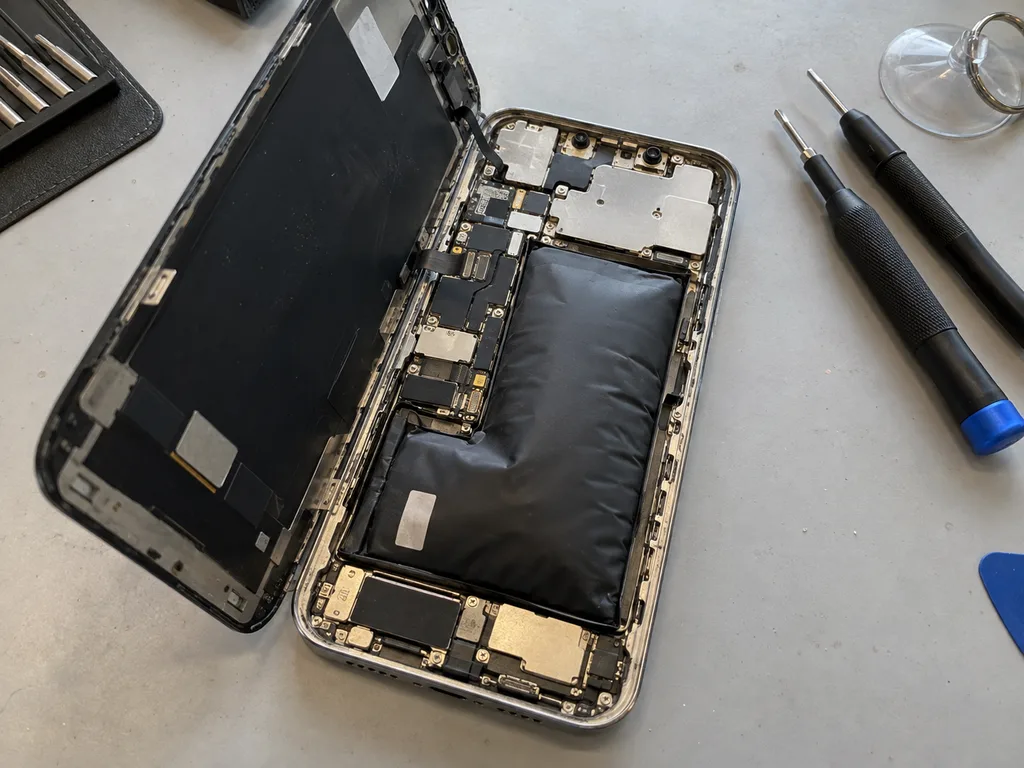 Before: the battery is swollen
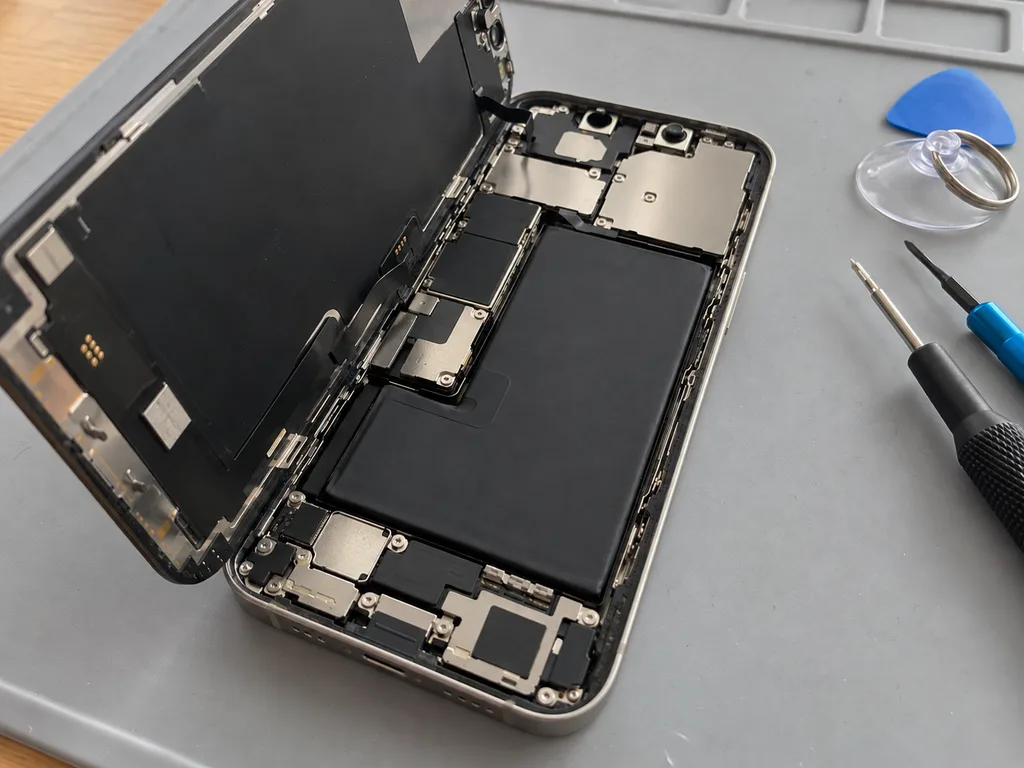 After: a new battery
Original Part or Aftermarket and What It Changes
The component you fit affects how long the pack lasts, how macOS reads its condition, and what the warranty covers. Below is a comparison across the parameters that matter in a real replacement.
What actually differs between the two
| Parameter | Original | Aftermarket |
|---|---|---|
| Cell and controller | Matches stock behaviour | Varies by supplier |
| Reported capacity | Stays stable over time | May drift after months |
| Calibration | Reads correctly from day one | Can need re-calibration |
| Runtime under load | Predictable across the charge | Often drops faster near the end |
How to choose for your usage
We lay out both options with their trade-offs, and 64% of our customers pick the original part, usually if the MacBook is a daily work machine they plan to keep. The compatible route stays open for anyone weighing cost against remaining service life. An engineer shows the new pack in its sealed packaging before installation, so you see exactly what goes in. The decision rests on your ownership horizon rather than on the price difference alone. Match the choice to how long you intend to keep the laptop — a machine heading for replacement in a year rarely justifies the premium option, while a work device does. Ask yourself one question before deciding: will this laptop still be your main machine after a couple more years of work?
What the warranty covers on each
Every replacement we do carries coverage up to 1 year, and the component, turnaround, and terms are fixed on the receipt before work starts. Both the original and the compatible option fall under the same conditions, so the choice does not shorten the guarantee period. We hand back the old cell together with the receipt and warranty card, and the paperwork states which battery was fitted. That record matters if a claim ever comes up. Keep the receipt and card together with the spent module we return — the documents are what make a claim quick instead of a debate about what was agreed.
DIY or Service Visit Where the Line Is
Some steps you can take on your own without opening the laptop, while the physical swap needs tools and a steady hand. Here is where that line sits and how a visit runs if you hand the job over.
What you can safely do yourself
- Health and cycle check: open System Settings and Battery to read the current maximum capacity and cycle count before you decide anything.
- Calibration cycle: run the MacBook to full, then down to shutdown, then top up again to let the readings reset.
- Charging habits: keep the laptop between roughly 20% and 80% for daily desk work and avoid leaving it plugged in for days.
- Backup: save a full copy to an external drive or cloud before any repair, so data survives whatever happens next.
Where DIY becomes risky
Opening a modern MacBook means dealing with adhesive, tight connectors, and a battery that can be damaged or punctured if pried the wrong way. The cells sit under a thin aluminium shell with ribbon cables routed close by, and the adhesive strips holding them down need controlled heat and a plastic card rather than a metal blade. A slipped pry on a lithium unit is the difference between a simple swap and a case or board repair — punctured cells can vent, and a torn trackpad or keyboard cable adds a second fault to the same visit. If you are unsure when to replace MacBook battery in Almaty, this is the point to stop and hand the job over.
How the visit runs and how long it takes
A battery swap usually takes about 25 minutes while you wait, and 72% of our repairs finish in the waiting area with coffee and Wi-Fi. You send a photo of the device on WhatsApp, an engineer replies within 5 minutes with a price and a free slot, and the part, turnaround and warranty are fixed on the receipt before work starts. The new battery is shown in factory packaging, then after the swap you check charging, speakers and network with the engineer. The whole visit from first contact to pickup is usually under an hour, and a courier across Almaty takes 90 minutes if you would rather not come in.
Calibrating and caring for the new pack
A fresh battery needs one full charge and discharge to calibrate its readings, then normal use keeps the health estimate accurate. Run the laptop down to shutdown once, top it back up without interruption, and the percentage the system reports will track real capacity instead of the old cell's memory. After that, avoid leaving the MacBook plugged in at 100% for weeks and keep it out of hot cars — heat and constant top-off current are what shorten a fresh battery's life the fastest. On a desk, a partial top-up between 20% and 80% most days adds years compared with a laptop that sits on the charger around the clock.
Summary: When to replace a MacBook battery
The decision comes down to readings, symptoms and timing. Below are the points worth carrying with you as you weigh a replacement.
- Plan, do not panic: the Service Recommended message is a threshold rather than an emergency, yet it is the moment to start budgeting for a replacement.
- Read the numbers together: capacity and cycle count give the objective picture, while runtime and unexpected power-offs show how pressing the matter is.
- Rule out the charger first: fast drain can come from the adapter or controller, so diagnosis separates wear from an electrical fault.
- Treat swelling as a red flag: a swollen pack is no longer a maintenance question but a safety one, so stop using the machine and have it checked.
- Match the part to your plans: choose between original and aftermarket by how long you intend to keep the machine, since a longer horizon makes the pack pay back.