
If you forgot your iPhone passcode in Almaty, check for a recent iCloud or computer backup before any reset, because a reset without a backup wipes photos and messages. At iServices, an engineer runs a free 15-minute check in front of you and explains whether your data is recoverable before you decide anything.
What to do the moment you forgot iPhone passcode and got locked out
Panic is the wrong first move. Before erasing anything, run three quick checks, read the exact message on the screen, and only then decide whether a reset is even necessary.
Service details: “Apple ID (iCloud) Unlock”.
First three checks before you reset anything
Confirm that Face ID is failing only because the phone is demanding the passcode, and not because the sensor itself is damaged. Watch whether the handset is simply restarting after a crash rather than sitting locked. Write down the exact wording on the display, since "iPhone Unavailable" and a plain passcode prompt mean different things. Try the obvious four- and six-digit codes you may have changed recently, including an old PIN reused on a newer model. If a family member set the phone up, ask them before you go further. The on-screen message tells you how many failed attempts remain and whether a timed lockout is already running, so read it carefully rather than tapping at random.
What the lockout timer and failed attempts mean
iOS escalates lockouts after repeated wrong entries, moving from a one-minute pause to hour-long waits and eventually an "iPhone Unavailable" notice that only a reset clears. On current iOS versions the system allows a limited number of guesses before the first timed pause appears, and each further mistake pushes the next window longer. The display may show "Try Again in 5 minutes", "Try Again in 15 minutes", "Try Again in 1 hour", or a permanent unavailable state with no timer at all. Once you see that final state, guessing is pointless. Each additional wrong guess lengthens the next pause, so tapping faster makes the wait worse — stop, set the handset down, and plan the wipe instead.
Recovery Mode explained in plain terms
Recovery Mode is a special boot state that lets a computer talk to the iPhone and erase it when the passcode is unknown, and it needs a cable plus a Mac or PC. In this state Finder on macOS or iTunes on Windows detects the handset and offers to restore it, which wipes the passcode along with everything stored on it. The button combination differs by model: on Face ID phones you press and release volume up, then volume down, then hold the side button until the computer icon appears. There is no reliable way to bypass the passcode on the phone alone — every legitimate route ends in an erase, so the real question is whether a backup exists.
Will your photos and messages survive a forgot iPhone passcode reset
The biggest fear behind a locked screen is losing years of photos and conversations. Here is the honest breakdown of when your data is recoverable and when it is gone for good.
When a backup saves your data and when it does not
Your data survives a reset only if a recent iCloud or computer copy exists. Without one, the erase wipes photos, messages, app data and settings permanently, because the encryption key that unlocks them sits behind the passcode you no longer have. An iCloud copy created while the phone was charging on Wi-Fi holds the same content a Finder or iTunes snapshot stores on a Mac or PC, so either route restores the same set of files. The catch is timing: a copy made weeks ago restores the phone to that date, not to today. Before you assume everything is safe, open Settings and check the timestamp under the iCloud copy line — anything older than a few days means recent photos and chats taken since then will not come back.
No backup and no remembered Apple ID
With no backup and no access to the Apple ID, the honest answer is that the on-device data cannot be recovered by anyone, because the encryption key lives behind the passcode. This is not a limitation of a tool or a workshop — it is how the hardware is built, and no cable, software or specialist can bypass it without the credentials. The situation differs from Activation Lock, which is tied to the Apple ID rather than the screen code, so a locked screen with a working Apple ID is a far easier case than a locked account on top. Once the data is confirmed unrecoverable, the practical goal shifts from saving files to getting a working phone back and re-adding accounts, contacts and photos from other sources.
Data recovery options compared
| Situation | What happens to data | What you can do |
|---|---|---|
| Recent iCloud backup exists | Restored to the backup date | Erase, then restore from iCloud |
| Recent computer backup exists | Restored to the backup date | Erase, then restore via Finder or iTunes |
| No backup, Apple ID known | Data lost on the phone | Erase, set up fresh, re-add accounts |
| No backup, Apple ID lost | Data lost, device stuck | Recover the Apple ID first |
Forgot iPhone passcode or Activation Lock which one is blocking you
Two different locks get confused all the time, and the fix for each is nothing alike. Telling them apart first saves you from erasing a phone you did not need to erase.
The screen passcode versus Activation Lock
A forgotten screen passcode locks the home screen and clears with a wipe, while Activation Lock ties the device to an Apple ID and survives a wipe until that account is removed. The passcode is the four- or six-digit number you type on the lock screen every day; a wipe erases it along with the data behind it. Activation Lock sits one layer deeper, in Apple's servers, and it reattaches to the handset the moment the phone comes back online after an erase. That is why a full wipe can leave you staring at the same wall in a different colour. If you forgot your iPhone passcode in Almaty and the screen only shows the disabled message, you are dealing with the passcode alone. If the phone asks for an Apple ID and password after the erase, you are past the passcode problem and into Activation Lock territory.
Bought a used iPhone that is locked
A used iPhone locked to the previous owner's Apple ID cannot be unlocked by a repair shop, because only that account holder can release Activation Lock. That restriction is bound to a server-side record, not to a chip a technician can swap or reflash. No board-level work and no software tool can break that link — the seller has to sign out of iCloud themselves, or remove the device from their account through iCloud Find My. Buyers across Almaty hit this most often on second-hand marketplaces, where a phone arrives clean and then locks after the first update or restore. Before buying used, ask the seller to sign out of iCloud in front of you — that single step prevents almost every locked-device dispute.
Quick way to tell which lock you have
| What you see | What it means |
|---|---|
| "iPhone Unavailable" or "Security Lockout" with a timer | Screen passcode lock, clears with a wipe |
| "iPhone is Disabled, connect to iTunes" | Passcode lock, a wipe restores access |
| Apple ID and password prompt after an erase | Activation Lock, needs the account owner |
| "Activation Lock" banner during setup | Activation Lock, tied to a previous Apple ID |
Reset routes compared for iCloud computer Recovery Mode
Three legitimate reset routes exist, and each has its own conditions and consequences for your data. Choosing the right one depends on where your backups live and whether the device still trusts your Apple ID.
Erasing through iCloud Find My
If the iPhone is signed in to your Apple ID and online, Find My on the web can erase it remotely without a cable, and it can restore from a cloud backup afterward. The web interface reaches the handset over Wi-Fi or mobile data, so the phone must be powered on and connected at the moment you send the command. Erasure removes the screen passcode together with all local content, then walks you through setup, where you sign back in and pick the most recent iCloud snapshot. How current that snapshot is decides whether your messages and photos return. This route only works while the device still trusts your Apple ID — if it is offline or signed out, iCloud cannot reach it. Check the snapshot timestamp in Settings before you erase, because a stale copy restores an old state and the gap is unrecoverable.
Using a Mac or PC with Finder or iTunes
A computer with Finder or iTunes can put the iPhone into Recovery Mode and erase it, which is the fallback when iCloud cannot reach the device. You connect the handset by cable, press the volume and side buttons in sequence until the recovery screen appears, then confirm the restore on the computer. Finder on macOS and iTunes on Windows download the current firmware and wipe the lock along with the data. The computer route also lets you restore from a local backup, which is often more recent than the iCloud copy. A laptop that syncs regularly usually holds fresher messages than a phone that backs up over Wi-Fi once a week. Keep the cable connected through the whole download, since an interrupted restore leaves the device stuck on the recovery screen.
Reset methods side by side
| Method | What it needs | Data outcome |
|---|---|---|
| iCloud Find My | Signed-in Apple ID, online device | Erase, then iCloud backup restore |
| Finder on Mac | Cable, macOS, current firmware | Erase, then local or iCloud restore |
| iTunes on Windows | Cable, iTunes, current firmware | Erase, then local or iCloud restore |
When to handle it yourself and when to bring it in
Most passcode-lock cases are solved at home in under an hour. The rest are not really passcode problems at all, and that is where a technician changes the outcome.
What you can safely do at home
At home you can check for a saved copy, try iCloud Find My, and run a computer wipe — these cover most lockout cases without outside help. Start with iCloud: open Find My on another device, select the locked iPhone and choose Erase This Device, which wipes the handset and lets you set it up again with your Apple ID. If Find My is off, connect the phone to a Mac or PC and use Finder or iTunes recovery mode instead. Before you erase anything, confirm the last iCloud backup date under Settings on a linked device — a backup from last night restores photos and messages, one from three months ago does not. If none of these work because the handset is offline or the Apple ID is unknown, further attempts will not change the outcome.
When a service visit actually helps
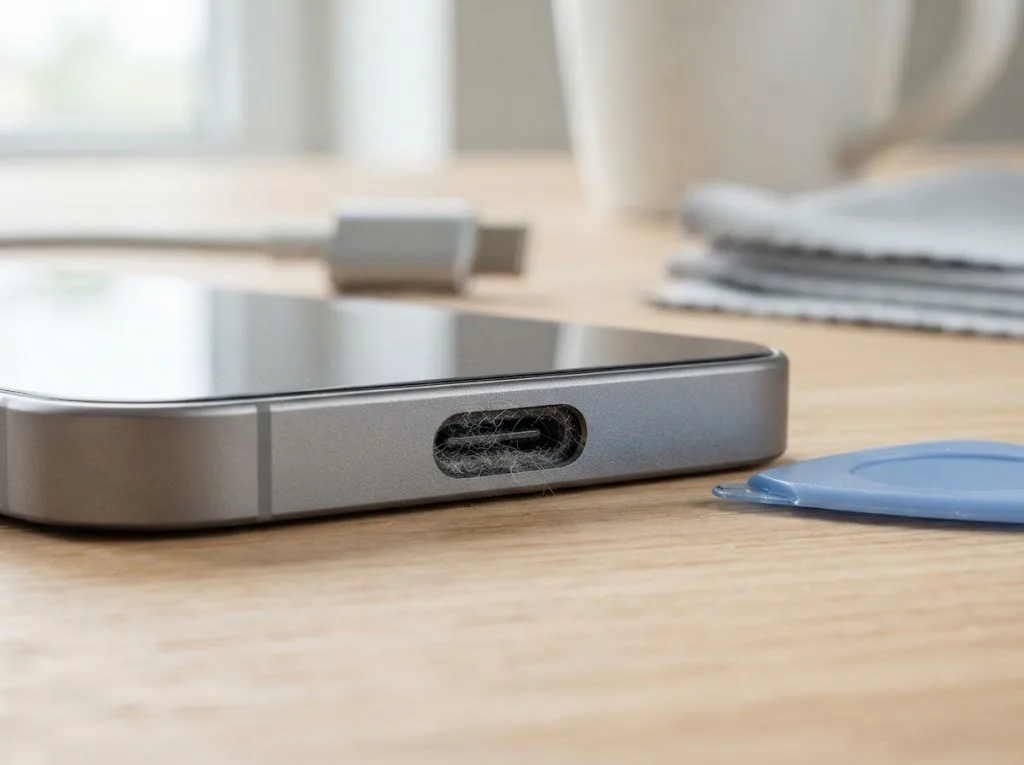
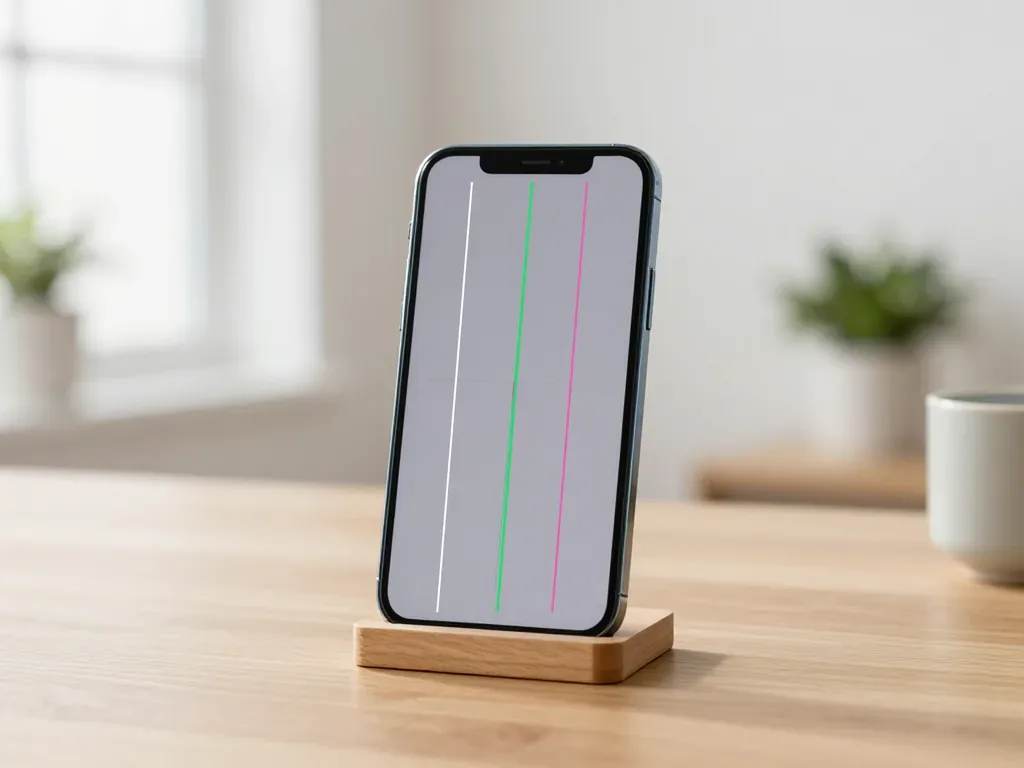
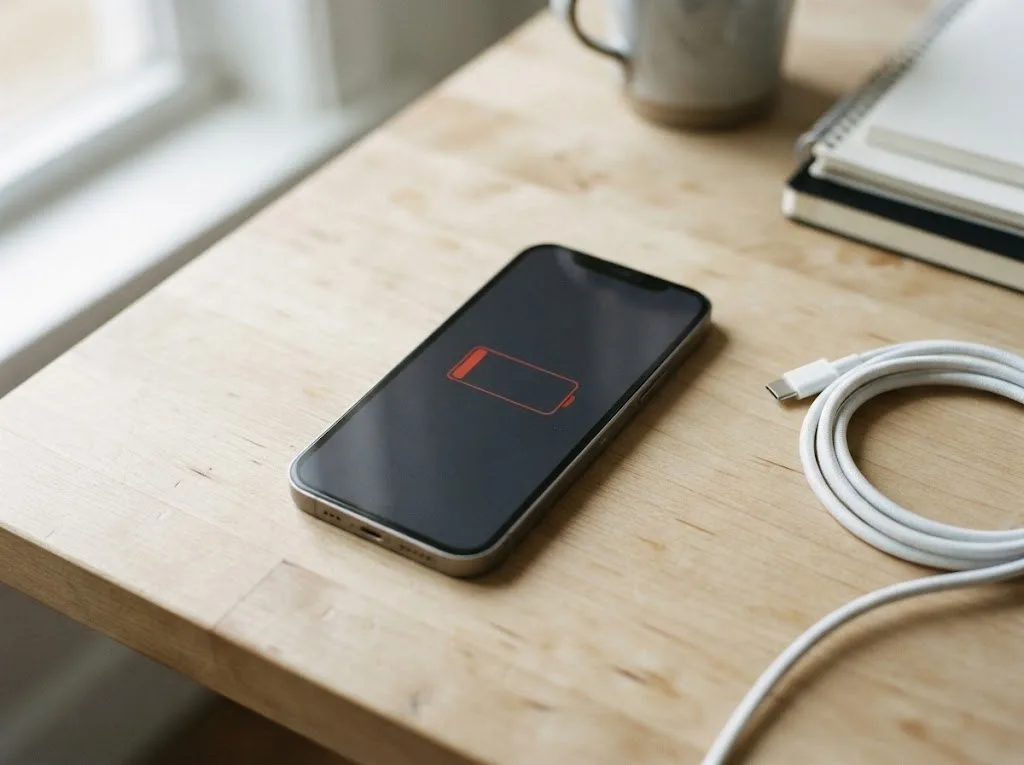
We step in when the block is not really the passcode — a dead touch layer, a failing battery or a board fault that stops the phone from booting or accepting input. A handset that ignores taps on the passcode screen, restarts mid-reset or stays black after charging often has a hardware cause, and no amount of erasing fixes a cracked digitizer or a shorted board. In our workshop a free 15-minute check in front of you separates a software lock from a hardware fault before you commit to any work, and after water damage diagnostics can sometimes take up to two days before the picture is clear. Board-level faults go under a microscope, and most repairs finish in 20–40 minutes while you wait.
What a technician can and cannot do about a passcode
We can diagnose the iPhone, confirm whether the block is software or hardware, and repair the hardware side, but the data behind a passcode that nobody remembers cannot be pulled out. Screen replacement, battery service and board-level work restore a phone that will not respond, yet the passcode itself is protected by encryption tied to the Secure Enclave — bypassing it means erasing the handset, the same erase you can trigger at home. What we do add is certainty: we are the direct contractor with our own technicians and workshop, not an aggregator or a middleman, so the person who inspects your phone is the person who signs off on the job. A clear answer about what is possible saves you from paying for work that ends in the same wipe you could have done yourself.
How a visit works and how long it takes
Here is the step-by-step path of a visit — from a photo on WhatsApp to the final function check — so you know what to expect before you hand over the device.
From WhatsApp photo to a fixed quote
You send a photo of the problem on WhatsApp, an engineer replies within 5 minutes with a price, and the price, part, turnaround and warranty are fixed on the receipt in about 2 minutes before work starts. We ask for a picture of the screen or the damaged area, not the whole phone, because the model and the fault are usually readable from one clear frame. The engineer names the part — original or aftermarket — and you decide which one goes in. Getting the terms on paper first means the number you agreed to is the number you pay, even if the job turns out longer. Ask for the receipt before the technician opens the device — it takes two minutes and settles every later question.
What happens during the visit
The engineer runs a free 15-minute diagnostic in front of you, shows the new part in factory packaging before fitting, and after the repair checks 32 functions in about 10 minutes together with you. The check covers Face ID, True Tone, cameras, microphones, speakers, charging and network — the functions a passcode reset or a screen swap can quietly affect. You can wait in the seating area with coffee and Wi-Fi while the work is done. 72% of repairs finish while the customer waits, so most visits are a single trip rather than a drop-off. Book a slot on a weekday morning if you want the quietest bench time.
Typical turnaround by job type
| Job | Typical time |
|---|---|
| iPhone screen replacement | 40 minutes |
| iPhone battery replacement | 25 minutes |
| iPhone camera glass | 20 minutes |
| iPhone speaker replacement | 30 minutes |
| Board repair under microscope | 1–3 days |
Summary: Forgot iPhone Passcode and Want Your Data Back
A locked iPhone is a stressful thing to face, but the path forward is short: identify the lock, check your backup, then wipe the device. The points below pull the whole sequence together.
- Data first: a forgotten passcode is a data question before it is a repair question, so check your last backup before you erase anything.
- Know your lock: a screen passcode and Activation Lock look similar but need different steps, and only one of them can be cleared at home.
- Reset deliberately: iCloud Find My, Finder, and Recovery Mode each erase the device, so pick the route that matches the tools you actually have.
- Backup decides the outcome: with a recent backup the reset costs you minutes, while no backup and no remembered Apple ID leaves photos and messages unrecoverable.
- Check the backup before the reset, and confirm which lock you have before assuming a shop can help — a technician can guide the reset, not reverse it.