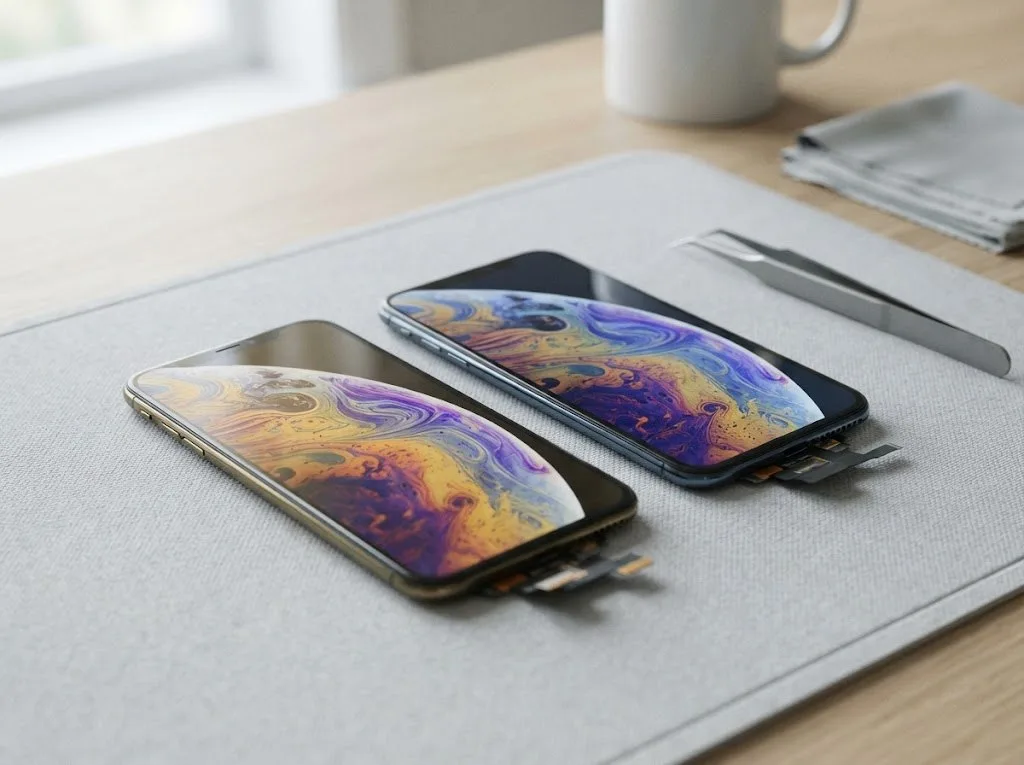

If your iPhone drops charge fast, shuts down at 20–30%, or shows a "Service Recommended" message, the battery is likely worn and due for replacement. iServices swaps an iPhone battery in 25 minutes while you wait, with free 15-minute diagnostics, a choice of original or aftermarket part, and a warranty up to 1 year.
Signs Your iPhone Battery Is Worn Out
A lithium-ion battery ages chemically, so wear rarely shows up as one dramatic failure. It arrives as a cluster of small changes — shorter days, odd percentages, warmth, slowdowns — that together point to the power source rather than to software.
Service details: “iPhone Battery Replacement”.
The everyday symptoms that point to a tired battery
A worn lithium-ion battery loses capacity gradually, so the first sign is usually a handset that dies by mid-afternoon under the same habits that used to last a full day. You start reaching for the charger before dinner, or notice the percentage dropping faster on a commute than it did a few months ago. Sudden jumps are just as telling: the indicator leaps from 34% to 27%, then holds there, because the fuel gauge is estimating a pack that no longer behaves predictably. Warmth during light use — scrolling, messaging, a short call — is a third clue, since a healthy unit stays cool under that load. Sudden percentage jumps and warmth during light use are early warnings worth checking in settings before assuming the device itself is failing.
Shutdowns, slowdowns and the performance message
A handset that shuts down with charge still showing, or feels sluggish on an old battery, is often being throttled by iOS to prevent unexpected power-offs. The system reads the pack's ability to deliver peak current, and when that ability drops it caps performance so the device does not cut out mid-task. That is why a unit at 30% suddenly black-screens on a cold morning or during a heavy app, and why menus lag on a phone that benchmarked fine before. iOS flags this in the battery section as an unexpected shutdown history and a performance management notice. This performance management can be switched off in battery settings, but doing so trades smoothness for a higher risk of shutdowns until the power source is replaced.
When a swollen battery means stop using the phone now
- Screen lifting: the display or back panel starts to separate from the frame along one edge.
- Bulging case: the body feels rounded, or the handset rocks on a flat surface instead of sitting flush.
- Stop charging: do not plug it in or leave it on the charger overnight.
- No pressure: never press, bend or puncture the swollen pack to flatten it.
- Same-day visit: bring the device in for assessment before switching it on again.
- Heat warning: warmth and pressure accelerate swelling, so keep it off the charger and out of pockets until a technician sees the unit.
How to Check Battery Health Yourself in Settings
Before you head to a service, it is worth opening Settings and reading what the system itself says about the battery. The whole check takes about a minute.
Reading Maximum Capacity and the service message
Open Settings, go to Battery, then Battery Health & Charging, where Maximum Capacity shows the remaining capacity as a percentage of a new battery. A fresh unit reads 100%, and the figure drops gradually as the lithium-ion pack ages. Below the percentage sits the status line: if it still says Peak Performance Capability, the phone can deliver full power on demand; a Service Recommended message means the system has detected wear beyond its threshold. The same screen also lists the date the power pack was first used, which helps place the reading in context. A low percentage matters less than how the phone behaves day to day, so treat the number as one signal alongside shutdowns and slowdowns.
Peak Performance Capability and cycle count on newer models
On recent iPhones the same screen adds a cycle count and manufacture date, while older models only show capacity and a peak performance status. One cycle equals a full discharge, so topping up from 50% to 100% twice counts as a single cycle. Apple rates these lithium-ion packs for roughly 500 full cycles before capacity falls to about 80%, and the counter makes that wear visible instead of guessing from the percentage alone. Peak Performance Capability, meanwhile, describes whether the handset can still handle sudden power demands or has started throttling to avoid an unexpected shutdown. The counter tells you how much total energy the pack has absorbed, which is more telling than a single reading for judging wear.
What the settings cannot tell you
- Readings look normal: the drain may come from background apps or weak signal, not the pack.
- Topping up is slow or erratic: suspect the cable, adapter or port before the battery.
- Hot only during a top-up: often the charger or a thick case, not the pack.
- Fast drain after an update: usually temporary re-indexing by iOS that settles within days.
- No message at all: a healthy reading still needs a hands-on check if symptoms persist.
- Sudden shutdowns in the cold: the system reports fine, yet the pack cannot hold voltage under load.
- Percentage jumps: the indicator may swing several points at once, a sign of calibration drift rather than honest wear.
What to Try Before You Replace the iPhone Battery
Some battery complaints are solved by a setting, a cable or a few days of patience, and only then does a replacement make sense. Here is what we suggest trying first.
Settings that slow wear and stretch each charge
Optimized Charging and the charge limit on newer models hold the battery below full until you need it, while Low Power Mode stretches a single charge by trimming background work. Optimized Charging learns your routine and delays the last stretch to 100% until morning, so the cell sits at a gentler voltage overnight. The 80% charge limit on newer models caps the top end entirely, which suits people who plug in at a desk all day. Low Power Mode cuts refresh rates, background app refresh and some visual effects, which noticeably stretches screen time on a worn pack. These settings slow future wear but cannot restore capacity already lost, so they buy time rather than fix a failing cell — if Maximum Capacity has already dropped low, expect the gains to be small.
When the problem is not the battery at all
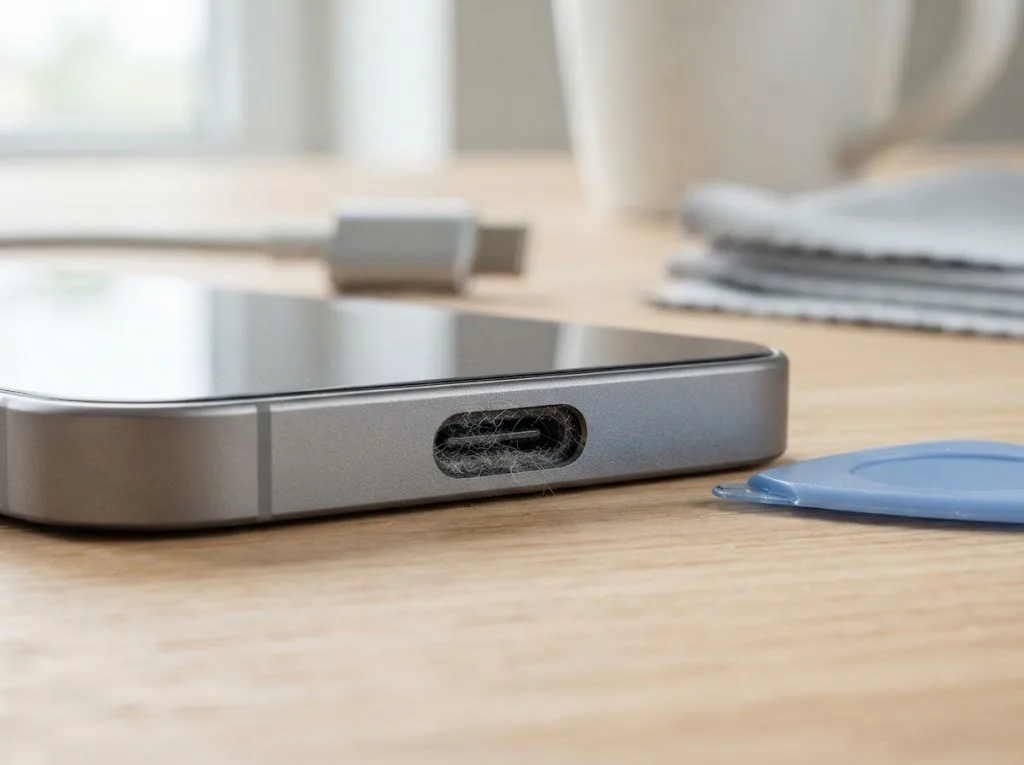
A phone that suddenly drains faster right after an iOS update, or only while using one particular cable, is often showing a software or accessory problem rather than a worn battery. After a major update the system re-indexes photos, messages and files for a few days, and the processor runs warm while it does, so the drain usually settles on its own. A frayed Lightning cable, a weak third-party adapter or lint packed into the charging port can mimic a failing cell by charging slowly or dropping the connection mid-cycle. Weak cellular signal is the other common culprit: the modem boosts power to hold a tower, and that shows up as heat and fast drain in the same spots every day. Testing with a different charger and watching a few days after an update separates a temporary glitch from real wear before any part is swapped.
Symptom to decision at a glance
| Symptom | Likely cause | First step |
|---|---|---|
| Dies by mid-afternoon | Worn cell | Check capacity, then diagnostic |
| Shuts down at 20–30% | Worn cell or cold | Diagnostic |
| Slow after update | iOS re-indexing | Wait a few days |
| Charges only with one cable | Cable or port | Try another cable |
| Case bulging | Swollen battery | Stop use, same-day visit |
| Hot while charging only | Charger or adapter | Swap charger first |
Heat, Cold and Charging Habits
Temperature and everyday habits wear a battery down as much as age does, and summer sun, trips out of town and cold mornings add their own scenarios.
Why summer heat ages a battery faster
Heat is the single biggest accelerator of lithium-ion wear, and a handset left on a sunny dashboard on a summer afternoon can lose capacity faster than in weeks of normal use. Inside a car parked in the sun, cabin temperatures climb well past the point where the cell starts to degrade, and the same happens when a device charges under a pillow or on a duvet. Lithium-ion chemistry reacts to warmth with permanent capacity loss, not a temporary dip, so the damage stays after the unit cools down. Topping up a hot unit compounds it, because the charging process itself generates warmth on top of the ambient temperature. Letting the handset cool to room temperature before plugging it in does more for longevity than any single setting in the menu.
Trips out of town and temperature swings
A cold battery temporarily delivers less energy, so an iPhone can shut down on a cool morning out of town and then run normally again once it warms up in a pocket. Below freezing, the cell's internal resistance rises and the voltage sags under load, which the phone reads as an empty battery even when the gauge showed a healthy charge minutes earlier. This is a temporary effect, not permanent damage, and the capacity returns as the device warms. Repeated shutdowns on a cell that is already worn, though, are a sign it has little reserve left and struggles to hold voltage under any load. If a handset dies on a winter trip and then behaves at home, the battery is coping but tired.
Charging habits worth keeping
- Overnight is fine: Optimized Charging holds the last stretch until morning, so the cell does not sit full for hours.
- Avoid deep drains: top up during the day instead of letting the device hit zero regularly.
- Watch the heat: charge in a cool spot, never under a pillow or on a radiator.
- Fast charging is okay: speed itself is not the problem, the warmth it produces is.
- Wireless pads warm up: a handset that feels hot on a pad is losing capacity quietly.
- Storage: leave a unit you will not use for months at about half charge, not empty.
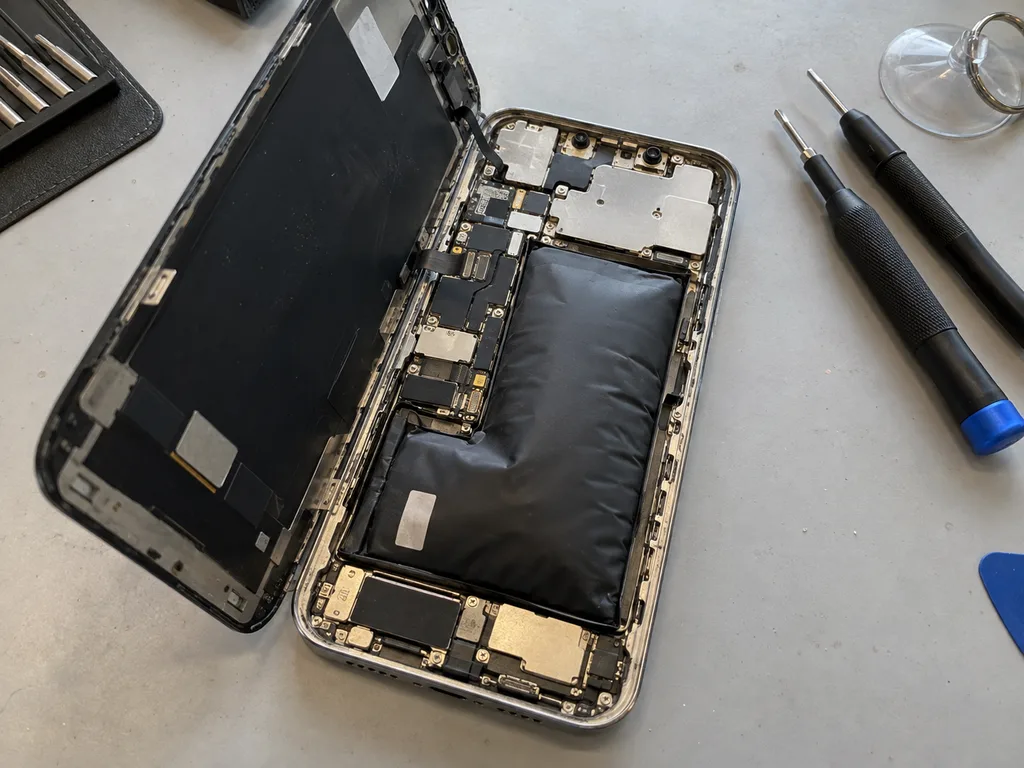 Before: the battery is swollen
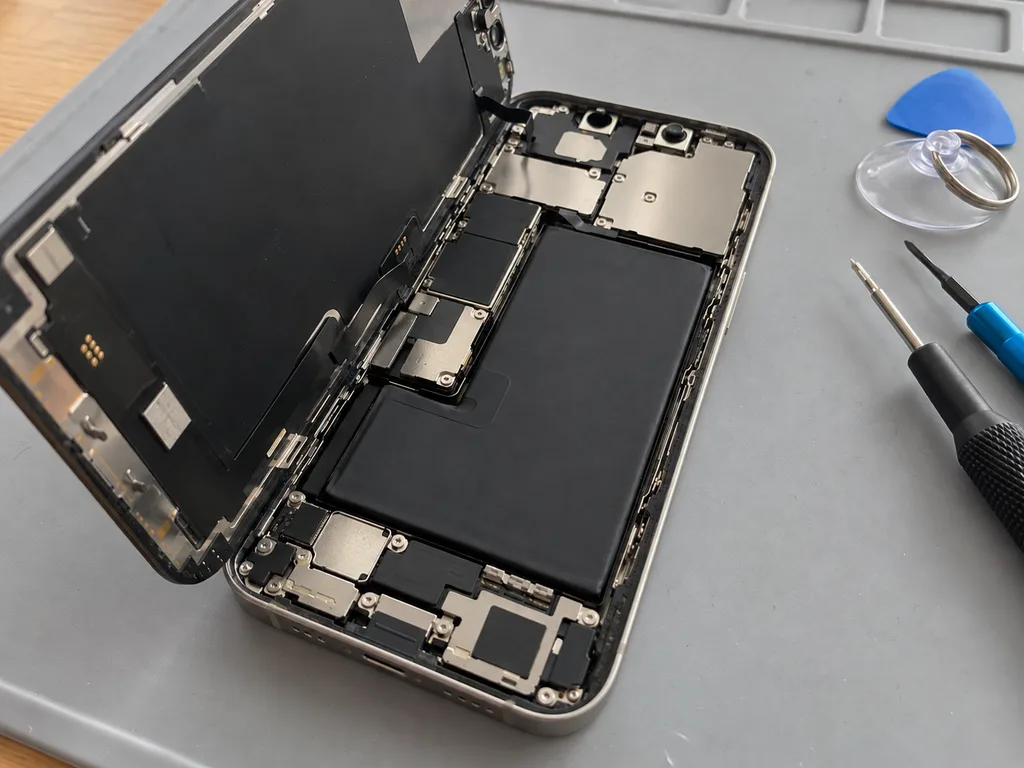 After: a new battery
When to Replace the iPhone Battery and When to Wait
A simple logic pulls the pieces together: what you can adjust in settings, what needs a proper diagnostic, and what already means replacement. Below it is laid out step by step.
The clear signals that it is time
A service message, shutdowns with charge remaining, and a handset that no longer makes it through a normal day together point to a cell that is ready to be replaced. Maximum Capacity shows the remaining charge a battery holds relative to a new one, and once it drops into the low seventies the endurance loss becomes hard to ignore. Sudden cutoffs at 20–30% are the more telling sign, because the cell can no longer deliver the voltage the system expects under load. On newer models that shows up as an unexpected shutdown even when the percentage looks reasonable. No single percentage decides it, so weigh the settings reading against how the device actually behaves across a typical week. If you are still asking yourself when to replace the iPhone battery, track one ordinary day — the answer is usually there, not in the number.
Replace the battery or replace the phone
If the rest of the handset still works well, a fresh cell restores everyday endurance at a fraction of the cost of a new device. A worn battery drives the system to limit peak performance, which is why an older model can feel sluggish while its screen, cameras and storage are perfectly sound. Judge the decision on the whole device: a cracked display, failing cameras, water damage or a storage limit that no longer fits your routine are the cases where a new phone makes more sense than a fresh cell. When everything else is healthy, a swap brings back a full day of endurance and keeps the handset in service for years. A new phone makes sense mainly when other parts are also failing, so judge the battery decision against the health of the whole device.
Original or aftermarket battery for the user
| Option | What you see in settings | Best for |
|---|---|---|
| Original part | Full health data shown | Long-term use, resale value |
| Aftermarket part | Possible unknown-part message | Budget-focused repair |
| Choice fixed on receipt | Documented before work | Clear expectations |
How We Replace an iPhone Battery
The swap itself takes little time, but the details decide the outcome: what gets written down before work starts, what we show you, and what we check afterwards. Here is the whole path, step by step.
From a WhatsApp photo to a fixed receipt
Send a photo of the battery screen on WhatsApp and an engineer replies within 5 minutes with a price, then fixes the price, component, turnaround and warranty on the receipt in about 2 minutes before work begins. The image shows the Maximum Capacity reading and any service message, which is usually enough to quote without a visit. If you prefer to come in, free diagnostics in front of you take 15 minutes even if you decide against the repair. Payment afterwards is by Kaspi, card or cash, and a courier can be called across the city in about 90 minutes if you cannot come yourself. Getting the terms in writing up front means the number you agreed to is the number you pay, with no changes once the phone is open.
25 minutes while you wait, with the part shown first
A battery replacement takes about 25 minutes, and most jobs finish while the customer waits in our lounge with coffee and Wi-Fi; we show the new part in its factory packaging before installing it. That 25-minute figure sits inside a broader pattern: 72% of repairs are completed while the customer waits on site, from a 40-minute screen job to a 20-minute camera glass swap. Our technicians have handled 46,000+ repairs over 11 years, and 64% of customers choose an original component, with the aftermarket option explained in the same detail before you decide. Seeing the sealed item before it goes in is the simplest way to know exactly what is being fitted to your phone.
The check after the swap and the first days at home
- Charging and network: confirm both work before you leave the workshop, since these reveal most connection faults.
- Face ID and True Tone: check they behave exactly as they did before the repair, not slower or dimmer.
- Cameras and speakers: test photo, video, microphone and sound output on the spot with the engineer.
- First days: note how long a full charge lasts under your normal routine rather than a single screen reading.
- Keep documents: receipt, warranty card and old component stay with you, and the coverage runs up to 1 year.
Summary: When to Replace an iPhone Battery
A battery decision is rarely about one reading or one bad day. Match the symptoms you see with the right next step, and the choice becomes straightforward instead of stressful.
- Read the settings: Maximum Capacity and the service message are the first clues, but treat them as signals to interpret, not verdicts.
- Rule out the rest: cables, updates and weak signal can mimic a failing battery, so confirm the cause before ordering a replacement.
- Respect heat and cold: temperature swings shorten life and trigger shutdowns, and summer heat in the city is the quietest cause of wear.
- Treat swelling as urgent: stop charging, stop pressing on the screen and get the device checked the same day.
- Weigh the whole handset: a battery swap often beats a new purchase when everything else still works well and a worn cell is a normal part of ownership.