
A slow iMac in Almaty is usually caused by one of five things: a full or failing HDD, overheating and thermal throttling, too little RAM, background software, or a macOS update that no longer suits the hardware. iServices runs a free 15-minute diagnostic in front of you, shows what is actually wrong, and fixes only that.
Why an iMac Slows Down Over Time and How to Tell Software From Hardware
Slowness almost never has a single cause. There are five nodes technicians check first, and the way the machine behaves under load usually narrows the circle to one of them.
Service details: “iMac repair”.
The Five Things That Actually Make an iMac Slow
- Storage health: an ageing HDD or a nearly full SSD forces the system to wait on reads, so every app launch drags.
- Cooling: dust-clogged vents and a tired fan push the chip into thermal throttling within minutes of real work.
- RAM pressure: too many open tabs and background helpers leave the machine swapping to disk instead of computing.
- Background software: login items, cloud sync and update agents quietly consume CPU long after you closed their windows.
- macOS version: a newer release asks more of older hardware, and the gap widens with each update.
How to Tell a Software Cause From a Hardware Cause
Software causes get worse gradually and follow what you do, while hardware causes show up as sudden freezes, fan noise or slowdowns under load regardless of the app. Open Activity Monitor and watch three tabs — CPU, Memory and Disk — during a normal working session. A memory graph pinned in the red with heavy swap points to RAM pressure from too many processes; disk activity near 100% at idle usually means a failing drive or an indexer gone wild. If the beachball appears mostly when you open many tabs or run a heavy app, the bottleneck is memory or storage. If it appears even at idle with the fan loud, suspect cooling instead. When a slow iMac in Almaty needs a closer look, the same three tabs tell you whether to start with software or with the hardware.
When It Is Time to Stop Cleaning and Book a Diagnostic
If the iMac still lags after you free up disk space and close background apps, the next step is a free 15-minute diagnostic in front of you, not another round of reinstalling. Our engineer opens the machine, shows the failing part on screen and explains what it means before anyone quotes a repair — and you keep that answer even if you decide not to fix anything. Eleven years in business and 46,000+ repairs taught us one thing: guessing costs more time than measuring. A diagnostic done while you watch removes the guesswork, because you see the actual bottleneck rather than a description of it. Machines in Almaty usually reach us after weeks of self-treatment, and the fix is often simpler than the owner expected.
What You Can Check Yourself Before Bringing the iMac In
Four safe checks take about half an hour and either solve the slowdown on the spot or hand a technician a precise clue about what is failing.
Free Up Disk Space and See If the Lag Goes Away
macOS needs roughly 15–20% of the drive free to swap memory and cache files, so a nearly full disk is one of the most common reasons an iMac feels sluggish. Below that margin the operating system starts thrashing between memory and the volume, and every click waits for the hardware. Open the Apple menu, check Storage, and read the coloured bar: a large System Data or Photos block usually means space is packed. Move video projects and photo libraries to an external SSD, clear old iOS backups and downloads, then restart and work for ten minutes. Deleting a few bulky video files often restores responsiveness faster than any cleanup app, because macOS stops fighting for scratch space. If the bar still shows less than a tenth free after cleanup, the disk itself may be the bottleneck rather than the files on it.
Read Activity Monitor Like a Technician
- CPU tab: sort by % CPU and watch the top process for two minutes — a runaway browser window or a stuck indexing job holds a core at full load.
- Memory tab: check the Memory Pressure graph; a red graph with heavy swap means installed RAM is too small for the current workload.
- Energy tab: identifies apps drawing power in the background, useful on an iMac that idles hot and loud.
- Disk tab: shows read and write rates; sustained spikes with a near-full volume confirm drive thrashing rather than a processor problem.
Does Reinstalling macOS Ever Help
A clean macOS reinstall fixes a lagging iMac only when the cause is corrupted system files or accumulated login items, and it does nothing for a failing HDD or overheating. Before committing to that route, boot into Safe Mode and run for a day — if the lag disappears there, a login item or a third-party kernel extension is the culprit, and removing it is faster than a full wipe. A reinstall also cannot repair a drive with bad sectors: the slowdown returns within days once the machine writes to the damaged area again. Create a Time Machine backup before wiping anything — a reinstall that erases data without one turns a lagging iMac into a data-recovery job.
Overheating, Fan Noise and Why a Hot iMac Slows Down
A loud fan and sudden stutter usually arrive together, because both come from the same source: heat building up faster than the cooling system can remove it. Here is how to tell that apart from a memory problem.
How Thermal Throttling Actually Works
When the CPU inside an iMac passes its safe temperature, the system lowers its clock speed on purpose, so the machine stays alive but runs noticeably slower. The chip is not damaged at that moment — it is being held back. Two things usually push it there: dust packed into the aluminium fins behind the vent, and thermal paste that has dried out and stopped transferring heat from the chip to the heatsink. On an all-in-one the whole cooling path sits in a few centimetres of space, so a thin layer of dust cuts airflow far more than people expect. Throttling is a protection, not a fault — the real problem is whatever is keeping the chip hot, usually dust-clogged fins or dried thermal paste.
Symptoms That Point to Heat Rather Than RAM
- Fan behaviour: the fan ramps up audibly within minutes of a heavy task and the lag starts at the same moment.
- Where it is warm: the top rear edge and the area above the stand feel hot to the touch after twenty minutes of work.
- Timing of the lag: slowdowns follow sustained load — video export, many browser tabs, a long compile — not a single click.
- Memory pattern: RAM pressure shows up as beachballs the instant you open one more app, with the fan still quiet.
- Rest behaviour: a hot machine recovers speed after ten minutes idle, while a memory-starved one stays sluggish until you close something.
Clean It Yourself or Bring It In
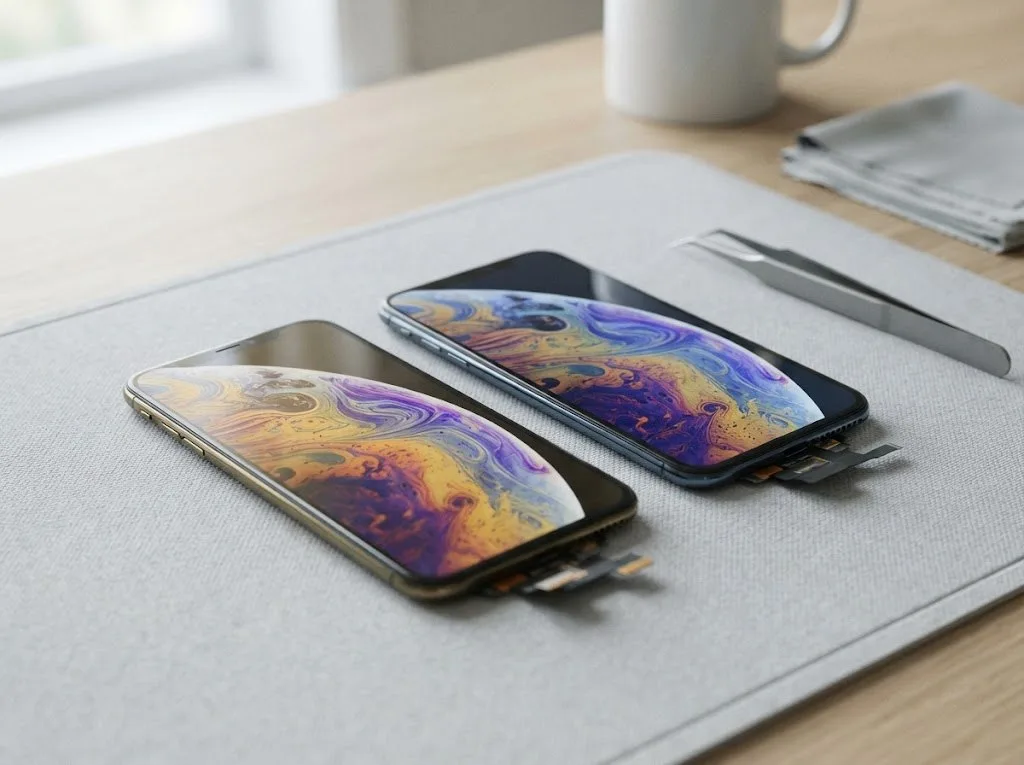
Opening an iMac to clean the cooling system and replace thermal paste is not a DIY job on most models, because the display is glued and easy to crack without the right tools. The glass and the panel separate with heat and suction cups, the connectors behind them are fragile, and the paste has to be reapplied in a thin, even layer — too much works as an insulator. In our workshop the cleaning is done with the display off and the board inspected under a microscope while the unit is open. A cleaning done badly can leave the display seal compromised, so the cost of a mistake usually exceeds the cost of having it done once properly.
Will an SSD Upgrade Fix a Slow iMac and When Is It Worth It
An SSD is the most common lever for speeding up a slow iMac, but it does not cure overheating or a shortage of memory. Here is when the swap really changes how the machine feels.
What an SSD Changes and What It Does Not
An SSD removes the mechanical seek delay of an HDD, so startup, app launches and file operations get dramatically faster, while CPU-heavy tasks and overheating stay exactly the same. A 2.5-inch hard drive spins its platters at 5400 or 7200 rpm and needs a physical head to find every block of data, which adds milliseconds to thousands of small reads during loading. Flash storage answers those reads electronically, so a 21.5-inch iMac that took two minutes to reach the desktop can drop to well under a minute. Rendering, video export and thermal behaviour do not move at all, because the processor and cooling system are untouched. If the machine is already sluggish at idle with the fan loud, an SSD will hide the symptom for a while, but the heat problem will come back.
HDD vs SSD vs RAM vs Cooling Side by Side
| Upgrade | Symptom it fixes | What it does not fix | Typical turnaround |
|---|---|---|---|
| HDD to SSD | Slow startup, slow app launches | Overheating, RAM pressure | From 1 hour to 1 day |
| RAM increase | Beachballs with many apps open | Slow storage, heat | From 1 hour to 1 day |
| Cooling clean and thermal paste | Fan noise, slowdown under load | Slow storage, low RAM | From 1 hour to 1 day |
| Board repair | Freezes, no startup, kernel panics | Anything software-related | 1–3 days |
Is It Worth Upgrading a 21.5-inch or an Older iMac
An upgrade is worth it when the rest of the iMac still meets your daily work and the diagnostic shows a single fixable bottleneck, not when the board itself is failing. A 21.5-inch model with a spinning drive is the classic candidate, as is a 27-inch iMac whose only real complaint is a sluggish startup and beachballs during file work. Once the machine freezes randomly, refuses to start or throws kernel panics, the storage swap stops being the answer and the logic board becomes the question. We tell customers when a repair no longer makes sense — a free diagnostic that ends with "don't spend on this one" is still a useful result. In our practice, checking first and then replacing one part keeps older iMacs useful for years without paying for changes that fix nothing.
Why a Mac Slows Down After a macOS Update
A fresh macOS on older hardware is one of the most common complaints we hear. Here is what the new software actually does to the machine and which steps genuinely bring the speed back.
What a New macOS Does to Older Hardware
A newer macOS adds background indexing, tighter security checks and heavier graphics effects, all of which hit an older CPU, HDD and 8 GB of RAM harder than the version the iMac shipped with. Spotlight rebuilds its index, Photos re-analyses the library, and the transparency and motion effects in the interface keep the GPU busy on every window you drag. On a machine with a spinning disk, those background jobs compete with the operating software for the same sluggish read head, so the whole interface stutters even when nothing is open. The first 24–48 hours after installing are the worst because Spotlight reindexes the storage — judge performance after that window, not during it.
Roll Back, Reinstall or Leave It
- Roll back: only realistic within a short window, while the previous version is still recoverable from a backup or the App Store.
- Clean reinstall: helps when the slowdown is software-related, such as a corrupted profile or a pile of login items carried over from older releases.
- Leave it as is: the right call when the hardware was already near its limit and the new release simply made the ceiling visible.
- What none of them fix: an HDD that is already the bottleneck, a fan clogged with dust or RAM that was never enough for the workload.
When the Update Is Not the Real Cause
If the slowdown started before the update or persists after a rollback, the update was a coincidence and the real cause is storage, cooling or RAM. We see this pattern often: the machine had been creeping for weeks, the owner installed the new release, and it got the blame for a failing disk or a heatsink packed with dust. A free diagnostic in front of you separates the two in 15 minutes — far faster than reinstalling macOS twice and guessing. The engineer checks drive health, temperatures under load and memory pressure while you watch, and shows what is actually broken before any work starts.
How a Sluggish Mac Is Diagnosed and Fixed at iServices
The path from a first WhatsApp message to a device back in your hands usually takes less than an hour. Here is what happens at each step, and what you get in writing before any work starts.
From WhatsApp Photo to a Fixed Price on the Receipt
We reply on WhatsApp within 5 minutes, quote from a photo, and fix the price, part, turnaround and warranty on the receipt in about 2 minutes before any work starts. An engineer reads the photo of the damage rather than a call-centre script, so the first estimate is already specific to your machine. When you arrive, the new part is shown to you in factory packaging prior to installation, and 64% of customers pick an original component over an aftermarket one. The receipt records four things at once — price, part type, turnaround and warranty — and you leave with a copy. A quote fixed on paper before the job begins is what stops the «it turned out to be more expensive» conversation later, so ask for the receipt first and the repair second.
What the 15-Minute Diagnostic Covers
The engineer checks the iMac in front of you for 15 minutes, shows what is broken, and you keep the result even if you decide not to repair. That check is free and happens at the counter, not behind a closed door: the technician points at the failing component and explains in plain words whether the cause is storage, memory, cooling or the board. Our workshop is a direct contractor with its own technicians, so the person diagnosing your machine is the same person who will fix it. Board-level faults are inspected under a microscope, and after water damage the check can run up to two days. Watching the diagnostic is the fastest way to learn which of the five causes is yours — you leave knowing more about your iMac than you arrived with.
Turnaround, Warranty and Getting the iMac to Us
- Turnaround: most jobs finish in 20–40 minutes while you wait, storage and RAM upgrades take from 1 hour to 1 day, board work 1–3 days.
- Warranty: every job carries coverage up to 1 year, written on the receipt and the warranty card you take home.
- Courier: a courier across the city takes 90 minutes and is free with a fix, so a busy week does not delay the check.
- Drop-off: we accept devices 7 days a week, with a waiting area, coffee and Wi-Fi if you stay.
Summary: Slow iMac
A slow iMac is a symptom with a nameable root, and the earlier sections narrow it down to a handful of suspects. Here is what to carry away.
- One culprit, not five: storage, cooling, RAM, background software and the macOS version explain most slowdowns, and a proper check isolates which one applies.
- Two free checks first: clear disk space and read Activity Monitor before spending anything — they catch storage and RAM pressure without a single tool.
- Heat mimics low RAM: fan noise that rises with load points to thermal throttling, so cleaning and fresh thermal paste come ahead of any RAM talk.
- An SSD has limits: it speeds up a failing drive and boot times, but it will not cool an overheating chassis or add RAM.
- Confirm, then spend: start with the free checks, then let a diagnostic name the failing part before you pay for any upgrade.