
If your MacBook is not charging via MagSafe in Almaty, the fault is usually the adapter, the cable, the MagSafe port, the battery or the power controller. At iServices we run free 15-minute diagnostics in front of you, show what is broken, and fix most charging faults the same day with a warranty up to 1 year.
Why your MacBook is not charging through MagSafe
Charging is a chain: wall socket, adapter, cord, MagSafe port, controller, battery. A break at any link gives the same symptom, so the only reliable approach is to test each link in order.
Service details: “MacBook Repair”.
A five-step check you can run before visiting a service
- Wall socket and adapter: plug the supply into a different outlet and check the pins are fully seated — a loose plug mimics a dead charger.
- Wattage: match the supply to your model's rating, since an underpowered unit may light the tip yet fail to fill the cell.
- Cord: swap the magnetic lead on its own, because adapter and lead fail independently.
- Connector: look inside for dust, bent pins or dark burn marks, then note the light colour.
- Indicator: check the charge level in the menu bar — a slowly climbing percentage means the fault is upstream, not in the cell.
What the MagSafe light tells you about the fault
An amber light means current reaches the port but the battery is not taking a full charge, while no light at all points to the adapter, cable or port before the battery. A green glow with a cell that never fills is the third case: the Mac sees the charger and limits intake, which usually traces to the power controller or a worn cell. A blinking amber often means the Mac is drawing more current than the supply provides, so check wattage before blaming the connector. On the newer plug the glow sits at the tip, so wipe it clean first — dust on the lens fakes a dead indicator. Note the colour and whether it blinks; that detail alone shortens diagnosis considerably.
When the fault is the port and when it is the logic board
We replace the charging socket as a separate unit when the contacts are worn or bent, and we repair the logic board under a microscope when the power controller itself has failed. A socket that charges only at an angle usually means worn contacts, while one that is dead at every angle more often points to the controller on the board. Your MagSafe not charging case in Almaty starts with a free 15-minute diagnostic in front of you: the engineer opens the connector, shows you the contact condition and names the failing link before any work begins. With 46,000+ repairs behind us, we can usually tell a port from a board fault by eye and a multimeter reading. Send a photo of the connector on WhatsApp — an engineer replies within 5 minutes and quotes from the picture.
MagSafe 1, MagSafe 2, MagSafe 3 and USB-C explained
The MagSafe connector changed three times, and the generation decides both how we diagnose a charging fault and whether your laptop can charge over the newer connector at all.
Which MagSafe generation your MacBook uses
| Generation | Where it appears | What matters in diagnosis |
|---|---|---|
| MagSafe 1 | Early MacBook Pro and Air models | L-shaped plug, deep pin wear |
| MagSafe 2 | Retina MacBook Pro and later Air models | T-shaped plug, thin cable strain |
| MagSafe 3 | MacBook Air M2 (A2681) and newer | Magnetic plug, higher power |
Why USB-C still charges when MagSafe does not
If the MacBook charges over USB-C but not over the magnetic connector, the adapter and battery are usually fine and the fault sits in the port, its cable or the charging circuit on the mainboard. Both feed the same battery through different paths, so a working alternative tells us the battery and main power rail are healthy. A single bent pin inside the socket can block power while every other function of the laptop keeps working normally. The charging controller on the logic board has separate input lines for each connector, and only the magnetic line fails in this pattern. That is why a laptop that charges fine through the side connector still shows a dead light. We test the input line with a multimeter before touching anything else.
Can you keep using USB-C while MagSafe is faulty
You can keep working on the side connector for a while, but we still recommend fixing the magnetic side because a damaged socket can heat up and stress the charging circuit over time. Charging at a lower wattage is safe for the battery but slower, so treat it as a stopgap rather than a permanent fix. In our practice, laptops that limped along this way for weeks often arrived with a scorched socket and a wider repair scope than a simple connector swap. We diagnose both charging paths together, and the engineer shows you the faulty socket during the free 15-minute check. A port replacement is a quick job, while a stressed charging circuit can add board-level work. If the socket heats up or the plug sparks, stop and bring the laptop in — that is not a fault to live with.
MagSafe not charging in Almaty and how to match the symptom to the part
The same "not charging" symptom can point to four different parts, and a precise symptom-to-part map saves time and money before anyone opens the case.
Matching the symptom to the failing part
| Symptom | Likely part | What we test |
|---|---|---|
| Charges only at one angle | Cable or MagSafe port | Cable continuity, contacts |
| Light on, charge stays at 0% | Battery or power controller | Health, controller output |
| No light, no charge at all | MagSafe port or controller | Port resistance, board voltage |
| Trackpad stiff, charge drops | Swollen battery | Swelling, case fit |
| Charge cuts out under load | Power controller | Behaviour under load |
When a swollen battery blocks charging
A swollen or heavily worn battery can stop a MacBook from charging even when the adapter and port are healthy, because the charging circuit refuses to feed a cell it reads as unsafe. The power controller cuts the charge path, and the connector stays silent even though nothing is wrong with it. A swollen cell also pushes against the trackpad and the case, so a stiff trackpad together with a charging fault is a strong hint to check the battery first. Aged cells that still hold a charge but have lost most of their capacity behave the same way — the controller reads them as a risk and blocks the feed.
How we confirm the faulty part before replacing it
We test the adapter, the cable, the socket and the battery one by one in front of you during a free 15-minute diagnostic, so the part we replace is the part that actually failed. An adapter can deliver the right voltage and still fail under load, so a voltage reading alone is not proof the adapter is healthy. In our practice the cable and the connector are the two most common culprits, and the cell follows close behind on older machines. Before any work starts we fix the price, the part, the turnaround and the warranty on the receipt, and show the new component in its factory packaging.
First aid — what to do and what to avoid right now
While the laptop is still with you, a few safe steps rule out the simple causes, and a couple of habits stop a small fault from turning into a board repair.
Safe steps before you bring the MacBook in
- Unplug the charger first: pull the MagSafe connector out and let the machine sit for a minute before inspecting anything.
- Inspect for lint: shine a light inside and lift out compacted fluff with a wooden toothpick or plastic pick, never metal.
- Try another outlet and cable: a different wall point plus a known-good lead separates a dead adapter from a dead supply within minutes.
- Reset the SMC on Intel models: this clears a stuck state that blocks charging even when the hardware is fine.
- Power-cycle an Apple silicon Mac: hold the button until the screen goes dark, then boot again, since these models have no SMC.
Why a hot or sparking connector must be unplugged
If the connector heats up, smells burnt or sparks, unplug it immediately and stop charging, because a damaged tip can harm the port and the charging circuit. Heat at the tip almost always traces back to a worn contact inside the connector or a frayed lead near the strain relief, and both push unstable voltage into the power controller on the logic board. A tip that is warm to the touch after ten minutes is already outside normal behaviour; one hot enough to sting is a fire risk. Swapping the lead is the cheapest way to rule out the dangerous part before you suspect the laptop itself. In our practice, a lead swap resolves roughly half of the heat complaints we see, and the rest turn out to be a burnt pin that needs replacement.
What not to do with a MacBook that will not charge
- Do not poke the port with metal: a paperclip or pin can bridge the contacts inside and short the rail.
- Do not force a bent tip in: pushing a deformed connector spreads the internal pins and turns a lead fault into a port replacement.
- Do not keep charging a sparking tip: every extra minute of current through a burnt contact raises the chance of damage to the charging circuit.
- Do not trust a third-party adapter of unknown rating: an unstable supply stresses the power controller and can mask the real fault during diagnosis.
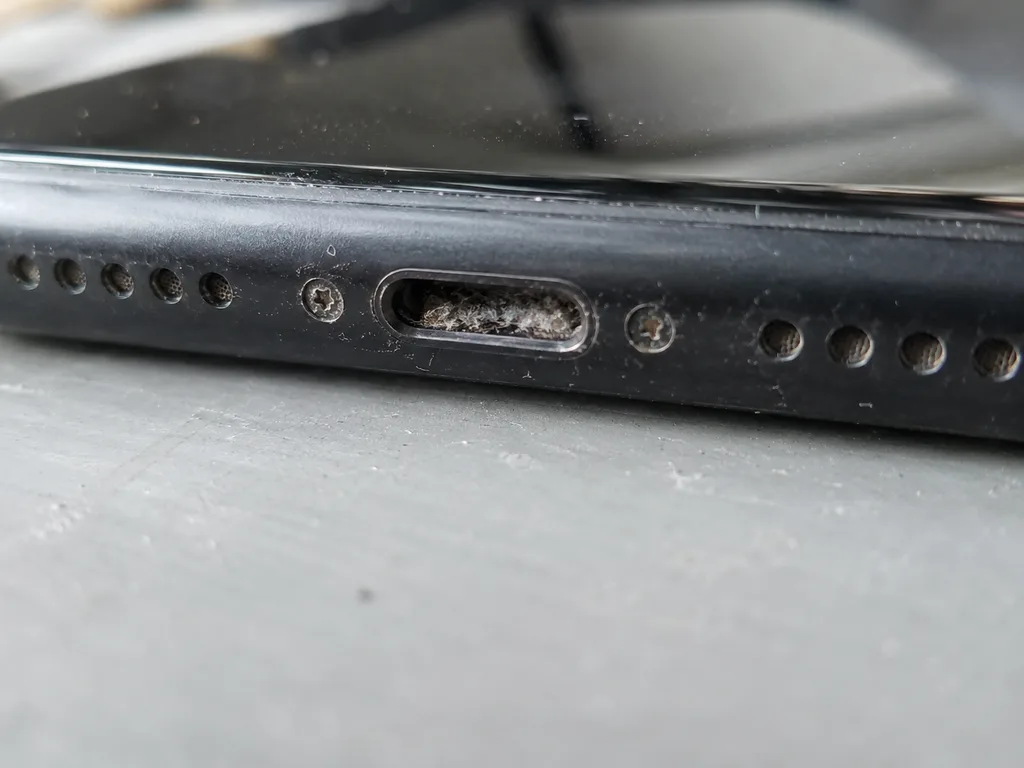 Before: the port does not charge
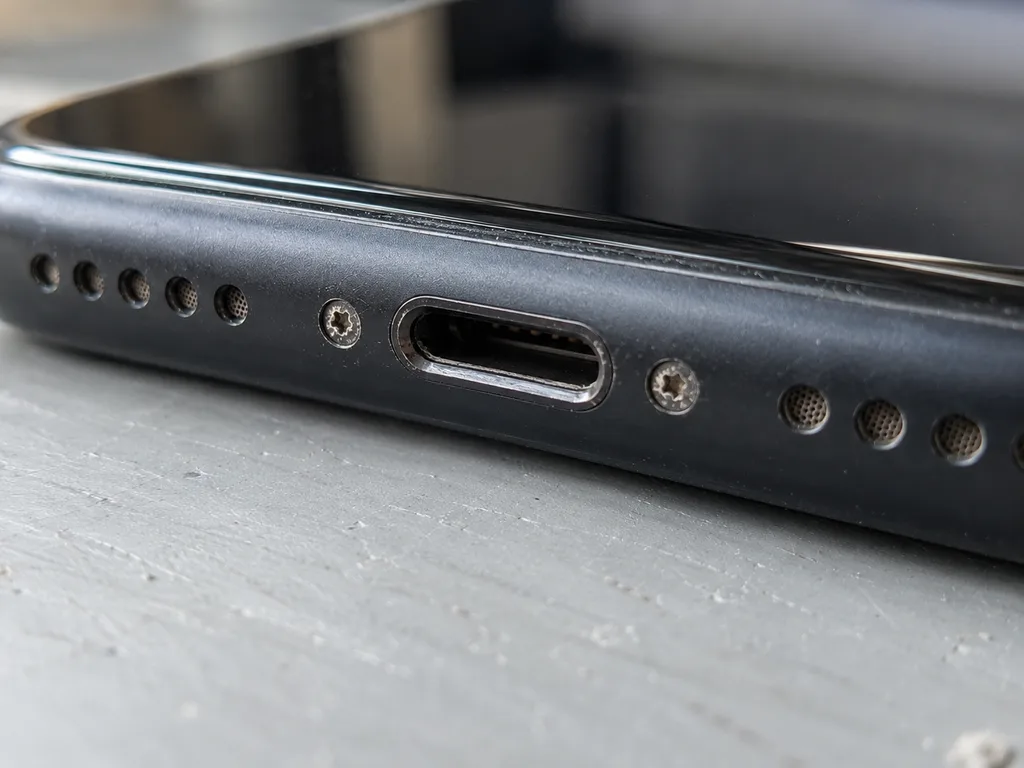 After: a new port
When MagSafe is not charging and how the repair works in Almaty
If the simple steps did not help, the next move is a technician. Here is how a MagSafe not charging fix in Almaty runs from the first message to the final check.
How long a MagSafe port replacement takes
Most MacBook charging repairs we take on run from 1 hour to 1 day, and a logic board repair takes 1 to 3 days, with 72% of jobs finished while the customer waits in the waiting area. A straight port swap is the short case; once the fault sits on the motherboard, the work moves under the microscope and the clock stretches. We accept devices 7 days a week, so a weekend drop-off does not push the job to Monday. A port swap is quick, but the wait grows when the fault turns out to be on the motherboard, so the diagnostic result decides the timeline, not the symptom.
What we check after the charging repair
After the repair we run 32 functions in about 10 minutes, charging among them, and you test the charging and network together with the engineer before you leave. The list also covers the camera, microphones, speakers and the USB-C ports, so a connector fix does not quietly break something else on the motherboard. The engineer hands the device back only once every item on that list passes in front of you. A charger that shows a light is not proof of a healthy fix, so we confirm the battery actually gains charge under load, not just that the connector is live. If anything on the list looks off, the engineer fixes it before handing the MacBook back.
What is fixed on the receipt before work starts
Before any work starts we fix the price, the part (original or aftermarket), the turnaround and the warranty up to 1 year on the receipt, and we show the new part in factory packaging before installation. That takes about 2 minutes and settles the questions people usually ask at pickup. 64% of our customers choose an original part, and the old part comes back with the device, so you can see exactly what was replaced. Send a photo of the fault on WhatsApp first — an engineer replies within 5 minutes and quotes from the picture, and a courier can collect the MacBook across the city in 90 minutes, free with a repair.
Liquid damage and board-level charging faults
Some MagSafe not charging cases in Almaty are not about the port or the cable at all: they come from liquid that got inside, or from a power controller fault on the logic board itself.
Why liquid damage often hits charging first
After liquid damage the charging circuit is often the first to fail, because the magnetic port and the power controller sit where moisture and residue collect. Liquid runs down the case, pools near the rear edge, and stays in contact with the port pins and the power controller long after the visible surface looks dry. Coffee, tea and sweet drinks leave a conductive film that bridges contacts and slowly shifts the voltages the controller reads. A MacBook that dried out and worked for weeks can still fail later, as residue slowly corrodes the contacts around the charging path. That delay is why people rarely connect the failure to the spill — the two events can sit a month apart. If a device has ever had liquid inside, say so when you hand it in: it changes how the fault is traced.
How board repair under a microscope works
When the power controller on the motherboard has failed, we repair the motherboard under a microscope instead of replacing the whole board, which keeps the repair faster and more precise. Board-level faults do not always show a visible burn mark, so the microscope is what lets us trace the charging path contact by contact. Under magnification the engineer follows the line from the magnetic connector through the power controller, checking solder joints, corroded traces and damaged components one at a time. Only the failed element is replaced — the rest of the unit stays as it was. In our practice this is the difference between a laptop that charges again and one swapped out for no reason: most faults sit in a handful of components, not across the whole surface.
Why liquid diagnostics can take longer
Diagnostics after liquid damage can take up to two days, because we clean the motherboard and watch how the charging circuit behaves before naming the faulty part. The cleaning itself is quick; the waiting is deliberate. Residue under a component can keep conducting after the first pass, so the motherboard is checked again once it has settled, and the power controller is watched under load rather than at rest. Rushing a liquid repair often means replacing a healthy part, so the extra day is what separates a real fix from a repeat visit. Standard faults are confirmed in 15 minutes at the counter, but a liquid case earns the longer window — and that is the honest timeline we give before work starts.
Summary: MagSafe not charging on your MacBook
Charging failures almost always trace back to one weak link in a short chain. Here is the short version to carry with you before you decide what to do next.
- Order of checks: Test the adapter, cable, connector and battery in that sequence before assuming a logic board fault.
- Indicator signals: An amber glow means power reaches the socket, while no glow points to an earlier link in the chain.
- USB-C comparison: Charging that works over USB-C but not the magnetic side narrows the fault to the wireless path only.
- Heat and sparks: Unplug a hot or sparking plug at once and never poke inside the opening with metal.
- Changed diagnosis: A swollen battery or liquid damage alters the picture and calls for a proper physical inspection.