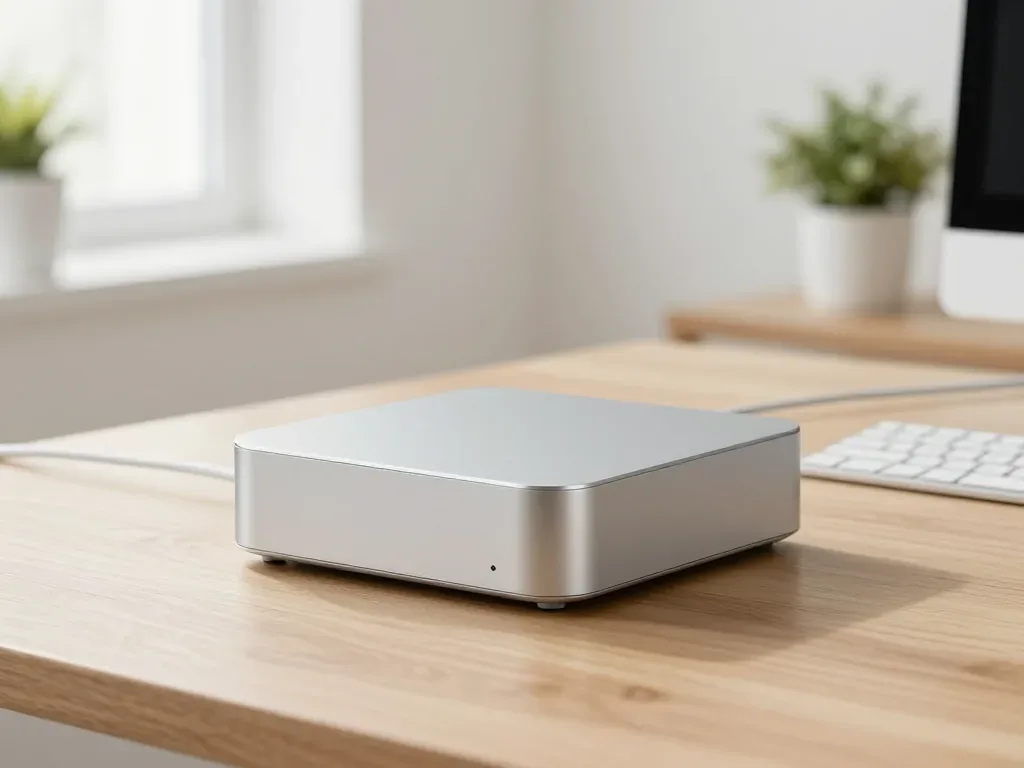

Mac mini overheating in Almaty usually comes down to a dust-clogged fan, dried thermal paste or a failing board, and the same logic applies to a noisy Mac Studio. At iServices we run free 15-minute diagnostics in front of you, fix most cooling issues while you wait, and back the work with a warranty up to 1 year.
Why Mac mini and Mac Studio overheat and get noisy
Overheating and noise in Apple desktops almost always come down to one of three causes: dust, dried thermal paste, or a workload the cooling cannot handle. Each one leaves a different fingerprint.
Service details: “Mac mini M4 Repair”.
Dust, clogged vents and a strained fan
A cooler that ramps up in idle is the classic sign of dust packed into the heatsink fins, because the blades have to spin harder to move the same air. Dust enters through the rear vents and settles on the aluminium fins, forming a mat that blocks airflow while the rotor keeps pushing against it. The result is a machine that runs warmer at the same load and sounds louder than it did a year ago, even though nothing in the software changed. Dust builds up fastest in homes near busy roads and in rooms with pets, so a quiet unit can turn loud without any change in workload. Mac mini overheating in Almaty is often linked to exactly this kind of dust buildup. Hold a phone torch to the vents: a grey felt-like layer means cleaning is overdue.
Dried thermal paste and rising temperatures
Thermal paste dries out over years of heat cycles, and once it cracks the processor and heatsink no longer transfer warmth efficiently, so temperatures climb under the same tasks. The layer between the die and the cold plate is meant to fill microscopic gaps; when it hardens and pulls away, air pockets take over and warmth stays trapped in the chip instead of reaching the fins. Sensors report the rise, the cooling curve reacts, and the machine gets louder long before anything feels slow. Paste degrades silently, so the first symptom is usually a cooler that stays loud longer after a heavy task rather than an obvious spike. On a desktop that has run daily for several years, replacing the paste is routine maintenance, not a repair.
Heavy workloads, throttling and when heat turns into damage
Under sustained renders or long exports a Mac mini or Mac Studio will warm up and throttle on purpose, but throttling that appears during light work points to a cooling fault rather than normal load. Throttling is the system protecting itself: clock speeds drop, the blades hit their ceiling, and performance returns once temperatures fall. The distinction matters because sustained-load warmth is expected behaviour, while a machine that stutters in a browser or an email client is telling you the cooling path is compromised. Repeated thermal throttling is not harmless, since it stresses the board and power components over time. A unit that throttles on easy tasks deserves a check before it fails outright.
How Mac mini overheating and Mac Studio cooling differ
The two machines share a symptom set but not a thermal design. A loud fan on one means something different than on the other, so the layouts are worth comparing directly.
Mac mini cooling layout and what its fan noise means
The compact desktop packs a single blower and a small heatsink into a tight chassis, so it reacts to dust and dried paste faster than a larger tower, and its noise climbs quickly when airflow drops. Air enters through a narrow intake at the base and crosses a short fin stack, leaving almost no margin once the fins start to clog. One rotor also serves both the processor and the memory area, so a partial blockage is felt across the whole machine. Because this model has little thermal headroom, a modest loss of efficiency becomes audible long before temperatures look alarming on a monitoring app. If the fan turns noticeable while you browse or watch video, treat the intake and the paste as the first suspects rather than the workload.
Mac Studio cooling and when a loud fan is normal
The larger desktop uses a dual-fan system with more headroom, so fans that spin up through a long render are expected, but a unit that roars at idle or during browsing is not behaving normally. Two rotors move air through a much taller heatsink, and the chassis vents are wider, which lets the machine hold a heavy export or a compile job for hours without reaching top speed. On this model the useful test is comparison over time — if a project that used to run quietly now makes the cooling audible, thermal performance has dropped even though the machine still works. A clogged cooler amplifies noise and heat at once, so a dust layer the smaller unit would barely tolerate can push this one into that territory on a render that used to be silent.
Side-by-side comparison of the two models
| Model | Cooling setup | Normal noise | Warning sign |
|---|---|---|---|
| Mac mini | Single fan, compact heatsink | Quiet at idle, louder under load | Loud at idle or during browsing |
| Mac Studio | Dual fans, larger heatsink | Louder during long renders | Roaring at idle or light tasks |
| Both | Paste and dust affect efficiency | Rises slowly with age | Task now louder than before |
Normal heat or a real Mac mini overheating problem
Before carrying the machine to a service desk, it helps to know where normal warmth ends and a genuine fault begins. A few observable signs separate the two cases clearly.
Reading temperatures and fan behaviour
A computer that warms up under load and settles back to idle temperatures within minutes is behaving normally, while one that stays hot and keeps the cooler spinning high long after the task ends is not. On a healthy Mac mini the blades ramp up during exports or long compiles and drop to a quiet hum shortly after; on a Mac Studio the large impeller moves more air at lower speed, so audible noise under heavy work is expected. Third-party monitors such as iStat Menus or TG Pro log sensor values over hours, which is more useful than a single glance. Watch the trend rather than a single reading — a temperature that used to sit lower during the same work is a more reliable signal than any absolute number.
Symptoms that mean it is time to stop working
- Cooling stays high after the task ends: the blades keep spinning loudly minutes after the workload stops, with no heavy process left running.
- Sudden slowdowns in light apps: browsing or documents stutter where they used to run smoothly, a classic sign of throttling under heat.
- Unexpected shutdowns: the device powers off or restarts without warning during work, pointing to thermal protection cutting in.
- Kernel panics: repeated crashes that point to a hardware fault rather than software, especially when they cluster around heavy tasks.
- Heat at idle: the chassis feels hot even when nothing demanding is running, suggesting blocked airflow or dried paste.
What long-term overheating does to the board
Sustained overheating stresses the board and its power components, and over time that can turn a cooling problem into a board-level fault that needs microscope repair. Heat accelerates the ageing of VRM phases, capacitors and solder joints around the CPU and GPU, and the thermal sensors that throttle the chip are the first to report the strain. Once throttling becomes constant, the machine runs slower even on light tasks, and the damage shifts from a serviceable cleaning to component-level work. The board is the most expensive part to replace, so treating persistent heat as a warning rather than an inconvenience is what keeps a repair small.
What you can do yourself with cleaning and thermal paste
Some maintenance is genuinely within reach of an owner, but Apple desktops have firm limits, and past those limits a home cleaning can turn into a broken connector or a scratched board.
How often cleaning and paste replacement are needed
In a typical Almaty home a compact desktop benefits from a dust clean every one to two years, and thermal paste is usually refreshed at the same time once the machine is a few years old. The interval is driven by airflow, not by the calendar: a desk near a window, a carpeted room or a flat with pets pulls particles into the heatsink far faster than a clean office does. On Mac Studio the same logic applies, though the larger chassis buys a little more time before the fins clog. Machines in gritty or pet-heavy rooms need it sooner, and the interval shortens if the blower has already started to sound louder than it used to.
What is safe to do yourself and where the risk starts
Clearing external vents and keeping the desk free of debris is safe for anyone, but opening the chassis to reach the heatsink and impeller carries real risk of damaging connectors and clips on these compact machines. A soft brush or a vacuum on low suction at the rear vents, plus a stand that lifts the unit off the desk, handles most of the surface layer. Inside, the impeller cable, the antenna connectors and the thin ribbon links sit within millimetres of the screws you would remove first, and the clips on the bottom cover are easy to crack. The parts that most often break during a first DIY attempt are the small internal connectors, and those failures cost more to fix than the cleaning would have.
When cleaning does not fix the noise
If the blower is still loud after a clean and fresh paste, the cause is usually deeper — a worn rotor, a failing sensor or a board fault — and that is where our free diagnostics in front of you finds the real reason. We run the check in 15 minutes with the customer watching, so you see the temperature readings and the airflow behaviour rather than taking a description on trust. A noise that survives proper servicing is a signal to look at the board rather than repeat the cleaning, so the next step is a proper check rather than another surface pass.
When overheating means a board repair
Sometimes overheating has already damaged hardware before anyone opens the case, and cleaning alone will not bring the machine back. We look at when the fault reaches the board and how that work is done.
Signs the fault has reached the board
A computer that will not boot, loses ports or restarts under load after a history of overheating has likely moved past a cooling issue into a board-level fault. The pattern matters more than any single event: repeated throttling, sensors that read high even at idle, USB and Thunderbolt ports that drop out, and sudden shutdowns during exports or renders all point to a damaged power or logic path. Heat stress weakens solder joints and strains the power delivery stages that feed the CPU and GPU, so a device can run fine one day and fail to POST the next. These symptoms rarely appear suddenly. They usually follow weeks of rising heat and fan noise, which is why the earlier signs matter.
How board repair with a microscope works
We fix the logic board with a microscope, which lets our technicians trace the damaged components behind heat-related failures and replace them instead of swapping the whole unit. Through magnification the engineer follows the power rails, checks for cracked joints, burned traces and failed regulator stages, and reflows or replaces only the parts that test bad. A whole-unit swap is quicker to perform but discards healthy silicon along with the fault. Magnified work is slower than a part swap but preserves the rest of the circuitry, so it is usually the difference between a targeted fix and a full replacement. Our technicians are experienced, and we have been handling these jobs for eleven years.
How long board repair takes
Board repair takes longer than a clean or paste change — typically one to three days — because the work is done with a microscope and each fix is tested before the machine goes back together. A clean and fresh thermal paste are finished the same day, but once the circuitry is on the bench the engineer needs time to isolate the fault, source the component and confirm the fix holds under load. After the work we check 32 functions in about ten minutes — ports, charging, network, speakers and microphones — so nothing slips through. The extra time is what allows a proper check afterwards, so a fast turnaround on this kind of job is worth questioning rather than celebrating. A courier across the city takes about 90 minutes and is free with a repair.
How servicing works, warranty and getting your Mac to us in Almaty
So you know what to expect from a visit, here is the process step by step — from diagnostics in front of you to the warranty and the ways to get your machine to us.
Diagnostics, receipt and checking the device after repair
- Free diagnostics in front of you: the engineer checks the device for about 15 minutes and shows you exactly what is broken.
- Receipt before work: price, part, turnaround and warranty are fixed on the receipt in about 2 minutes.
- Part shown in packaging: the new part is shown in factory packaging before installation, so you see what goes in.
- 32-function check: after the repair the engineer checks 32 functions for around 10 minutes, from ports and charging to speakers and network.
- Handover: the device comes back with the receipt, warranty card and the old part.
Turnaround times and waiting on site
Most cooling jobs are finished while you wait — 72% of our repairs are completed in the waiting area — and the whole process from first contact to pickup usually takes under an hour. The waiting area has coffee and Wi-Fi, so a fan cleaning or a thermal paste replacement does not cost you a working day. If the fault turns out to be on the board, the timeline shifts: board repair runs from 1 to 3 days, while MacBook and iPad work takes from 1 hour to a day. We tell you which case you are in right after diagnostics, before anything is opened. Waiting on site means you leave with a tested machine the same day, which matters most when the computer is your main work tool.
Warranty, courier and weekend drop-off
We back the work with a warranty up to 1 year, accept devices 7 days a week, and can send a courier across the city in about 90 minutes, free with a repair. Weekday hours run 10:00–19:00, weekends and holidays 11:00–18:00, so an overheating machine can be dropped off on a Saturday without rearranging your schedule. If you cannot leave the office at all, send a photo of the device on WhatsApp — an engineer replies within 5 minutes and quotes from the photo, and a courier can be called to collect it. We work from branches in Almaty and Astana. A courier and weekend hours matter most for people who cannot leave work on a weekday, so the machine gets serviced without taking time off.
Summary: Mac mini overheating and what to check first
Overheating and noise on a Mac mini or Mac Studio rarely appear without a cause. The pattern below sums up what the symptoms usually point to and where self-help ends.
- Dust and dried paste are the usual causes: a cooler that gets loud at idle or after light work points to clogged fins or degraded thermal paste.
- The two models differ: the mini has little headroom for dissipation, while a Studio is only abnormal when it roars at idle or light tasks.
- Watch the trend, not one reading: the same task running hotter or louder than before is the clearest warning sign.
- Cleaning has limits: if noise survives a proper clean and fresh compound, the cause is likely a fan, sensor or logic fault.
- Persistent heat can reach the circuitry: shutdowns, port loss and restarts after a history of overheating mean a deeper check, not another dust pass.