
To protect an iPad from kids in Almaty, pair a rugged case with tempered glass and lock the device down with Screen Time and Guided Access. If a drop already happened, iServices runs free 15-minute diagnostics in front of you, fixes most iPads in 1 hour to 1 day, and backs the work with a warranty up to 1 year.
Which layer actually protects an iPad from kids
One layer will not save everything — falls, scratches and spilled liquid hit different parts of the device, so to protect iPad from kids in Almaty you build protection from a case, glass and settings working together.
Service details: “iPad repair”.
What a rugged case really absorbs
A rugged case takes the impact of a fall on corners and edges, which is where most kid drops land. EVA foam and thick silicone compress on contact and spread the shock across the bumper instead of the frame, so a tablet thrown off a sofa or a table usually walks away with a scuff. A folio adds a cover over the front but leaves the corners thinner, and a slim shell rated for a short drop rating handles a stumble, not a launch across the room. The shell does one job well: it buys the device a second of deceleration. A thick shell does not stop a cracked screen if the tablet lands face-down on a hard floor, so the shell and the glass cover different failure points.
Why tempered glass earns its place
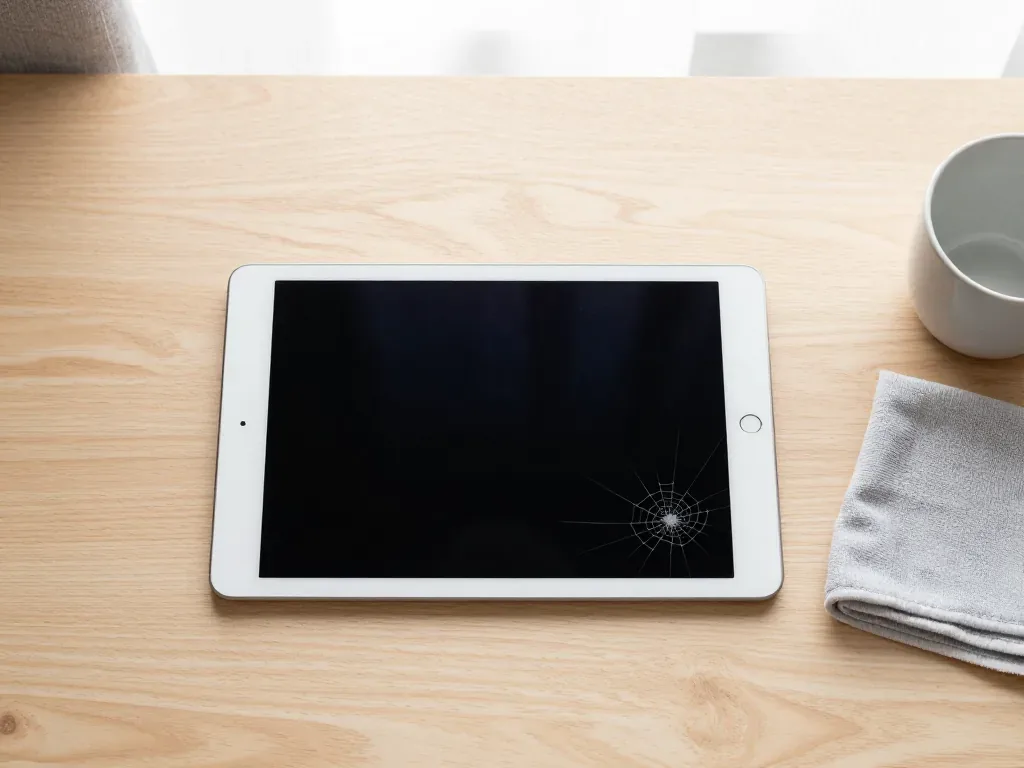
Tempered glass takes the scratch and the first crack so the display underneath survives a face-down drop. The sheet sits above the display module and absorbs the point load from a toy, a fork or a tile edge, and its oleophobic coating keeps greasy fingerprints from turning into permanent smudges. A film is thinner and cheaper, but it only resists keys and sand — it flexes under a real hit and passes the energy straight through. The sheet is designed to break first, in a spiderweb pattern, and to be swapped without touching the panel below. A film guards against scratches but not impact, so for a child who drops the tablet, glass is the layer that fails first on purpose.
Matching the setup to your child's age
| Child age | Main layer | What it prevents |
|---|---|---|
| 2–4 years | Full-body case with handle | Drops, thrown tablet |
| 5–7 years | Case plus tempered glass | Face-down drops, scratches |
| 8–10 years | Glass plus Screen Time | Scratches, accidental purchases |
| Any age | Guided Access | App switching, settings changes |
Settings that protect iPad kids and limit damage before it happens
Software will not stop a cracked screen, but it stops the chaos around a child's tablet — stray purchases, deleted apps and settings a parent then has to rebuild.
Screen Time limits that hold
Screen Time sets daily app limits and content restrictions so a child cannot wander into purchases or age-inappropriate apps. Inside Settings, open Screen Time, tap App Limits and add a limit per category rather than per app — a single games cap covers every title the child installs next month, while per-app rules break as soon as a new game appears. Content & Privacy Restrictions is the second switch worth flipping: it blocks in-app purchases, filters adult web content in Safari and hides the App Store install button entirely. A child Apple ID attached here keeps the limits synced across every device signed into that account. Turn on the passcode for Screen Time changes, otherwise a child who watched you once can lift the limits in a minute.
Guided Access for one-app sessions
Guided Access locks the iPad to a single app until you enter a passcode, so a child cannot jump to settings or the home screen mid-task. Enable it once under Settings, Accessibility, Guided Access, then triple-click the side button inside any app to start a session. Before you hand the tablet over, draw a disabled-area zone over the menu bar of a drawing or video app — small fingers aim poorly and a masked strip removes the taps that close the app. Time Limits inside the same menu caps a session automatically, which suits homework blocks and car rides. It is the setting that most reduces accidental taps on system menus, which is where small fingers usually cause trouble.
A separate child account done right
A child Apple ID under Family Sharing keeps a kid's apps and purchases separate from the parent's account. Create it in Settings, tap your name, then Family, then Add Member, and choose Create a Child Account — the age entered there drives the default content rating, so an honest birth year does the first round of filtering for you. Ask to Buy routes every download and in-app purchase to your phone for approval, which stops the surprise charges that follow a bored afternoon. Communication Limits and Screen Distance sit in the same panel and are worth switching on at the same time. Set up the child account before handing over the tablet, because migrating saved progress later is more work than starting clean.
First minutes to protect iPad kids after a child drops it
The first ten minutes decide whether a drop stays a scratch or turns into a repair, so the order of your checks matters more than the panic. Work through them calmly, one at a time.
Check the screen and touch first
Look for cracks, dead spots and lines on the display, then drag a finger across every corner to feel for touch that does not respond. Turn the iPad on and open a drawing app so you can trace the whole surface — a single unresponsive strip is easy to miss on a home screen. Check the front camera and the light sensor area too, since a hairline crack near the top edge often spreads downward within days. The digitizer is the touch layer bonded to the display module, and it fails separately from the panel itself. A display that lights up but ignores touch in one zone usually means a damaged digitizer, not a dead panel, and that changes the repair.
Signs the iPad needs a service visit
We tell parents to bring the iPad in when the screen flickers, the touch drops out, the camera glass is cracked or the frame is bent after a fall. Flicker that appears only at low brightness, ghost touches that open apps on their own, and a rear camera that shoots hazy frames all point to damage that will not settle on its own. At iServices the engineer runs free diagnostics in front of you for about 15 minutes, even if you decide not to repair, and shows what is broken. A device that still turns on can hide a bent frame that later cracks the new screen, so a free check in front of you catches it before the repair.
What not to do right after a drop
- Do not press the cracked area: glass shards can reach the display underneath and turn a glass-only fix into a full module swap.
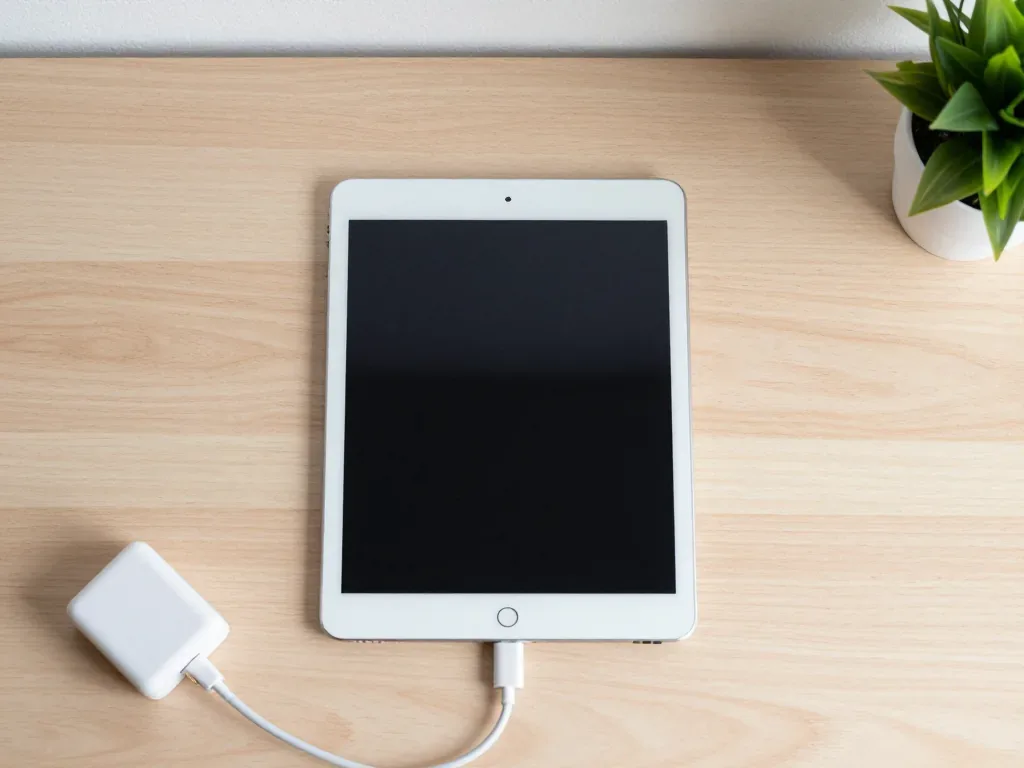
- Do not plug in a wet iPad: power plus liquid can short the board, so let it dry and get it checked first.
- Do not shake or tap the frame: rattling tells you nothing useful and can shift loose glass into the touch layer.
- Do not peel the glass yourself: lifting a shard usually takes part of the touch layer with it.
- Do not wait weeks if touch fails: an unresponsive zone can spread across the panel as pressure builds.
What breaks on an iPad and how to keep kids safe
Not every crack means a new screen, and not every spill means a dead tablet, so the repair scope depends on which part took the hit.
Cracked glass with a working display
When the image is clean and touch works everywhere, the damage is often limited to the outer glass, which is a smaller repair than a full display module. The panel underneath is a laminated stack: the outer glass, the touch layer and the LCD or OLED layer sit bonded together, and a fall usually damages only the top one. A glass-only fix is only possible if the touch layer underneath is intact, so the engineer tests touch across the whole panel before quoting. Run your finger along all four edges and each corner yourself, because dead zones near the bezel show up first and are easy to miss in normal use. A surface-only fix restores the top layer but does not fix a bent housing, and a frame that is out of shape will crack the new cover at the same corner within weeks.
Water and food spills
After a spill we run diagnostics that can take up to two days, because liquid reaches the board slowly and the damage shows up late. Juice, milk and sweet tea are worse than clean water: sugar and acid stay on the board after the liquid dries and keep eating the contacts. We open the device, look at the board under a microscope and check the corrosion points before naming a repair, and the engineer shows you what he finds. An iPad that works right after a spill can fail a week later from corrosion, so the check matters more than the immediate symptoms. Do not charge a wet tablet and do not dry it on a radiator, since heat pushes moisture deeper into the layers.
Which damage maps to which repair
| What you see | Likely part | Repair scope |
|---|---|---|
| Cracks, image fine | Outer glass | Glass replacement |
| Dead touch zones | Touch layer | Display module |
| Cracked camera lens | Camera glass | Glass swap |
| Bent frame | Housing | Frame work |
| No power after spill | Board | Board repair |
Original part or aftermarket for an iPad repair
The part you choose sets how the screen looks, how long it lasts and what the warranty covers, so the choice is worth a minute of thought.
What an original part changes
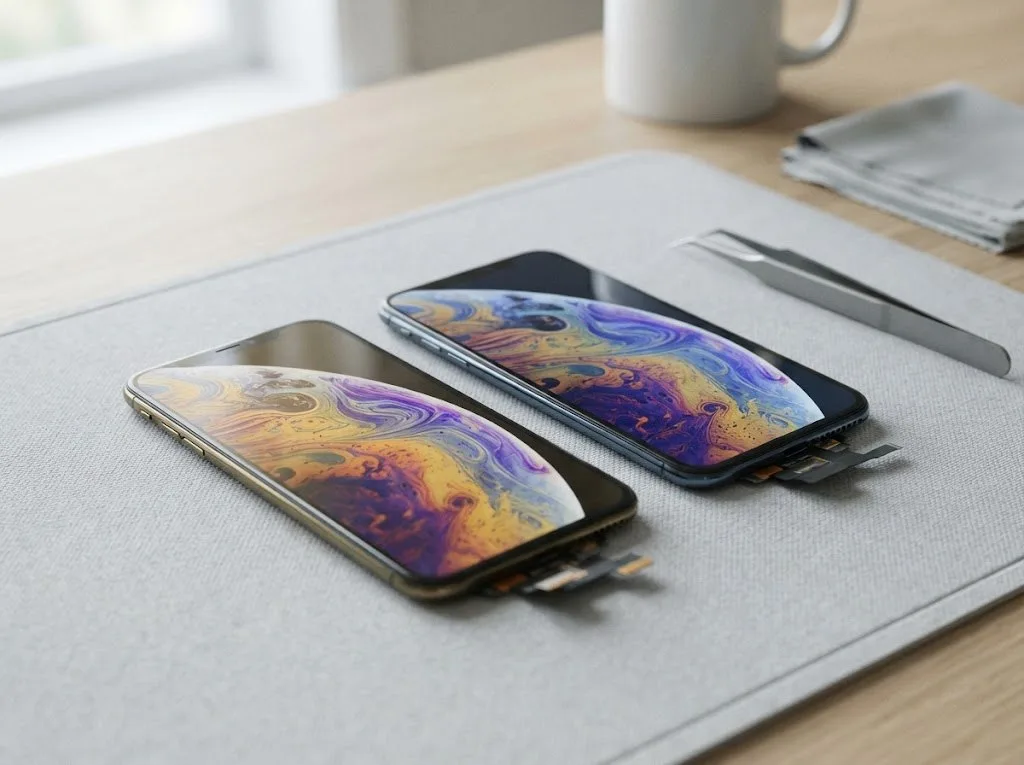
An original part keeps the color, brightness and True Tone behavior the iPad had before the drop, and 64% of our customers pick it. The display module is matched to the board at the factory, so auto-brightness shifts smoothly and whites stay neutral instead of drifting warm. We order the part under the exact model number, show it in sealed factory packaging before fitting, and fix the choice, turnaround and warranty on the receipt before work starts. True Tone and auto-brightness depend on the display matching the board, so a mismatched part can leave the picture looking off even when it works — if your child watches cartoons for hours, that difference shows up as eye strain by evening.
When an aftermarket part makes sense
An aftermarket part fits a tighter budget and works well for an older iPad where the screen is already worn. On a device two or three generations back, the panel has likely collected micro-scratches and dim spots, so a fresh aftermarket module often looks brighter than the tired original it replaces. We still check the part against the model, show the new module in factory packaging before installation, and note the part type and warranty on the receipt — up to 1 year. Our engineers quote from a photo on WhatsApp within 5 minutes, so you can compare both options before committing. If the tablet lives in a backpack and travels to school daily, an aftermarket screen plus a rugged case usually covers the next drop fine.
Comparing the two choices
| Parameter | Original part | Aftermarket part |
|---|---|---|
| Display behavior | Keeps True Tone | May differ |
| Best for | Newer iPads | Older, worn iPads |
| Warranty | Up to 1 year | Up to 1 year |
| Shown before fitting | Yes, sealed | Yes, sealed |
Repair time, pickup checks and warranty
How long you wait, whether you can stay during the work and what gets verified at handover decide how the whole repair feels, so here is the timeline and the checklist we follow.
How long an iPad repair takes
Most iPad repairs take from 1 hour to 1 day, and 72% of our repairs finish while the customer waits in the lounge. An iPad repair takes from 1 hour to 1 day, while a board-level fault pushes the work to 1–3 days under the microscope. We send a photo of the damage on WhatsApp, an engineer replies within 5 minutes and quotes from it, and the free 15-minute diagnostics confirms the actual scope in front of you. While the device is open you can sit in the waiting area with coffee and Wi-Fi, or call a courier — across Almaty it takes 90 minutes and is free with a repair. A board-level fault changes the plan, so the quote you get after diagnostics tells you whether to wait or come back.
The pickup checklist
- Face ID: unlocks cleanly and recognizes you at the same angle as before the drop.
- True Tone: shifts the screen warmth under different light instead of staying flat.
- Cameras: focus sharply and the cracked lens cover is gone.
- Microphones and speakers: record and play without crackle or muffled sound.
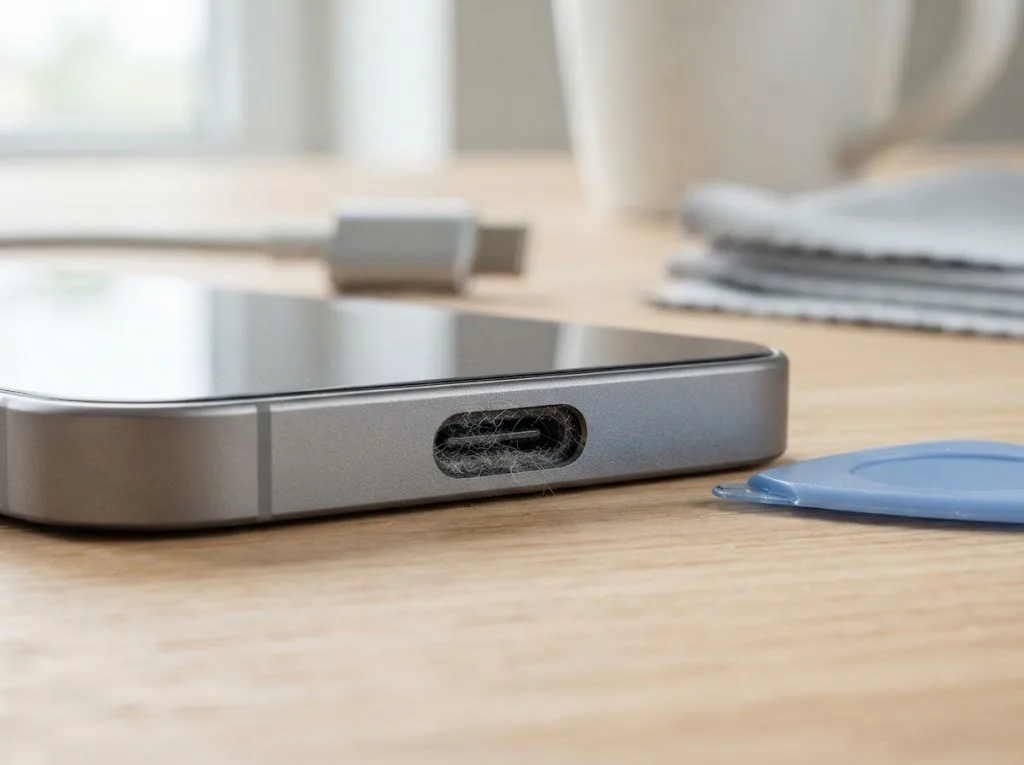
- Charging: holds a steady connection in the port with no wiggle.
- Network: connects to Wi-Fi and cellular without dropping.
What the warranty covers
Every repair comes with a warranty up to 1 year, and the price, part, turnaround and warranty are fixed on the receipt before work starts. The receipt is written in about 2 minutes, and the new part is shown in factory packaging before installation, so you see what goes into the device. After the work the engineer runs the 32-function check with you, then hands back the device with the receipt, the warranty card and the old part. That paper trail matters: if a display or battery behaves oddly weeks later, the claim is settled against a documented part and date rather than a verbal promise. Keep the warranty card with the receipt — it is what turns a later fault into a covered repair instead of a new invoice.
Summary: How to protect an iPad from kids
A kid-proofed iPad comes down to three habits — physical protection, locked settings and fast action after a fall. Here is the short version to keep handy.
- Layer the protection. A rugged case absorbs drops, tempered glass takes the face-down fall, and Screen Time limits cover what the hardware cannot.
- Restrict the software. Guided Access and a separate account stop a youngster from rearranging menus, deleting apps or running up in-app purchases.
- Act fast after a drop. Check the screen and touch response, never press on a crack, and get a professional look before a hairline fault spreads into the display.
- Match the repair to the part. Cracked glass, a dead digitizer and a bent frame are separate jobs with different parts and different turnaround.
- Keep the paperwork. A receipt, a warranty card and the old component are what shield you if the same unit fails again weeks later.