
If your iPad is not charging in Almaty, start by swapping the cable and adapter, then check the port for lint and force-restart the device. If the battery icon still won't move, the cause is usually the charging port, battery or power controller, and iServices pinpoints it with a free 15-minute diagnostic in front of you.
Start Here When Your iPad Stops Charging
The first ten minutes decide where this story goes: a fresh cable, a two-minute clean, a restart — or a trip to a workshop. Everything below is safe to try yourself before the tablet leaves your hands.
Service details: “iPad Battery Replacement”.
The Five-Minute Check That Rules Out the Obvious
- Cable swap: test a known-good Lightning or USB-C cord on the same tablet and watch the battery icon.
- Adapter check: use a wall adapter rated for tablet power, not a phone charger, then wait a full minute.
- Second socket: try another outlet with the same adapter to separate a dead socket from a dead charger.
- Both orientations: flip the plug — one-sided charging points to the connector, not the battery.
- Charge level: leave it plugged in for twenty minutes, since a deeply drained device shows nothing at first.
Cleaning the Port Safely at Home
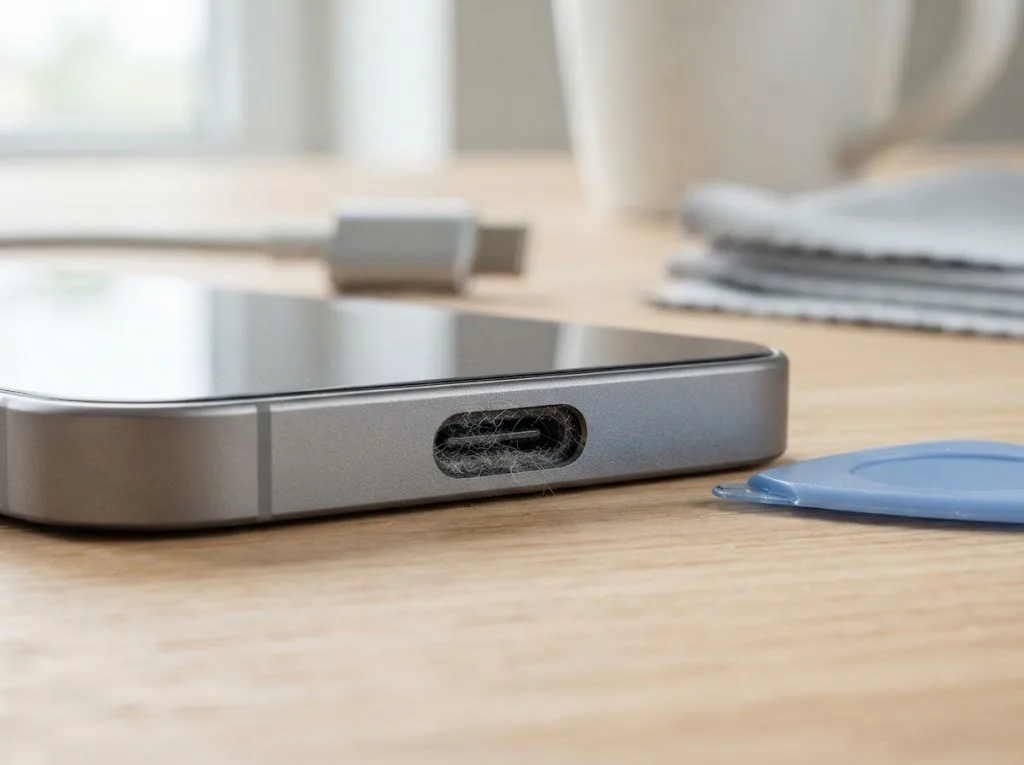
You can clear loose lint from the charging socket with a wooden toothpick and a burst of air, but never with metal pins, compressed air held close or any liquid — a bent contact turns a free fix into a board repair. Hold the tablet with the opening facing down, work the toothpick gently along the walls, and stop the moment you feel resistance. If the device only charges when the cord is wiggled at an angle, the connector is already worn inside and cleaning won't fix it — that symptom points to the part itself, and no amount of scraping brings the contacts back. If your iPad is not charging in Almaty, this worn connector is the most common culprit we see. In our practice, the wiggling complaint almost always ends at the connector, not the battery.
When a Force Restart Is the Actual Fix
A frozen charging circuit often looks like a dead port, so we always try a force restart before opening anything — it takes seconds and sometimes brings the charging icon straight back. The sequence differs by model: on Face ID units, press volume up, then volume down, then hold the top button until the Apple logo appears; on older Home-button models, hold the top and home buttons together. The power controller manages the charging process and power distribution inside the tablet, and a stuck state there mimics a hardware fault convincingly. If the icon returns after a restart but the percentage stays stuck, the battery is reporting bad data to the controller, and that is a diagnostic job rather than a user fix.
iPad Charging Cable, Port, Battery or Power Controller
The symptom itself tells you a lot about which of the four parts is at fault. Read it before you buy a new cable or book a repair visit.
Reading the Symptom Before You Touch Anything
| Symptom | Likely cause | What it means |
|---|---|---|
| Nothing happens at all | Cable, adapter or port | Start with the cable and adapter |
| Charging icon shows, percentage never rises | Battery or power controller | The port is delivering current |
| Charges only at a certain angle | Charging port | The connector is loose or dirty |
| Charges, then stops randomly | Port or controller | The contact is unstable |
Why the Battery Can Stop Accepting a Charge
A worn battery can refuse charge even when the port is perfect, because its internal resistance rises until the controller reads it as full or faulty. Lithium cells lose capacity through charge cycles, and heat speeds this up: a tablet left on a windowsill or under a pillow runs warmer than one on a desk, and the chemistry degrades faster. The controller then sees a voltage it does not trust and cuts the current, so the icon appears while the percentage stays flat. Age alone is not the trigger — an older cell kept cool can still hold charge better than a younger one that overheated daily. If the device shuts down early or drops from 40 percent to zero in minutes, the battery is the suspect regardless of what the charging icon shows.
What the Power Controller Does and How It Fails
The power controller is the chip that decides how much current reaches the battery, and when it fails the device can show a charging icon while taking in almost nothing. It sits on the main board and regulates voltage from the port, switching between charging, running and protecting the cell from overcurrent. A short inside the chip or a broken trace around it produces the same flat-percentage symptom as a tired battery, which is why the two get confused. Controller faults rarely come alone — they often follow a bad charger or a liquid spill, so a technician checks the port and board together rather than replacing one part blindly. On these tablets the chip is small and sits close to other components, so the board is examined under a microscope before any conclusion is drawn.
When iPad Charging Is Dead and Shows No Sign of Life
A black screen with the cable connected means either a deeply drained cell or no current reaching the board at all. These two states look identical, so the first hour is about separating them.
Black Screen With a Charger Plugged In
A completely black device on a charger is either deeply discharged or not receiving current at all, and the two look identical until you leave it plugged in for a while on a known-good adapter. Deep discharge happens after weeks in a drawer, in cold rooms or on a cell worn past its cycle count, and the battery needs a slow trickle before the display responds. No current at all points to the cable, the port, the charging flex or the controller on the board. Water contact changes the picture — oxidation keeps spreading under the shields, so diagnostics after a spill can sometimes take up to two days. If nothing changes after an hour, stop cycling adapters — repeated attempts on a shorted board can turn a cheap port fix into a board repair.
Charging Icon Appears but the Percentage Stays Put
An icon that appears without a rising percentage means current is reaching the tablet but not the battery, which narrows the fault to the cell, the controller or a damaged charging flex. The charging flex is the flat ribbon that carries voltage from the port to the controller, and a hairline crack in it passes enough for the icon while throttling real charge. A battery worn past its rated cycles accepts energy slowly and then holds the number flat for hours. The controller, for its part, can report a healthy connection while refusing to route energy into the cells. This is the symptom people most often misread as a slow adapter, so check whether the number moves at all over twenty minutes before blaming the charger.
The Restart and Recovery Steps Worth Trying
- Force restart: hold the top button with either volume key until the Apple logo appears, clearing a frozen manager.
- Recovery connection: plug the tablet into a computer with a data cable and open Finder.
- Recovery mode restore: if the computer sees it, run an update first and a restore only after.
- Free check: we run a free 15-minute diagnostic in front of you and name the faulty part.
Wet Device Won't Take a Charge
Water is a separate scenario from a dead cable or a tired battery, because the damage keeps developing after the spill. What you do in the first hour decides how much can be saved.
The First Hour After Contact With Water
- Power it off: hold the top button and slide to shut down, and do not plug the device in to test it.
- Skip the rice: uncooked grains leave starch and dust in the port and never reach the corrosion under the shields.
- No heat, no hairdryer: warm air pushes moisture deeper toward the logic board and softens the water-resistant adhesive.
- Dry the outside only: wipe the shell with a lint-free cloth and leave the charging port facing down so drops run out.
- Keep it off until diagnosis: current through wet contacts is what turns a spill into a burned circuit.
Why Water Damage Takes Longer to Diagnose
After a spill diagnostics can sometimes take up to two days, because corrosion hides under the metal shields and only shows up once the circuit is cleaned and inspected under a microscope. A drop that looks harmless on the outside can sit across several power rails, and the charging circuit is usually the first to suffer — it carries current every time the cable goes in. Our engineers work on the logic board under a microscope, and we have handled 46,000+ repairs over 11 years, so we know how often a wet unit looks fine until the shields come off. A quick visual check can miss a water-damaged device entirely, so we tell customers upfront that the timeline is longer — a rushed verdict here is usually the wrong one.
What Can Realistically Be Saved
Most water-damaged tablets that stop charging can be recovered by cleaning the logic board and replacing the charging flex, but the outcome depends on how long the device sat powered on after the spill. If the corrosion has not reached the power controller, the repair is straightforward; if it has, the bench work takes longer and needs more attention. We show the customer the corroded part before replacing it, and the price, the part and the warranty are fixed on the receipt before any work starts. That way the decision to repair rests on what is actually damaged rather than on a guess — and if the circuit is beyond saving, you hear it from us directly, not after the bill.
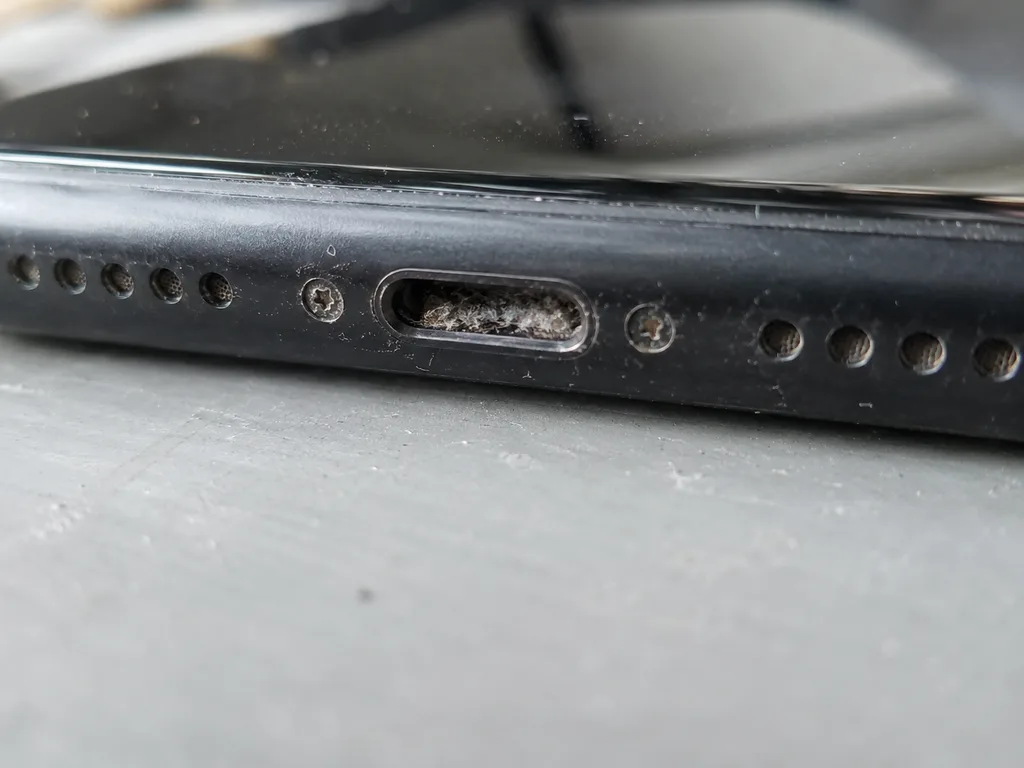 Before: the port does not charge
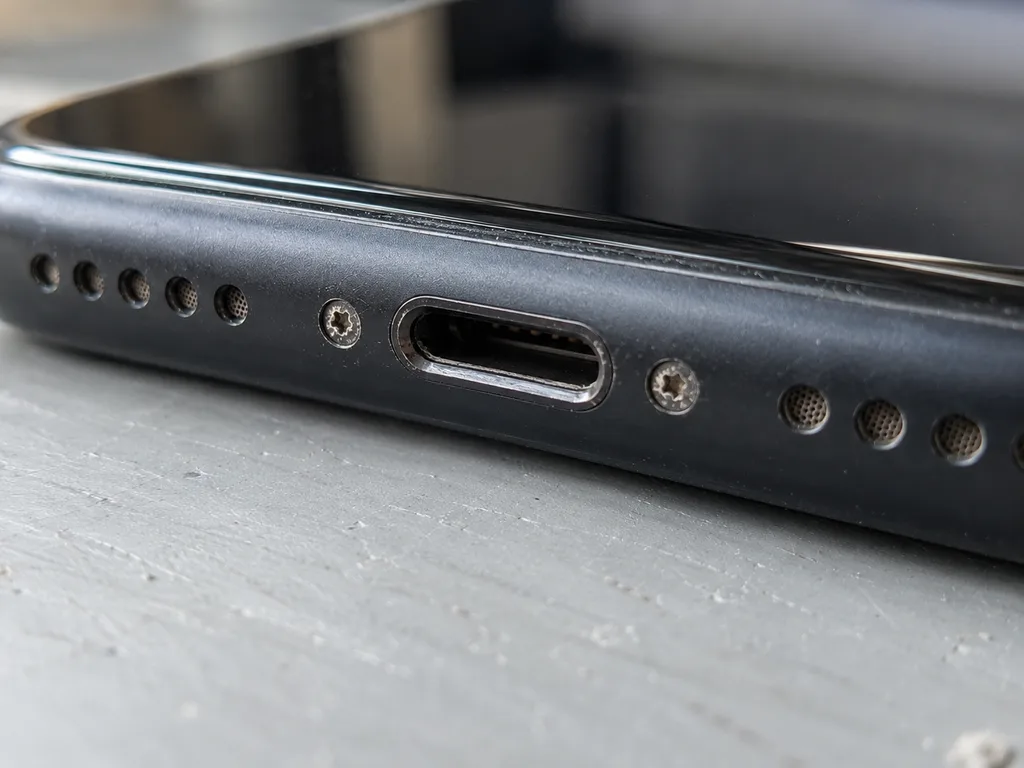 After: a new port
How Long the Repair Takes and Whether You Can Wait
Repair time depends on what failed inside the device, not on how badly the symptom looks from outside. Below are the real timelines by job type and what "while you wait" means here in practice.
Typical Timelines by Type of Work
| Job | Typical time | Can you stay |
|---|---|---|
| Charging port replacement | 20–40 minutes | Yes |
| Battery replacement | 25 minutes | Yes |
| Power controller, board level | 1–3 days | No |
| Full diagnostic before quote | 15 minutes | Yes |
What Staying in the Service Actually Looks Like
You can remain on site while we work: there is a lounge with coffee and Wi-Fi, and the whole process from first contact to pickup usually takes less than an hour. Of the repairs we handle, 72 percent finish while the customer is still in the room, and the engineer checks the device in front of you during the free 15-minute diagnostic before any work is agreed. Payment goes through Kaspi, card or cash once you have seen the result. Staying is not just convenience — watching the part come out of factory packaging and the charging test run removes the doubt that comes with leaving a device behind. Ask to see the port swap if you want the clearest picture of what was wrong.
Getting the Device to Us Without the Trip
If you cannot come in, a courier across Almaty collects the tablet in about 90 minutes, and pickup is free with a repair. The engineer replies on WhatsApp within five minutes and quotes from a photo, so the likely cause is already known before the device leaves your hands. Send a picture of the port and the charger you use, and book a slot first — a courier run without a booked slot only adds a day of waiting. Devices are accepted seven days a week during working hours, and the courier route covers the whole city, so distance from the centre is not a reason to postpone the fix.
Price, Part Choice and Warranty Before Work Starts
You can learn the cost before leaving home, choose between a factory part and a compatible one, and see exactly what the receipt fixes before any work begins.
Getting a Quote From a Photo
Send a photo of the damage on WhatsApp and an engineer replies within five minutes with a price estimate and a free time slot, before you leave home. The shot does not need to be professional — a clear view of the charging port, the cable end and the screen with the battery icon is enough for a first estimate. We quote from the image, then confirm on the bench during the free 15-minute diagnostic. A photo estimate is only as good as the symptom description, so mention whether the charging icon appears at all and whether the device only charges when the cable is held at an angle — that detail changes the estimate, because an angled-only charge usually points to the port rather than the battery.
Original Part or Aftermarket
| Option | What you get | Who tends to choose it |
|---|---|---|
| Original part | Factory part, shown in packaging before fitting | Owners keeping the iPad for years |
| Aftermarket part | Working substitute, lower entry cost | Short-term or secondary devices |
| Charging flex | Either route, chosen by part rating | Anyone with a recurring port fault |
What the Receipt Locks In
- Price: the sum agreed upfront stays the sum on the receipt, with no additions afterwards.
- Part: the exact item is named, factory or aftermarket, so nothing is swapped mid-repair.
- Turnaround: the promised time is written down, and iPad charging repairs usually take from one hour to one day.
- Warranty: cover runs up to 1 year and is tied to the part and the date on the receipt.
- Old part: the worn item comes back to you at pickup, matching the record on paper.
How We Check the Result and Hand the iPad Back
Once the charging fault is fixed, the work is not finished until every affected function is verified. Here is what happens between the final screw and the moment the tablet is back in your hands.
The 32-Point Check After Repair
- Face ID: we lock and unlock the tablet several times to confirm the sensor module still reads correctly.
- True Tone: the display is checked for colour shift, since a disturbed connector shows up here first.
- Cameras: both lenses capture a test frame to rule out a loose flex cable.
- Microphones and speakers: a short recording and playback confirms the audio paths survived the repair.
- Charging: we connect a known-good adapter and watch the percentage move, not just the plug icon.
- Network and Wi-Fi: the unit joins a test network to confirm the antenna connections are seated.
Checking the Device Together With the Engineer
You check the device with the engineer at pickup, plugging in the charger yourself and confirming the percentage climbs before you sign anything. We hand over the adapter, watch the battery indicator with you, then walk through Face ID, True Tone, both cameras, the microphones, the speakers, charging and the network one by one. The handover takes roughly ten minutes, and nothing is rushed — if a function looks off, we reopen the unit on the spot rather than book a second visit. Doing the check together means you see the same result we do, so there is no gap between what the receipt promises and what the hardware actually does at home.
What Comes Back With the Device
The tablet comes back with the receipt, the warranty card and the old part, so you can see exactly what was removed and what replaced it. The receipt carries the part type, the turnaround and the warranty term — up to 1 year on the work we do. The old charging port or battery goes into the box alongside the device, still in its removed state, so nothing about the repair stays hidden from you. Keep that worn component until the warranty period ends, because if the same fault returns it is the fastest way to show what was changed and when.
Summary: iPad charging faults and how to trace the cause
Four fault categories cover nearly every tablet that refuses to charge, and the symptom you observe narrows the field quickly. Here is the short version to keep on hand.
- Rule out the simple causes first: swap the cable and adapter, clean the port gently, then force-restart the device before assuming a hardware failure.
- A charging icon that never rises points to the battery or the power controller rather than the cable or the adapter.
- A wet device stays off and unplugged until a technician has inspected the board, since corrosion spreads while power flows.
- Ask for the price, part, turnaround and warranty in writing before any work begins, and keep that document.
- Confirm charging yourself at pickup and hold on to the receipt and the old part until the warranty period ends.