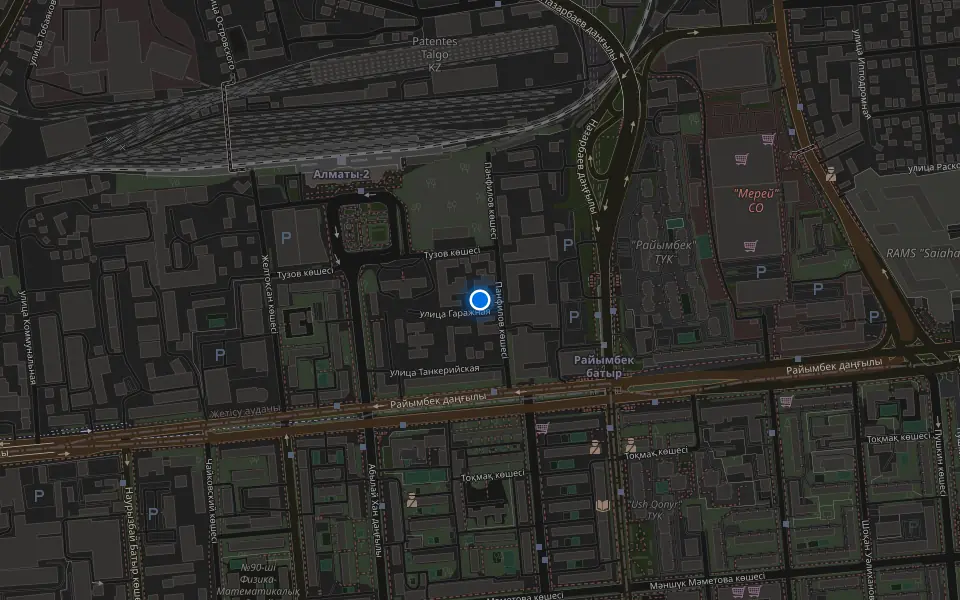
An iPhone upgrade is software work on a phone you already own: it refreshes the system, tidies storage and tunes background processes, with no parts swapped. Here is what the job includes and what it cannot deliver.
What the Service Actually Includes
We treat the procedure as a software job — a full backup, an iOS update or clean install, storage cleanup, background app tuning and a closing check, with no parts replaced. An iPhone upgrade in Almaty follows the same route, so the phone leaves the bench with a clean system and your data intact. The workflow runs on the same bench we use for board-level work, so a technician can tell a software fault from a tired battery before touching the system. Most jobs finish in 20–40 minutes while you wait, and 72% of repairs are completed in the waiting area. A phone that feels slow after a major iOS release is often short on free storage, not short on power, so clearing space comes before any version change.
What an Upgrade Does Not Change
Software work cannot add storage capacity, replace a worn battery or make older hardware faster than its chip allows. A 64 GB device stays 64 GB after any reinstall, and a battery at 78% health still reads 78% once the system is refreshed. The processor sets the ceiling for app speed, and no settings change lifts it. If storage is the real limit, the honest fix is offloading large media or choosing a device with more capacity, not another reinstall. We check battery health and free space during free diagnostics before quoting, so we can tell which of the two problems the phone actually has.
Signs Your Phone Needs a Software Refresh
Owners usually arrive with the same complaints: the interface stutters, the handset warms up on its own, programs close without warning. Some of these trace back to software, others to a worn part.
Symptoms That Point to Software
- Stuttering interface: scrolling and swiping lag even with a few programs open, and taps register a beat late.
- Programs closing on launch: an app opens and drops back to the home screen within seconds, repeatedly.
- Warmth after an update: the frame heats up during everyday use right after an iOS release.
- Storage warning: a full drive leaves the system no room to cache, so it slows down.
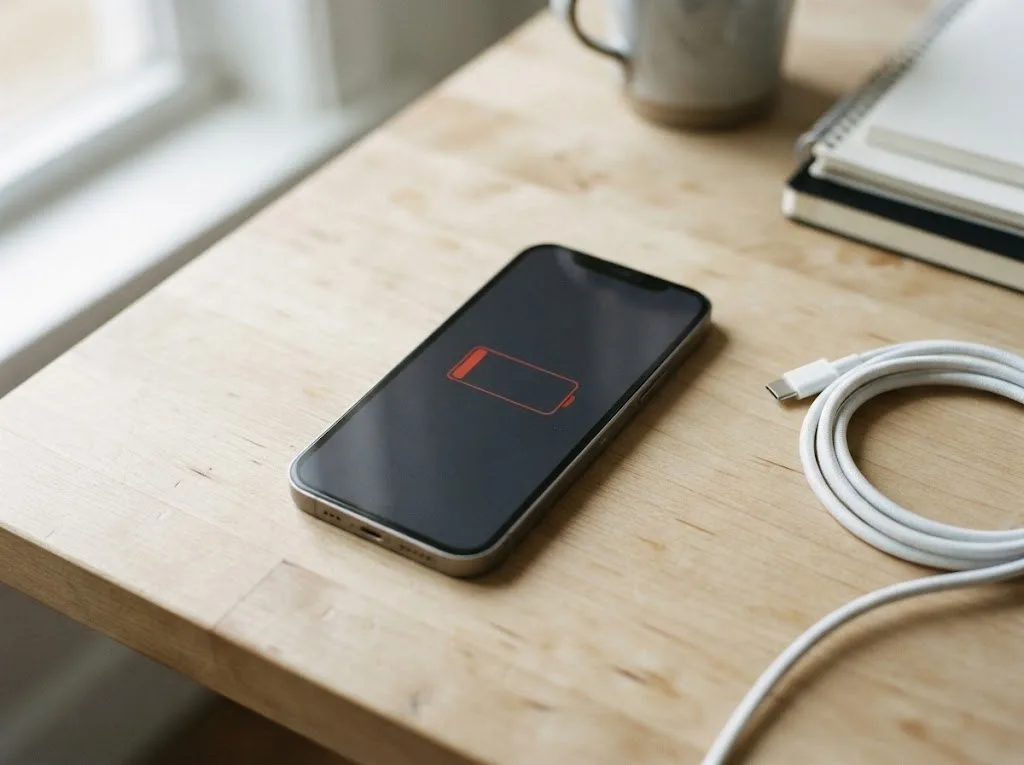
- Short runtime: the charge drains faster than it used to on the same daily routine.
When the Cause Is a Part, Not the System
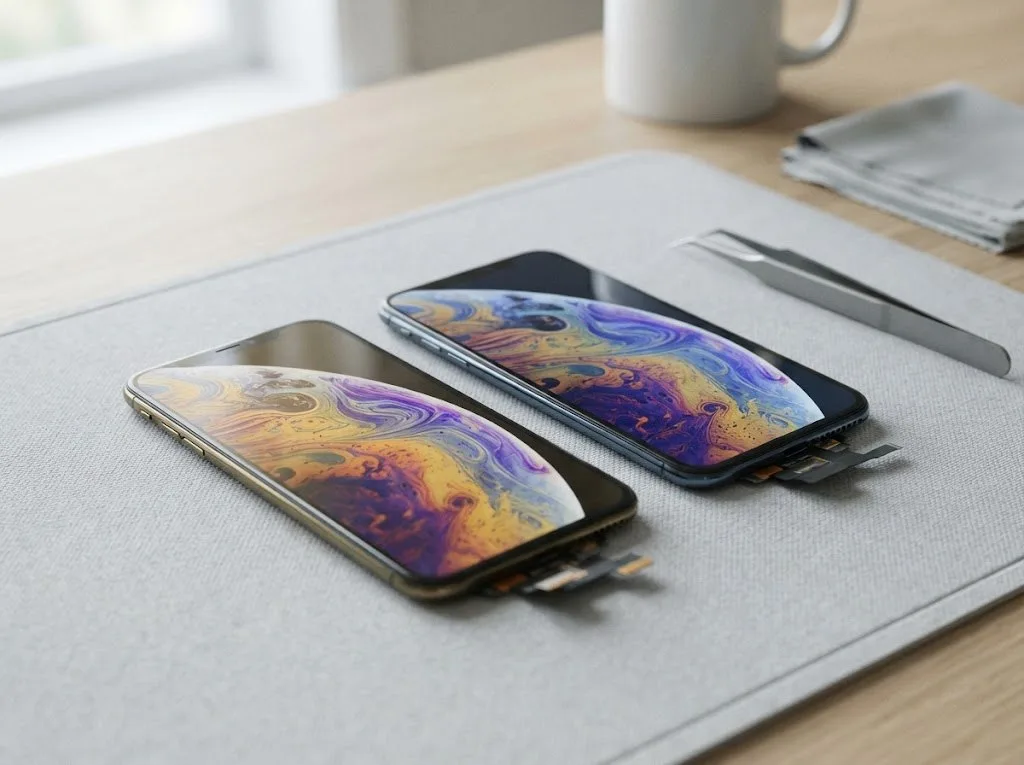
A cell that has lost a large share of its capacity drags performance down, and no reinstall restores it — we check its health during the free diagnostics. The engineer runs the test in front of you, shows the wear figure and explains what limits the device. Fast drain plus sudden shutdowns at low percentage is a cell pattern, while fast drain with normal health usually traces back to background refresh and location use. A common fault is a tired power source, which a reinstall cannot fix. The health reading is shown before any software work starts — it takes minutes and prevents a second visit.
Update in Place or Clean Install
Two routes lead to a stable system: an in-place update that keeps your settings and a clean install that rebuilds everything from a backup. The right one depends on how long the glitches have been going on.
Comparing the Two Routes
Three routes side by side by data retention and time| Route | Keeps apps and settings | Best for | Typical time |
|---|
| Update in place | Yes | Recent minor glitches | 20–40 minutes |
|---|
| Clean install | No, restored from backup | Long-standing crashes | Longer, with restore |
|---|
| Version held back | Yes | Older models | 20–40 minutes |
|---|
Choosing the Right iOS Version for Your Model
We match the iOS version to the model, because the newest release does not always make an older device faster. A clean install rebuilds the system and restores your apps from a backup afterwards, so it takes longer than an in-place update and is worth booking into a slot rather than squeezing into a quick stop. On older hardware the newest build can load the processor and battery harder than the previous one, while a held-back version often keeps daily use smooth. Holding a version back is a legitimate choice when the phone runs well, but security updates still matter, so the decision is made per device rather than by default. We check the model, battery condition and how the phone behaves on the current build before recommending a route.
Keeping Your Data Safe Through the Upgrade
Data safety is the first question owners ask about an upgrade. A current backup preserves photos, chats and app records, while only the system files that slow the phone down get replaced.
Backing Up Before Any Work Starts
We start every iPhone upgrade with a backup to iCloud or a computer, so photos and messages return even after a clean install. The engineer checks that the latest save is recent and complete, then confirms it in front of you — the same free diagnostics we run on any device takes 15 minutes. On a clean install the storage is wiped and rebuilt, so this saved archive is the only bridge between the old state and the new one. A copy made minutes ahead of the work is worth more than an old one, because it captures the newest chats that a restore would otherwise miss. We walk through the cloud storage bar with the owner first — a full plan quietly stops syncing and leaves gaps that show up after a restore.
What Happens to Photos and Messages
Photos, chats and app data survive the service because they are restored from the saved archive, and the system files that caused the slowdown are what get replaced. The library itself lives in the cloud or on your computer, not inside the operating system, so a fresh install never touches the originals — it just clears the working version on the device. Histories in apps like WhatsApp and Telegram sit in their own cloud archives, separate from the phone backup, and each one needs its own check in settings. Anything kept solely inside an app and never synced may not be in the copy, so it is worth opening those apps and verifying before the phone is handed over.
How We Run an iPhone Upgrade in Almaty
The path runs from a WhatsApp photo to a signed receipt and a warranty card, and most of it happens while the owner waits in our lounge. Here is what each stage looks like.
From First Message to Pickup
- First contact: an engineer replies on WhatsApp within 5 minutes and quotes a price from your photo.
- Booking: we name a free time slot, and a courier can be called across the city in 90 minutes, free with a repair.
- On arrival: free diagnostics take 15 minutes in front of the owner, even if the repair is declined.
- Fixed terms: price, part, turnaround and warranty go on the receipt in 2 minutes before work starts, and the new part is shown in factory packaging.
- Pickup: the owner checks Face ID, True Tone, cameras, microphones, speakers, charging and network with the engineer, then takes the device, receipt, warranty card and old part.
Holding the Result After You Leave
Keeping the phone fast comes down to managing storage, background refresh and location use, and we set sensible defaults before handing it back. This is the same care we apply at every stage of an iPhone upgrade in Almaty, so the device stays quick long after pickup. Background app refresh quietly drains charge and wakes the processor on every app left open, so we limit it to messaging and maps. Location services set to always keep GPS active in the background; switching most apps to while using cuts that load without losing navigation. Notifications are the third lever — each banner lights the screen and pulls the chip out of low-power states, so a weekly prune of the noisiest apps pays off. A monthly check of storage and battery health catches the drift early, so a small cleanup replaces another full service later.
Summary: iPhone Upgrade
Five points below summarise what an upgrade changes, where software ends and worn parts begin, and how to keep the result stable after the work is finished.
- Software, not hardware: a system rewrite clears conflicts, but it does not restore a worn battery or a cracked display.
- Symptom check first: random reboots and frozen apps point to the system, while fast drain and dimming screens usually mean a failing part.
- Two routes, two jobs: an in-place update keeps settings and accounts, while a clean install removes leftover files and stale caches.
- Backup before anything: a full copy protects photos and messages if the process stalls or an app refuses to migrate.
- Storage and background apps: keeping free space above a fifth of capacity and limiting refresh tasks holds performance steady for months.


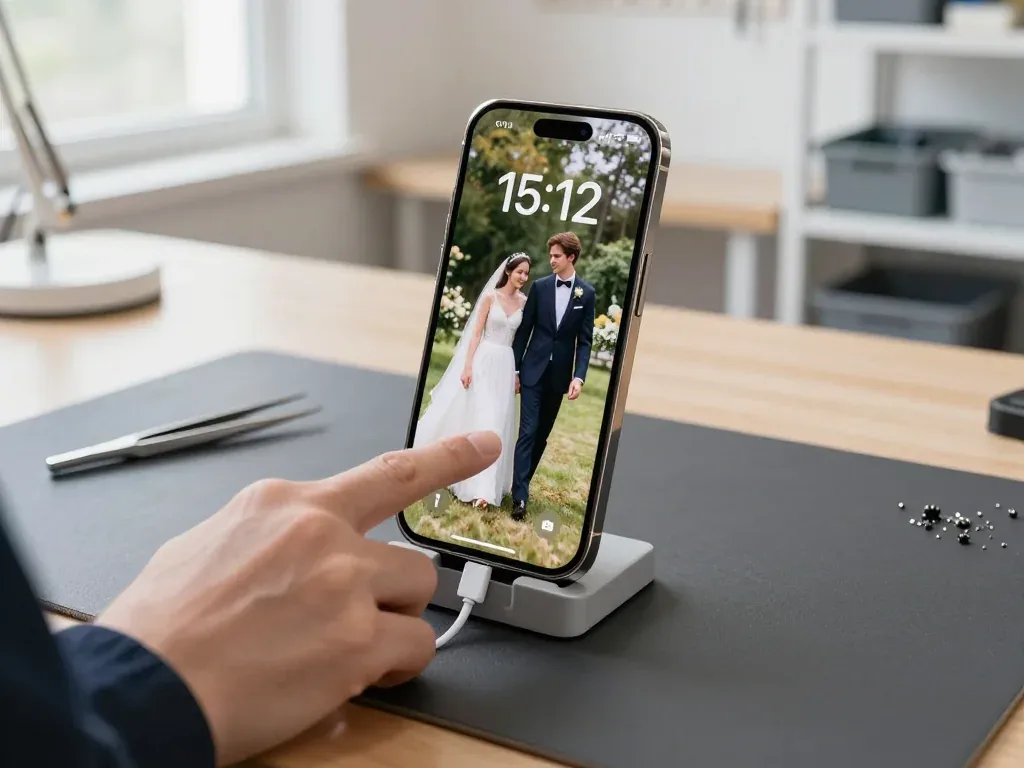








 iPad
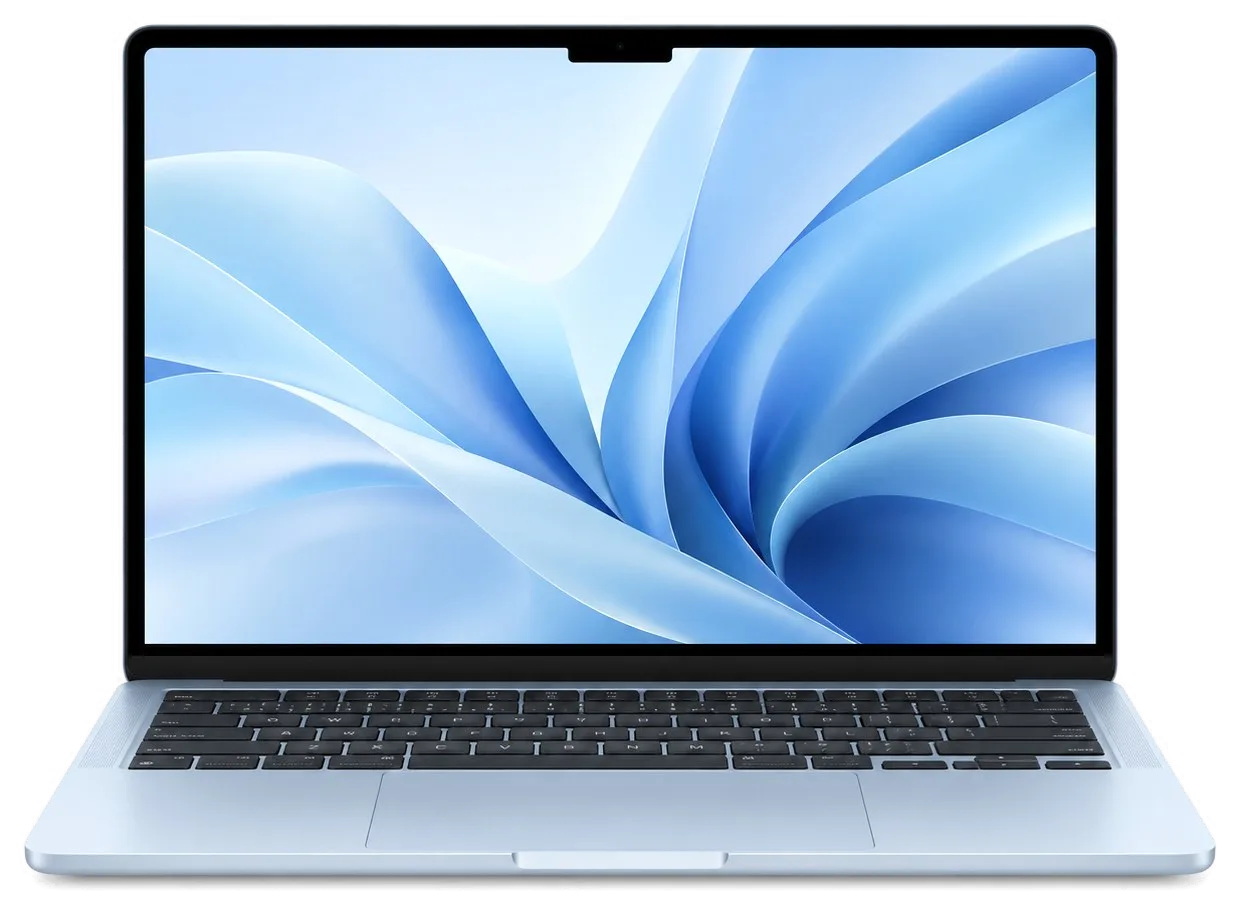 MacBook
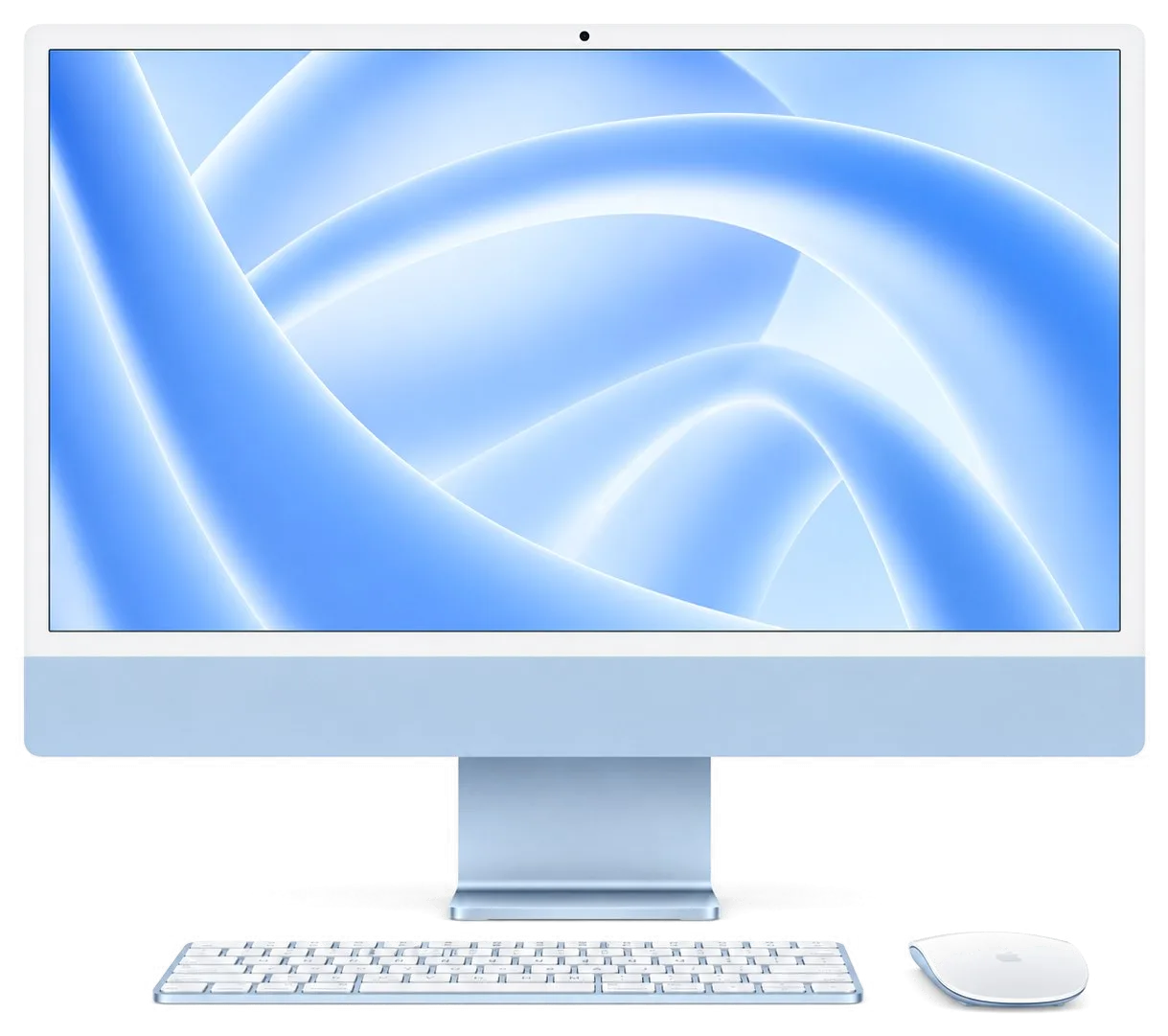 iMac
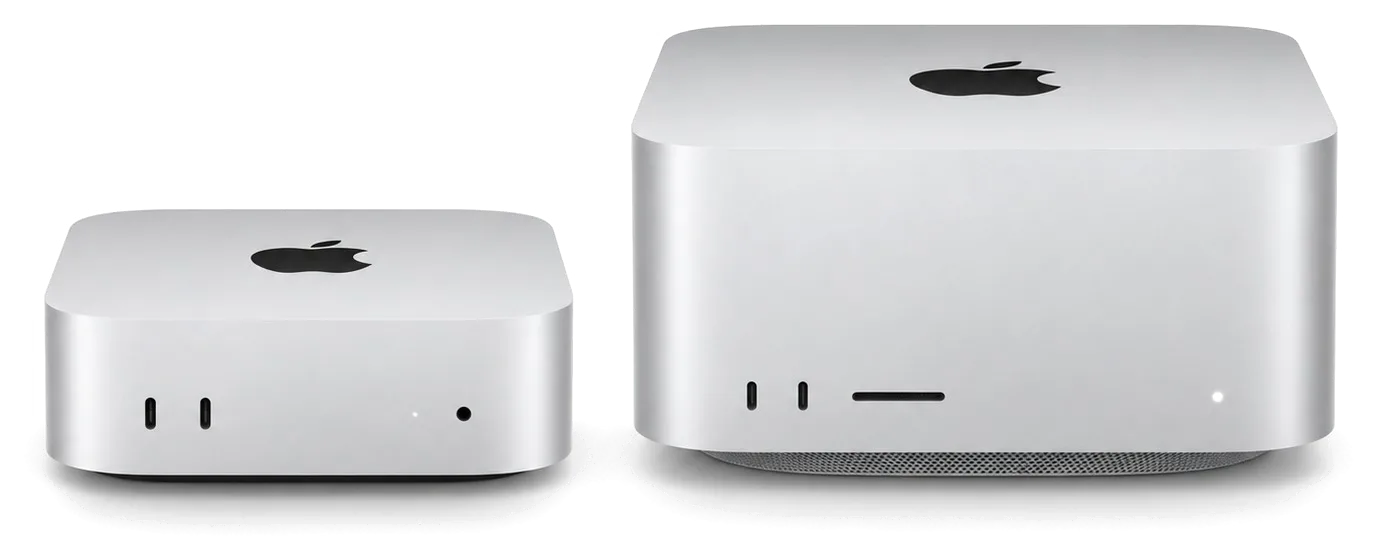 Mac mini and Studio
 Apple Watch
 AirPods
 Apple Pencil
 Apple TV
 HomePod