Eng

MacBook storage upgrade in Astana

Mac slows down when memory runs short — we check if RAM or storage can be upgraded and quote the price before work starts.

MacBook with a dark blue wallpaper and a large gray hourglass icon in the center of the screenMacBook with a dark blue wallpaper and a large orange warning icon in the center of the screenMacBook with a dark blue wallpaper and a large red crossed-out window icon in the center of the screen
Open silver MacBook laptop with the screen on and a dark blue wave wallpaper
BeforeAfter
System lags
Price incl. labor
from 10 900 ₸
Warranty
up to 1 year
  • Model identification
  • Load assessment
  • Choosing the module

Signs your MacBook has run out of room

When a MacBook runs short of resources it slows down, the disk fills up and heavy programs close by themselves.

Everything is slow

Windows open late, the cursor stalls and browser tabs reload every time you switch between them.

The disk is nearly full

A warning says space is low, there is nothing left to delete and new files still do not fit.

Memory warnings appear

macOS asks you to quit apps because there is not enough memory to keep everything running.

Heavy apps crash

Video editors, virtual machines and large spreadsheets close on their own or run in jerks.

MacBook storage upgrade pricing

Cost depends on the model and the type of memory, and the reference for the work is below.

ServiceWhat's includedPrice
MacBook Pro A1297 SSD installationstorage installation36 900 ₸with parts
MacBook Pro A1286 SSD installationstorage installation27 900 ₸with parts
MacBook Pro A1278 SSD installationstorage installation19 900 ₸with parts
MacBook Air A1465 SSD installationstorage installation31 900 ₸with parts
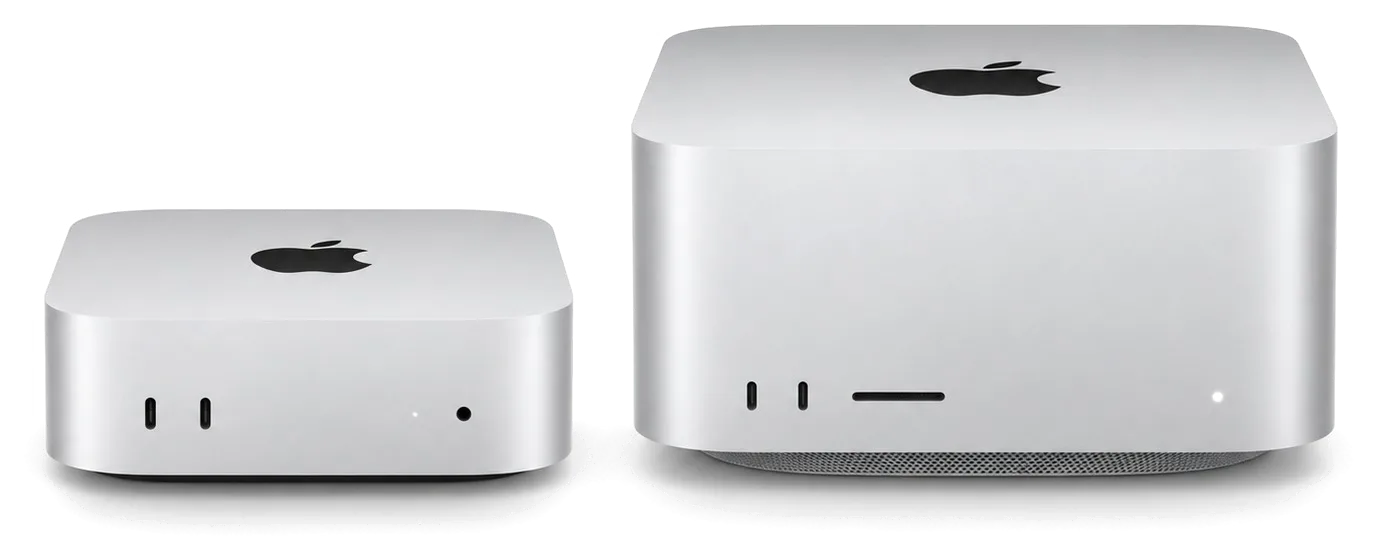
Mac mini M2 SSD installationstorage installation10 900 ₸with parts
Mac mini M1 SSD installationstorage installation10 900 ₸with parts
Mac Studio M4 Max SSD installationstorage installation39 900 ₸with parts
Mac Studio M1 SSD installationstorage installation39 900 ₸with parts
Mac Pro SSD installationstorage installation39 900 ₸with parts
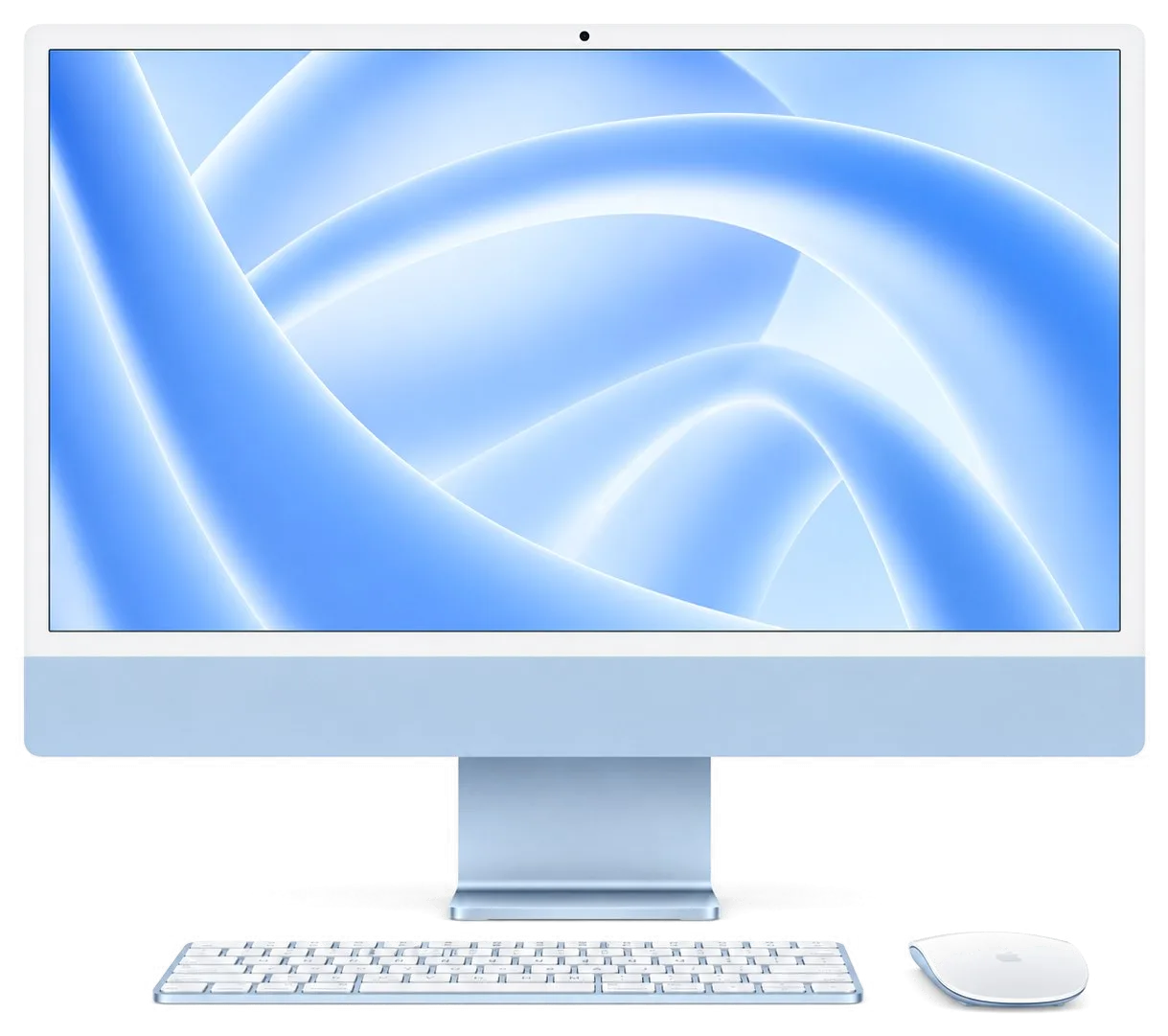
iMac 27" Intel SSD installationstorage installation43 900 ₸with parts
iMac 21.5" Intel SSD installationstorage installation46 900 ₸with parts
Mac mini M4 SSD installationstorage installation10 900 ₸with parts
Mac mini Intel SSD installationstorage installation48 900 ₸with parts
Mac Studio M2 SSD installationstorage installation39 900 ₸with parts

We quote the module or drive itself after inspection, since your exact model decides what fits.

What a MacBook storage upgrade involves

We first identify the model and judge your workload, because that decides which module is worth fitting.

  1. 01
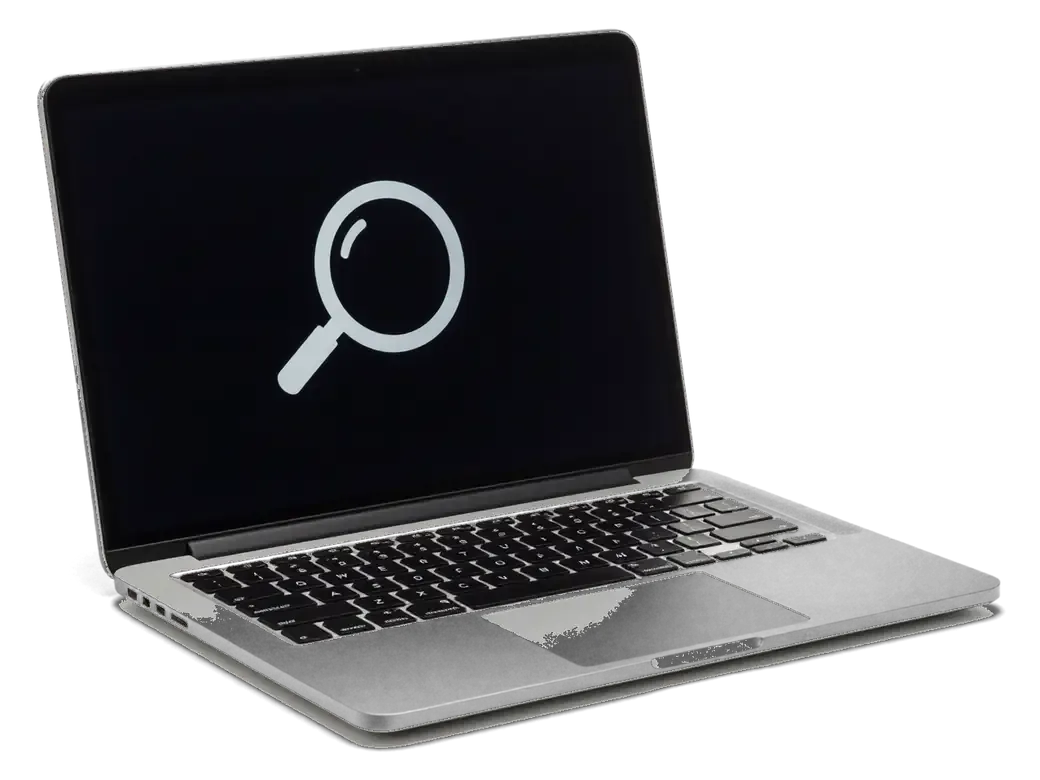
    Open MacBook with a magnifier icon on the screen — model identification
    Model identification

    From the A-number we learn whether the memory is soldered and whether the drive can be swapped.

  2. 02
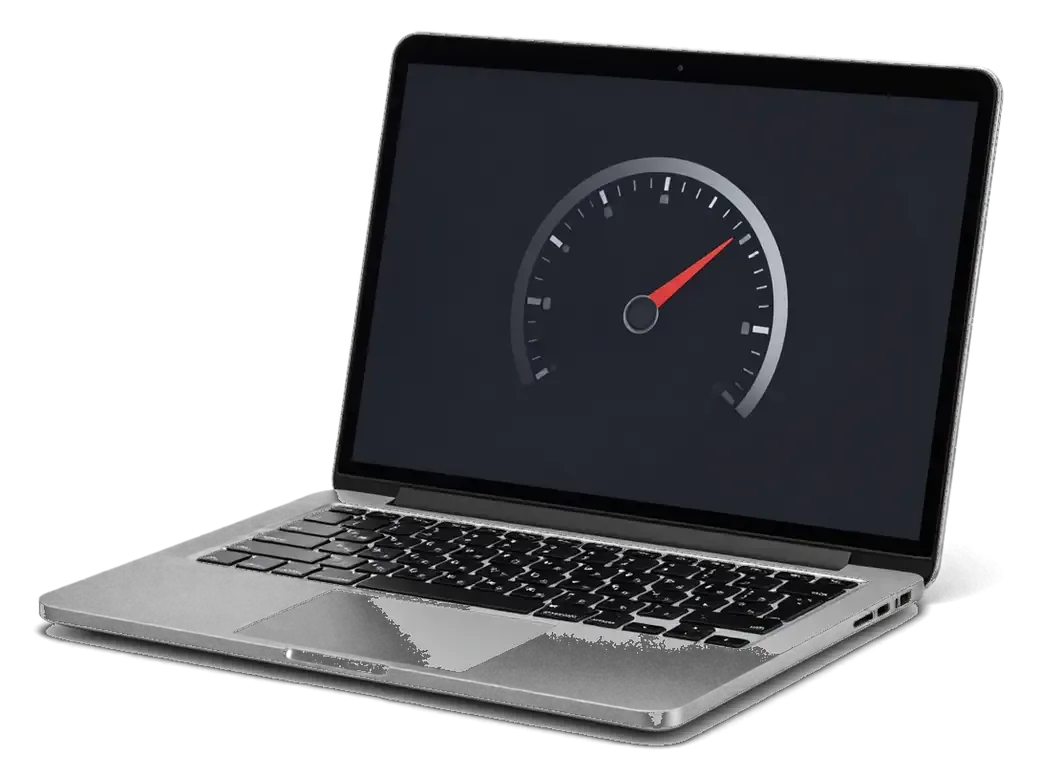
    Open MacBook with a load sensor icon on the screen
    Load assessment

    We see what hits the limit: RAM, disk space or both, so you buy only what helps.

  3. 03
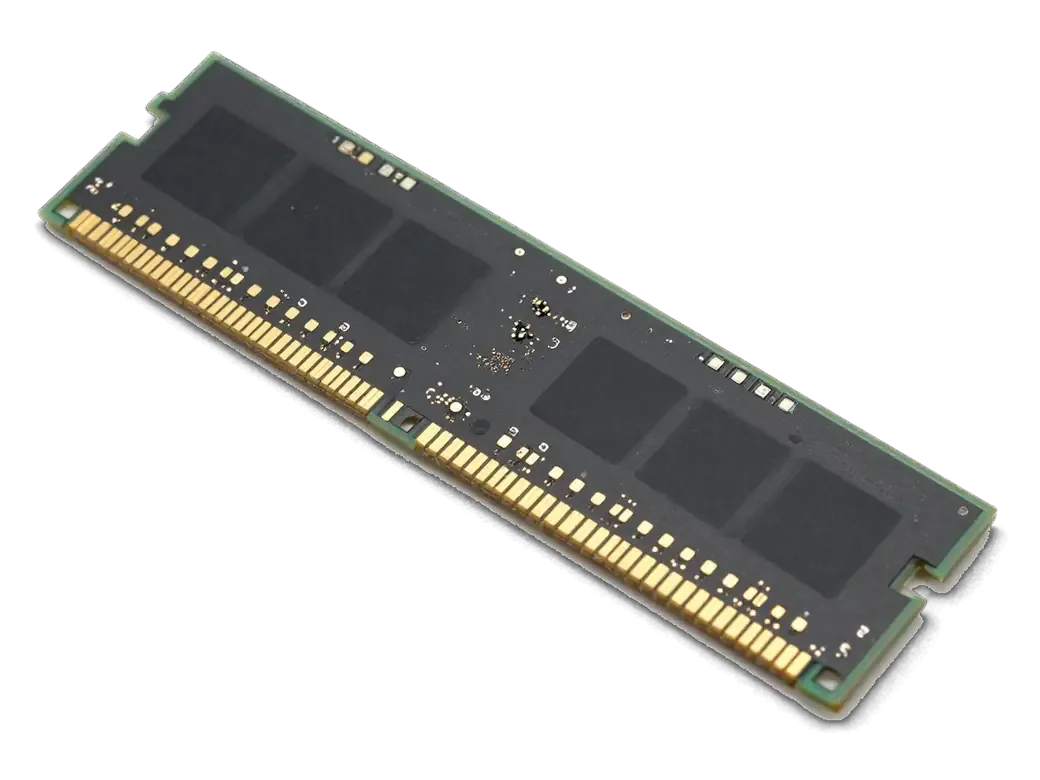
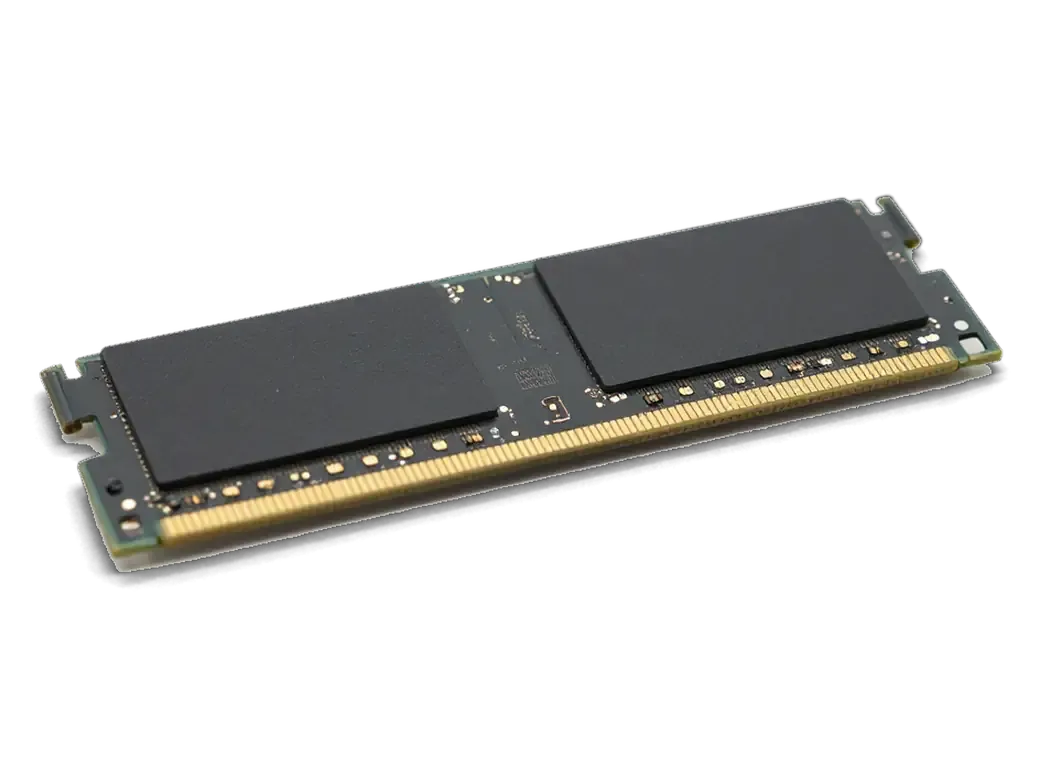
    New RAM stick for a MacBook
    Choosing the module

    If an upgrade is possible, we pick a compatible stick or drive of the right capacity.

  4. 04
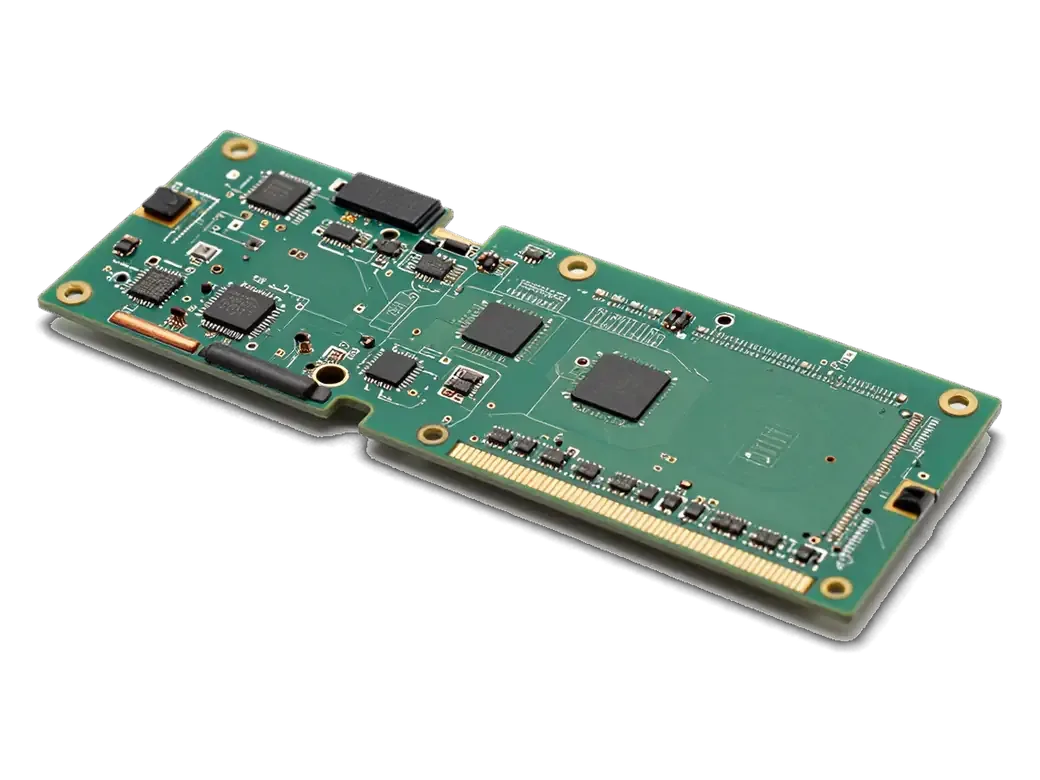
    MacBook board with memory connector shown during disassembly
    Opening the case

    The bottom cover comes off, the battery is disconnected and we reach the slot or socket.

  5. 05
    New memory stick in a dark tray and a screwdriver for a MacBook
    Fitting and connecting

    The new module is secured, power is restored and we confirm the system recognizes it.

  6. 06
    Open MacBook with a green checkmark on the screen — verification
    Post-boot check

    macOS loads, the capacity is read in system information and the machine is tested under load.

  7. MacBook storage upgrade
    from10 900 ₸

    If your model cannot be upgraded, we tell you so right away.

    Price for my model

Choosing a module for a MacBook storage upgrade

You can fit an original or a compatible module, and they differ in price, compatibility margin and day-to-day steadiness.

Original Applewarranty up to 1 year
MacBook storage upgrade
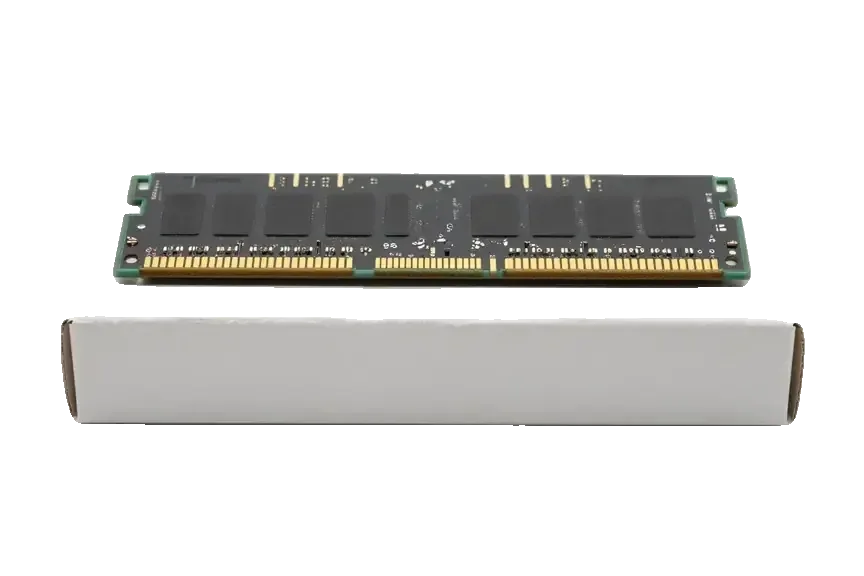
Original: RAM stick for a MacBook on a white box
Compatibility
Works without fuss on your exact model
Stability
Lower risk of freezes under load
Heat
Familiar temperature behavior
Best for
Work laptops holding important data
Aftermarket
MacBook storage upgrade
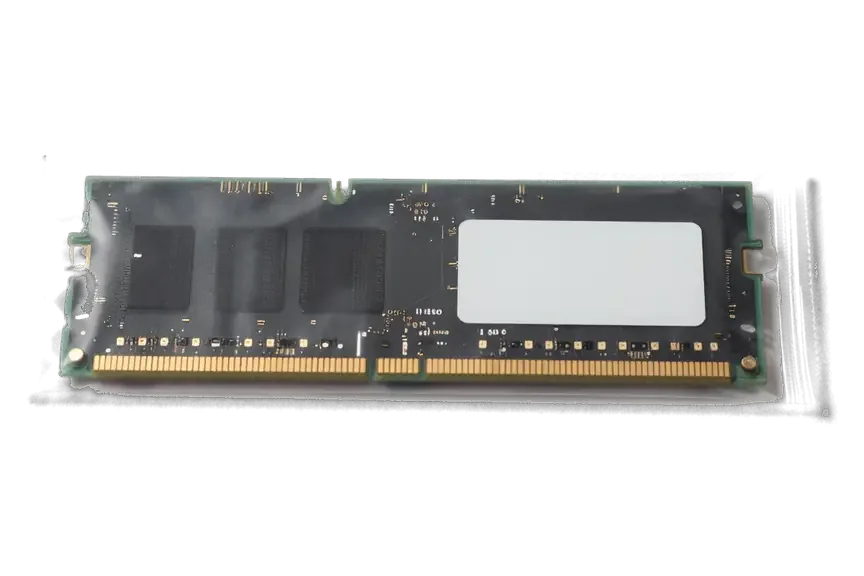
Analog: RAM stick for a MacBook in an antistatic bag
Cost
Cheaper than an original module
Compatibility
Speed and capacity need checking
Quality spread
Depends on the module maker
Best for
Home laptops and study

Why leave the upgrade to a technician

An upgrade is best left to a technician who says plainly whether it will help your task and which option fits.

11years

Apple experience

11 years with MacBooks lets us tell quickly what can be improved on your model and what cannot.

1year

Warranty

Our warranty on finished work lasts up to 1 year, and we explain the conditions when we take in the device.

6technicians

A straight answer

If memory is soldered to the board, we say so openly instead of selling a job that would not help.

2options

Experienced technicians

A experienced technician opens the case and installs the part, and will talk you through each step if you ask.

Sized to your tasks

We suggest a capacity based on what you really do, whether office work, video editing or virtual machines.

2cities

Astana and Almaty

We work in both cities under the same rules, and the intake schedule is shared by both branches.

MacBook storage upgrade in Astana before and after

1 / 1
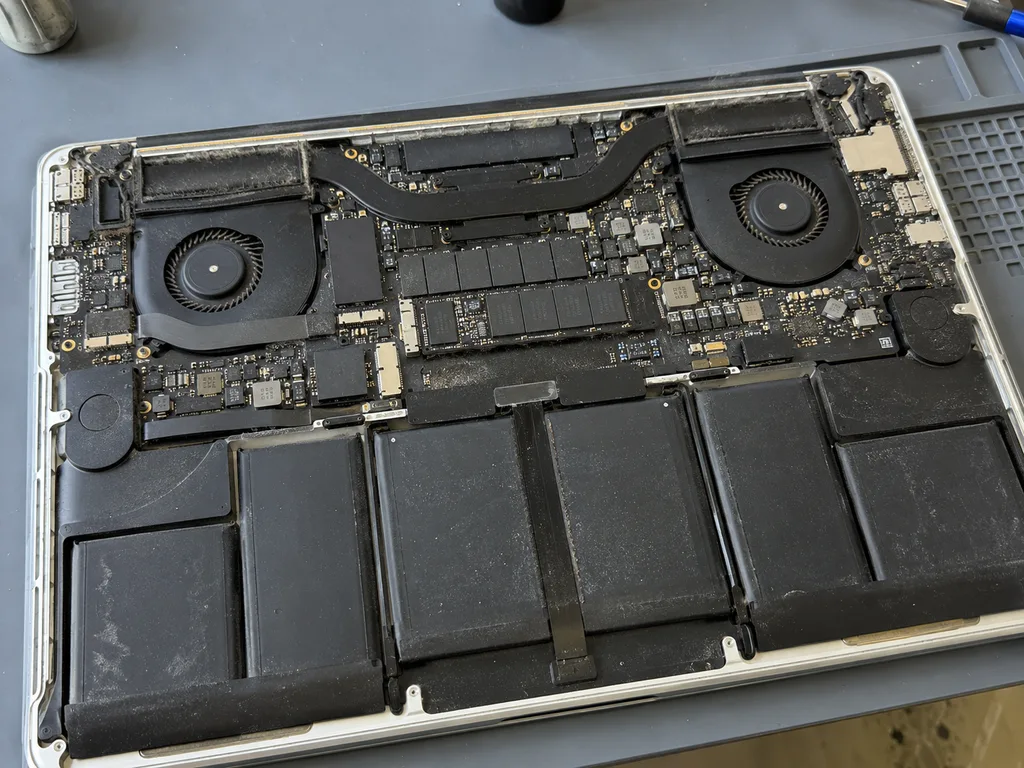
Before photo: old drive, 3-minute bootBefore: old drive, 3-minute boot
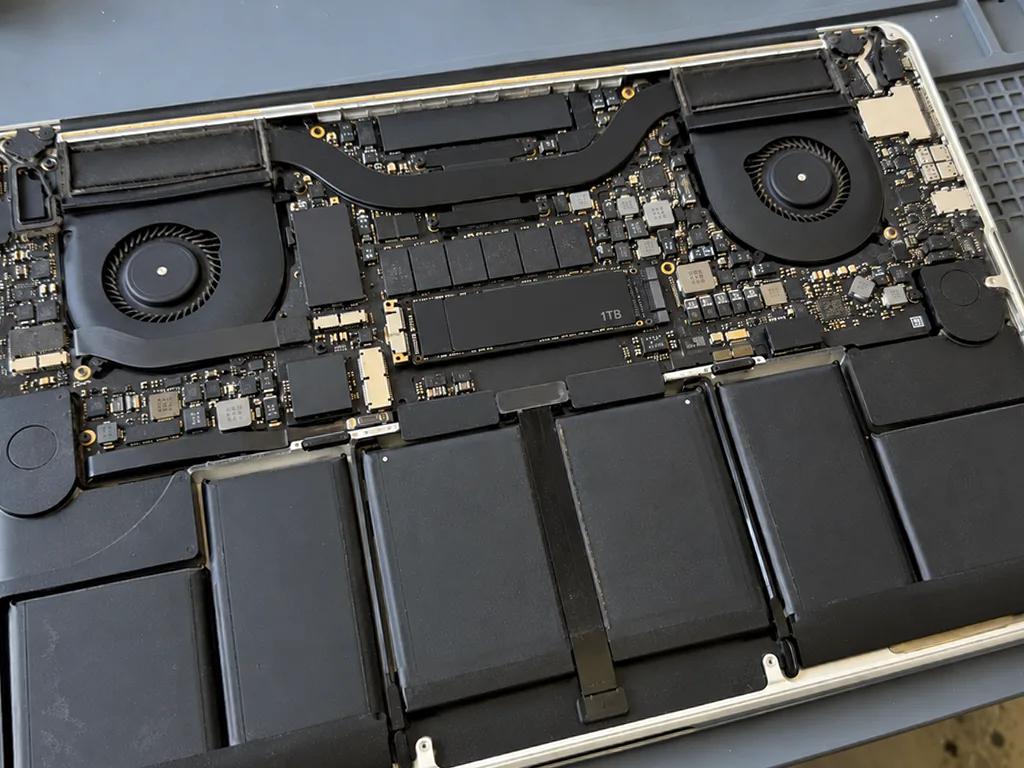
After photo: new 1 TB SSDAfter: new 1 TB SSD
BeforeAfter

MacBook Pro 13 2015: slow

2 hoursUpgradeWarranty up to 1 year
Problem
Took 3 minutes to boot, with 4 GB left on the drive.
What we did
Installed a 1 TB SSD, migrated the system and files, updated macOS to the latest supported version.
18 secboot instead of 3 minutes
I want the same

How MacBook storage upgrade works in Astana

Usually the whole journey — from message to pickup — takes less than an hour; complex repairs follow the timeline in the receipt.

Book a repair
  1. Step 1

    Message or call

    5 min

    You send a photo of the damage on WhatsApp — we quote the price and available time. Or you call a courier.

  2. Step 2

    Free diagnostics

    15 min

    An engineer checks the device in front of you and shows what is broken. 0 ₸, even if you decline the repair.

  3. Step 3

    Price in the receipt

    2 min

    We fix the price, the part (original or analog), the timeline and the warranty. You sign — we start.

  4. Step 4

    Repair while you wait

    20–40 min

    Before installation we show you the new part in its factory packaging. You wait in the waiting area with coffee and Wi‑Fi.

  5. Step 5

    Post-repair check

    10 min

    Screen, keyboard and trackpad, camera, microphones, speakers, charging, Wi‑Fi. You check together with the engineer.

  6. Step 6

    Pick up your device

    warranty up to 1 year

    Together with the receipt, warranty card and the old part. Payment — Kaspi, card or cash.

Meet the iServices team

Technicians for iPhone, Mac, iPad, Apple Watch and AirPods repair.

1 / 2
KSKudiret S. — iCloud unlock specialist, iServices service center in AstanaPhoto: Kudiret S.

Kudiret S.

iCloud unlock specialist
10years of experience
4.37rating, 100 reviews
KAKamran A. — MacBook repair technician, iServices service center in AstanaPhoto: Kamran A.

Kamran A.

MacBook repair technician
4years of experience
4.33rating, 117 reviews
Bakmukhammed S., on-site iPhone technician
“If the repair didn’t suit you or you have a complaint, write to me personally.”
Bakmukhammed S.on-site iPhone technician · +7 701 333-47-01

We'll quote a price for MacBook storage upgrade in Astana from a photo in 5 minutes

Send a photo of the screen and the MacBook model. An engineer will reply on WhatsApp, give the price and today's available time.

  1. 5 minAn engineer replies and names the price
  2. 0 ₸Diagnostics in front of you in 15 minutes
  3. 30 minMost repairs — while you wait

MacBook Storage Upgrade in Astana by Our Own Engineers

In short

A MacBook storage upgrade in Astana is possible on models with a removable SSD, while Apple Silicon machines keep memory inside the chip and cannot be expanded. At iServices our engineers check your exact model for free in 15 minutes, show the replacement drive in factory packaging, and back the work with a warranty up to 1 year.

iServices Editorial TeamWe reply on WhatsApp within 10 minutes
Ask

Which MacBooks Can Take a MacBook Storage Upgrade and Which Cannot

Not every MacBook is built the same way. A removable module existed only in certain generations, and on Apple Silicon the memory sits inside the chip, so we always start by identifying the exact unit.

How to Identify Your MacBook Generation Before Any Work

We read the identifier from the About This Mac window or the serial number on the case, and that single check decides whether a removable module is even an option. About This Mac lists the hardware identifier and the installed capacity in one screen, while the serial number on the bottom panel or under the stand pins down the exact production batch. Two machines that carry the same marketing name can sit on opposite sides of the soldered-storage line, and the identifier settles it in seconds. Our engineers run this check as part of the free diagnostics, in front of the customer, before quoting anything for a MacBook storage upgrade that owners in Astana ask about. The marketing name alone is not enough — two MacBook Pro 13 units from different years can look identical but carry completely different storage layouts, so the serial number is the reliable marker.

A Model by Model View of Expandable Storage

Which generations accept a new storage module and which do not
GenerationStorage driveRAMWhat we can change
MacBook Pro without Retina2.5-inch, removableIn slotsStorage and RAM modules
MacBook Air and Pro Retina, early yearsProprietary removable SSDSolderedDrive only
Models with Touch Bar and T2Soldered to boardSolderedNothing by module swap
Apple Silicon M1 and newerInside the chip packageUnified in the chipNothing by module swap

Replacing the Drive With a Larger SSD

When a unit accepts a removable module, swapping the SSD is the most direct way to add room. Here is how to tell the storage is the problem and what changes once it is installed.

Signs the Drive Is the Real Bottleneck

  • Storage warnings: macOS keeps asking you to free up room even after you delete files and empty the trash.
  • Slow saves and exports: large video or photo files take far longer to write than before.
  • Constant swap activity: the machine works hard and the fan spins with only a couple of apps open.
  • Shrinking free room: the number barely moves after cleanup, then drops again within days.
  • App installs failing: system updates refuse to run because there is not enough left on the disk.

SSD and RAM Are Two Different Things

The SSD stores your files and the system permanently, while RAM is the fast working area the machine uses while apps are open. A 256 GB SSD can be nearly full with a photo library and a few projects, and that is a storage problem; 8 GB of RAM runs out when you keep a browser with many tabs, a design app and a video call open at once, and that is a memory problem. Both show up as a slow laptop, which is why owners often confuse them. Adding room fixes "no space left" complaints but will not make a machine with too little RAM run more apps at once — matching the upgrade to the actual symptom matters more than the size on the label.

Data, macOS and the Migration Step

A new storage module always arrives blank, so your information and macOS are a separate stage of the job. Here we cover how the move works, and what to do when a particular model cannot be expanded at all.

Your Files Do Not Move by Themselves

A replacement module arrives blank, so we take a Time Machine backup first and restore everything from it once the new one is installed. The restore runs through Migration Assistant on first boot: it pulls accounts, apps, mail, photos and system preferences back into place, and a full copy stays with you on the backup disk as a safety net. We keep the removed original as well and hand it back with the receipt, so nothing is wiped on our bench. The migration is the part owners worry about most, and it is usually the calmest step of the visit. If the old one is failing, the backup should be taken before anything else is touched — hardware that still reads today may not read after another week of use.

When an External SSD Is the Sensible Choice

  • Media and photo libraries: large items live comfortably on external storage over USB-C or Thunderbolt, leaving the internal disk free for macOS.
  • Project archives: finished work moves off the internal disk, so day-to-day space stops shrinking with every export.
  • Backups: a second external unit keeps a Time Machine copy that stays disconnected between runs.
  • Cloud as a partner: smaller documents sync to cloud storage instead, which suits light text rather than video.
  • System stays internal: booting from external storage is slower and less reliable, so it works for added capacity rather than a full replacement.

Timing, Receipt and Warranty

Turnaround and terms for a memory job depend on the unit and the type of storage chosen. Below is how we fix the work on paper and what stays in your hands afterwards.

How Long a Storage Job Takes

Work at our workshop runs from 1 hour to 1 day depending on the unit and whether a system restore is included. The physical swap on a unibody machine is quick; the long part is reinstalling macOS and moving your files across. For MacBook and iPad the timeframe is from 1 hour to 1 day, and the exact slot is named after diagnostics. A board-level case is the exception and can stretch to 1–3 days under the microscope. The restore step, not the physical swap, is usually what stretches the timeline, so a machine with a large backup should be booked for the longer end of that window.

What the Receipt Locks In Before We Start

Before any work begins we fix the price, the exact part, the turnaround and the warranty on the receipt, and you see the new module in factory packaging first. That record takes about 2 minutes to write and covers the part model, whether it is original or aftermarket, the promised turnaround and warranty up to 1 year. You are shown the sealed part before installation, and after the job you check the machine together with the engineer — 32 functions across about 10 minutes, including charging, speakers and network. Having the part named on paper matters most when a replacement is needed later, because it removes any question of which module was fitted.

Choosing the Right Drive and Reaching Us in Astana

Once the upgrade is confirmed as possible, two decisions remain: which drive goes in and how the machine reaches the bench. Here is how the original part compares with an aftermarket option, and how we take the device in.

Original Part or Aftermarket Drive

storage options compared by fit, speed and cover
OptionCompatibilitySpeedWarranty
Original moduleExact match for the unitAs designedUp to 1 year
Quality aftermarketChecked against the unitComparable6 months
Larger capacityDepends on slot supportVaries by optionUp to 1 year

Reaching Us in Astana

Send a photo of the machine and its About This Mac screen on WhatsApp and an engineer replies within 5 minutes with a price and a free time slot. We work from two branches, Almaty and Astana, and a courier can be called if bringing the laptop in is awkward. Before installation we show the new part in its factory packaging, so you see the component that goes into your machine. Payment is by Kaspi, card or cash, and the receipt with the part type and warranty is handed over with the device. The photo of the About This Mac screen saves a trip, because it tells us straight away whether a removable drive is even possible on your unit. That single screenshot is often the difference between a confirmed booking and a wasted journey across the city.

Summary: MacBook storage upgrade

A storage job is a decision about the machine, not only about the part, so the useful points to carry away are short and practical.

  • Check the unit first: whether storage can grow depends on the generation, not the screen size.
  • Apple Silicon is fixed: on M1 and newer the memory lives inside the chip and cannot be expanded.
  • Storage and RAM differ: more storage space solves storage warnings, not slow multitasking.
  • Data needs a backup: a new drive arrives blank, so a Time Machine copy comes first.
  • External drives help: when the internal storage is soldered, USB-C or Thunderbolt storage adds room.

Questions we hear about a MacBook storage upgrade

Did not find an answer? Message us on WhatsApp: an engineer replies, not a bot.

Ask a question
Can a standard NVMe drive be used for a MacBook storage upgrade?

On many older MacBook Air and Retina MacBook Pro models, yes, through a small adapter that fits Apple's proprietary connector. Some drives cause sleep or wake problems in these laptops, so the technician fits a model that has been tested in them.

Why must macOS be updated before a MacBook storage upgrade?

Older MacBooks learn to boot from NVMe drives only through a firmware update that comes with newer macOS installers. That update has to be installed while the original drive is still inside; otherwise the new drive may not start.

What can I do with the old SSD after the upgrade?

Put it in a matching USB enclosure and it becomes a handy external disk or backup copy. Enclosures for Apple's original drive blades exist, and the technician can tell you which one fits.

Does FileVault stay on after a MacBook storage upgrade?

No, the new drive starts unencrypted, so turn FileVault back on in Privacy and Security once your data is restored. You will also sign in to your Apple ID again.

Will a nearly full MacBook really get faster with more storage?

Usually yes. macOS needs free space for swap files, caches and updates, and a drive filled to the brim slows the whole system; after the upgrade the same apps open noticeably quicker.

Will my MacBook look the same as before after the upgrade in Astana?

Yes, if the system is moved with Migration Assistant or restored from Time Machine, your apps, settings and files come back as they were. Bring your login password so the transfer can be checked together with you.

Reviews on MacBook storage upgrade in Astana

4.9

iServices network rating on Google Maps, wikicity and our website · 2 028 reviews
Google Maps4.438 reviews ›wikicity5.015 reviews ›Reviews on the iServices website4.91 975 reviews ›

Where to get MacBook storage upgrade in Astana

Address
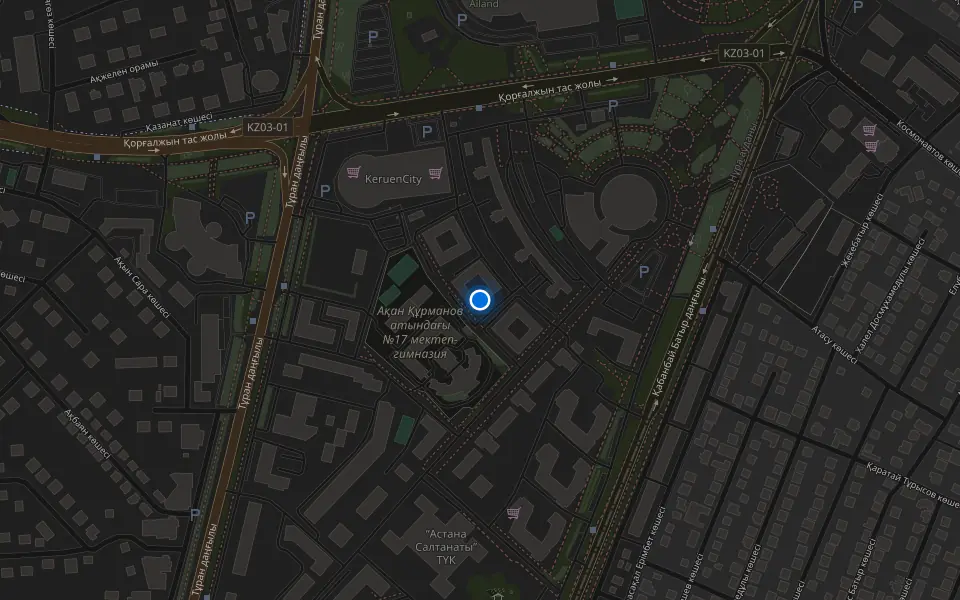
Astana, Kabanbay Batyr Ave., 7/2
Opening hours
Mon–Fri 10:00–19:00Sat–Sun 11:00–18:00
Phone and messengers
+7 727 339-99-12WhatsApp: +7 701 333-47-01
Directions map: iServices Astana© OpenStreetMapFind us on the maps: Google Maps · 2GIS